RFF, hands-on
From an empty tenant to deploying software and talking to the people at the keyboards. New here? Start with the 20-minute quickstart for the fast linear tour, then jump to any deep-dive from the left.
Getting started with RFF
RFF manages your Windows fleet from a browser tab - no VPN, no server to stand up. This guide takes you from zero to a self-healing software policy in about 20 minutes.
We’ll do three things: install an agent, run a one-off job, then build a policy that keeps Google Chrome installed everywhere automatically.
1. Create your account
Sign up at app.getrff.com/signup. Free accounts get up to 100 endpoints - no credit card, no sales call.
2. Install your first agent
Click Devices in the left nav. With no agents yet, you’ll see an empty state with an Install Agent button.
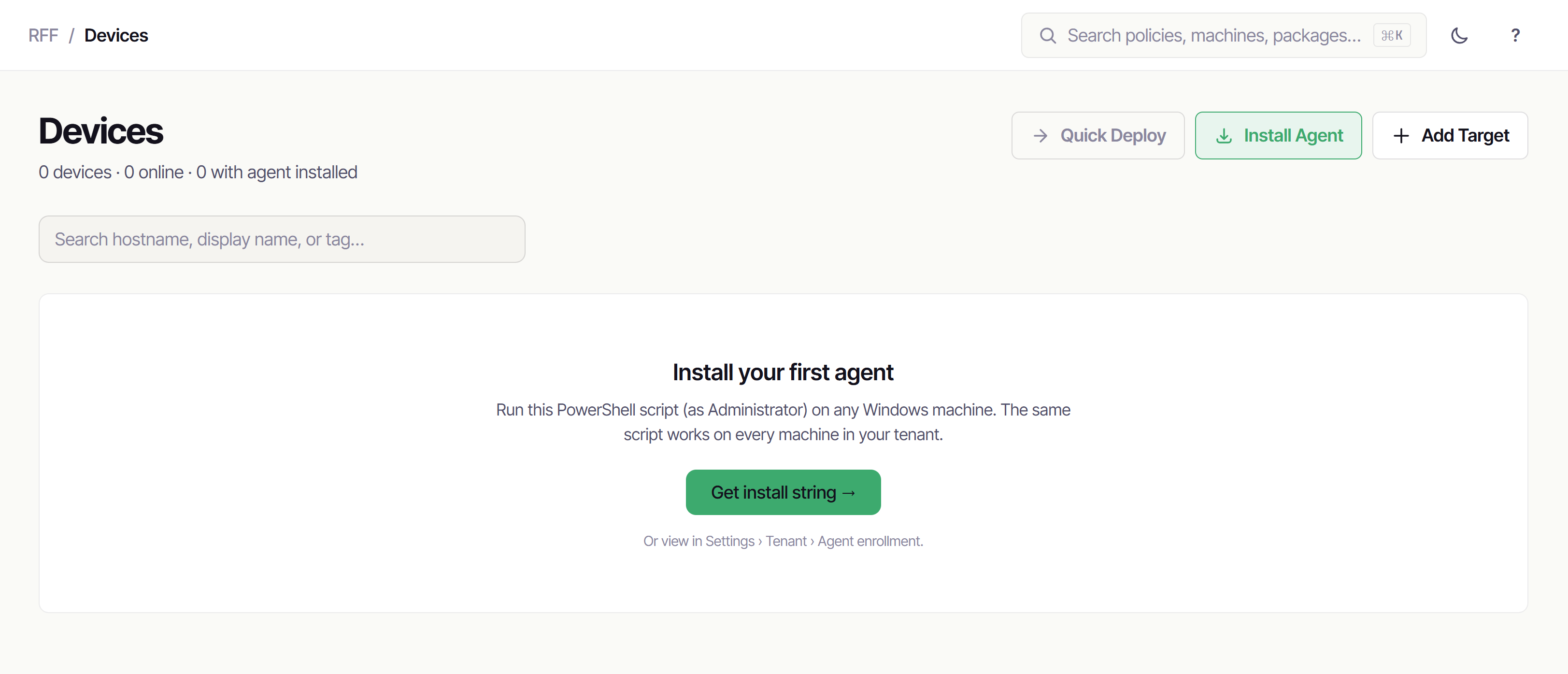
Click it to get a one-time install command:
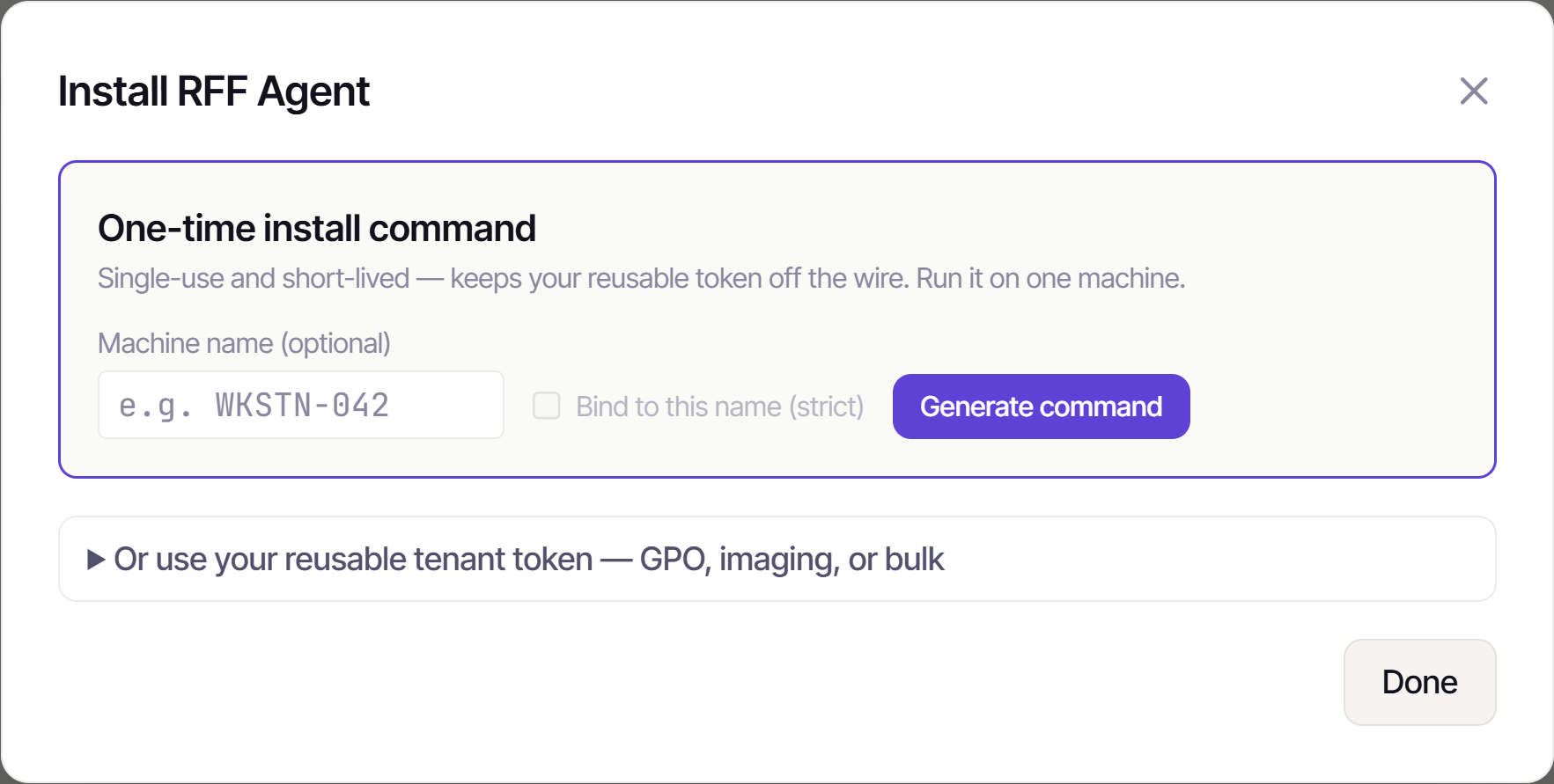
It hands you a single-use, short-lived command:
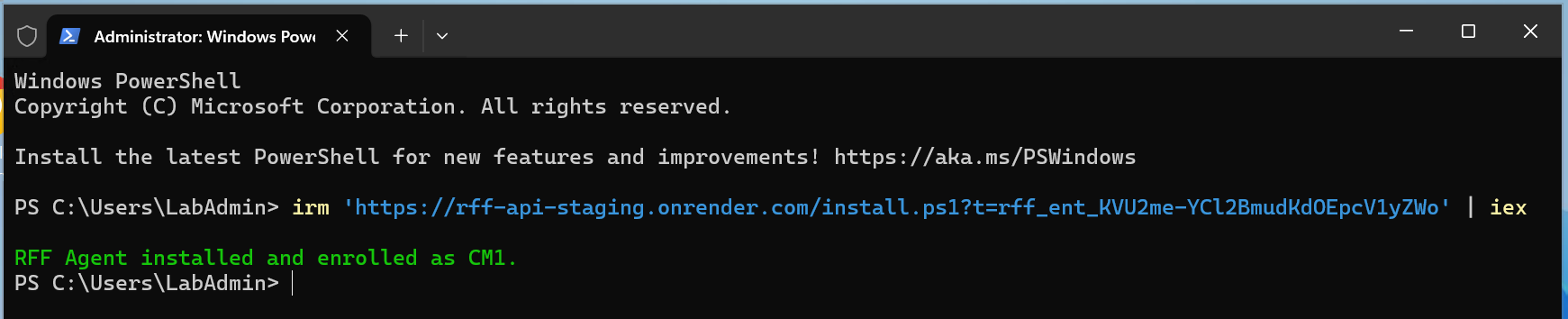
irm 'https://api.getrff.com/install.ps1?t=rff_ent_...' | iexOpen an elevated PowerShell (Run as Administrator) on the target Windows machine and paste it. The script downloads and verifies the signed MSI, installs the RFF agent as a service, and enrolls the machine to your tenant.
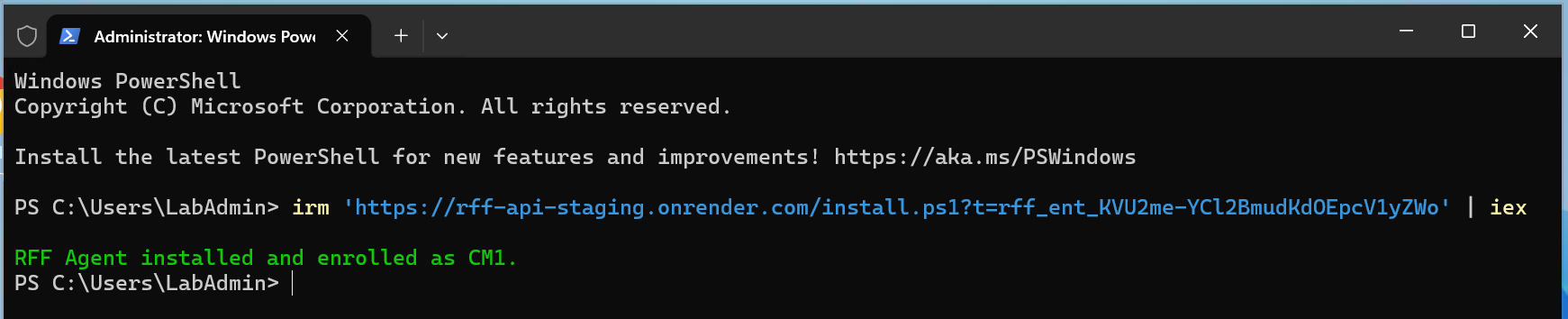
You’ll see it finish with a green confirmation - installed and enrolled, no further steps:
A couple of things worth knowing:
- The token is single-use and short-lived (15-60 minutes depending on how it was minted), so it’s safe to paste in a terminal - once the machine enrolls, the token is spent. If it expires before you use it, just generate a fresh one.
- After enrolling, the agent seals its credential to the machine’s hardware (DPAPI) and blanks the cleartext.
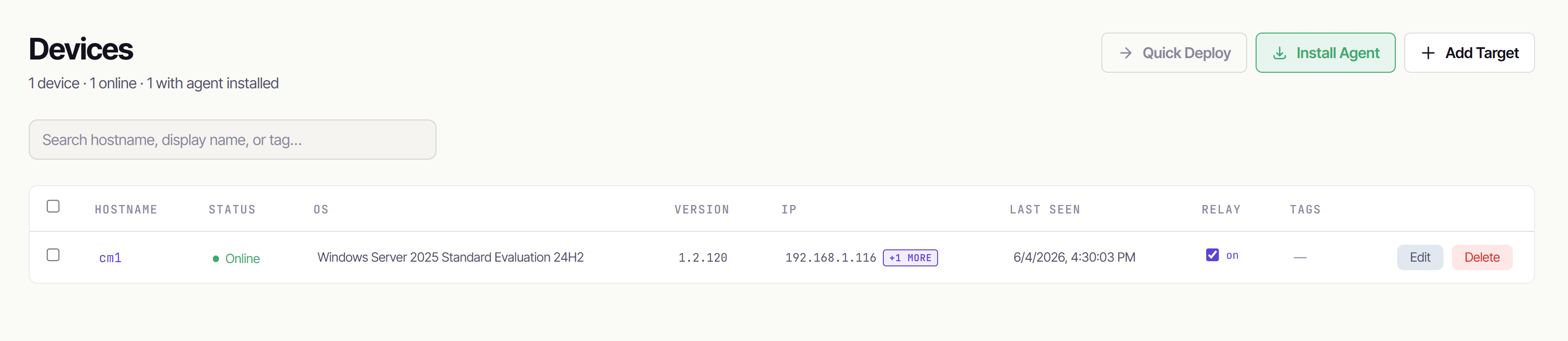
Within about 60 seconds the machine appears in your Devices list, online.
3. Deploy the agent across your fleet (agentless)
Running that one-liner on every machine gets old fast. Once you have one agent online, RFF can push the agent out to the rest of your endpoints over the network - no need to touch each box. To make this easier, set up a credential once, then run an agentless deployment.
3a. Store a deployment credential
Go to Credentials → New Credential. This is an account with local-admin rights on the machines you’re deploying to - RFF uses it to reach each target over its ADMIN$ share.
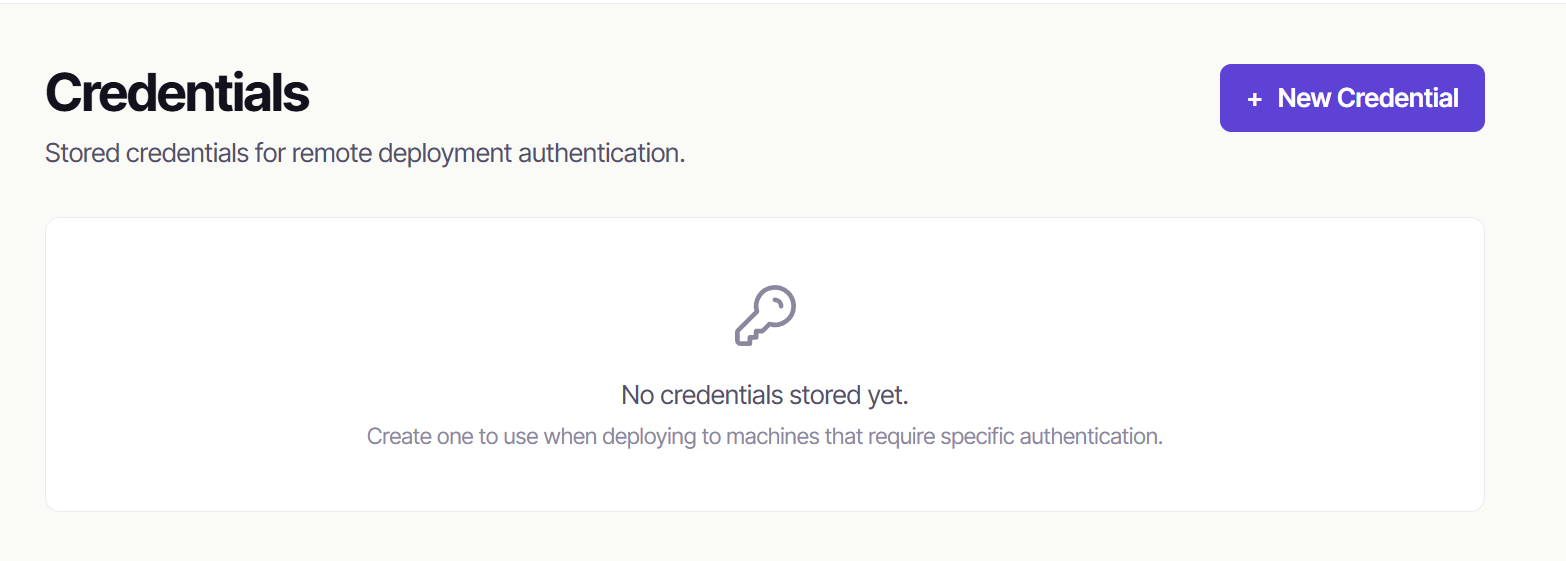
Give it a name, a username (it accepts domain\user, .\user for a local account, COMPUTER\user, or user@domain.com), and the password. Credentials are stored encrypted and used only to authenticate the agent push.
3b. Run the agentless deployment
Go to Jobs → New Job and walk the wizard:
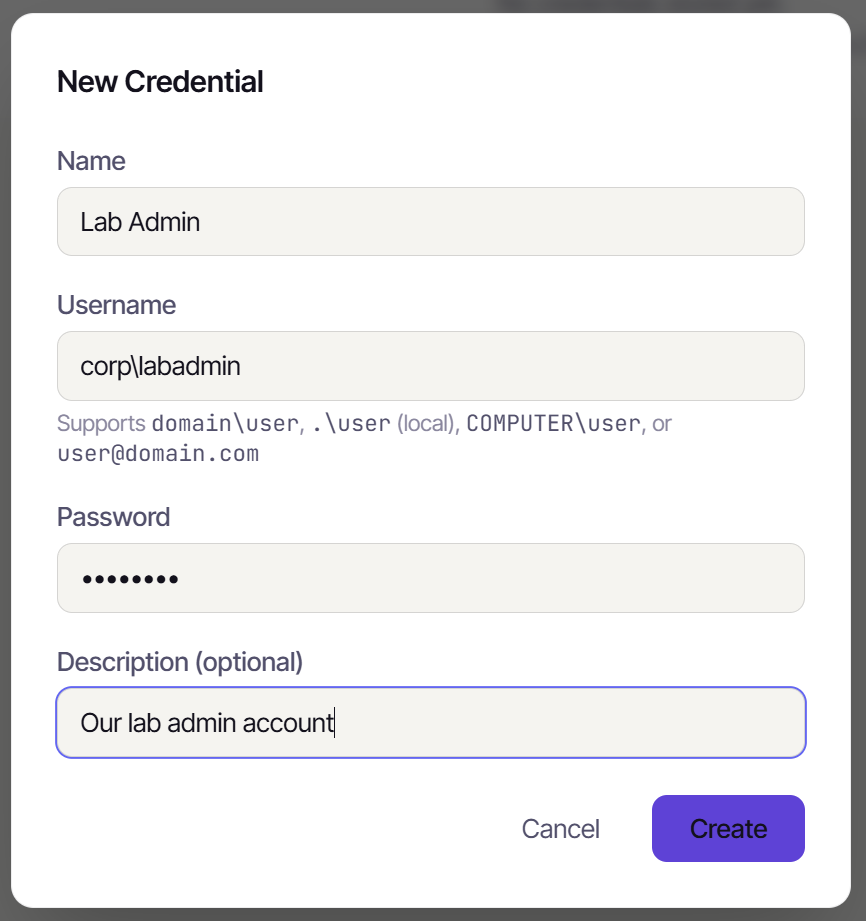
- Steps: choose the Deploy Agent action (under Agentless - no install required). This installs the RFF agent as a Windows service on each target via
ADMIN$. Leave the agent package on the latest version and the API Base URL as-is.
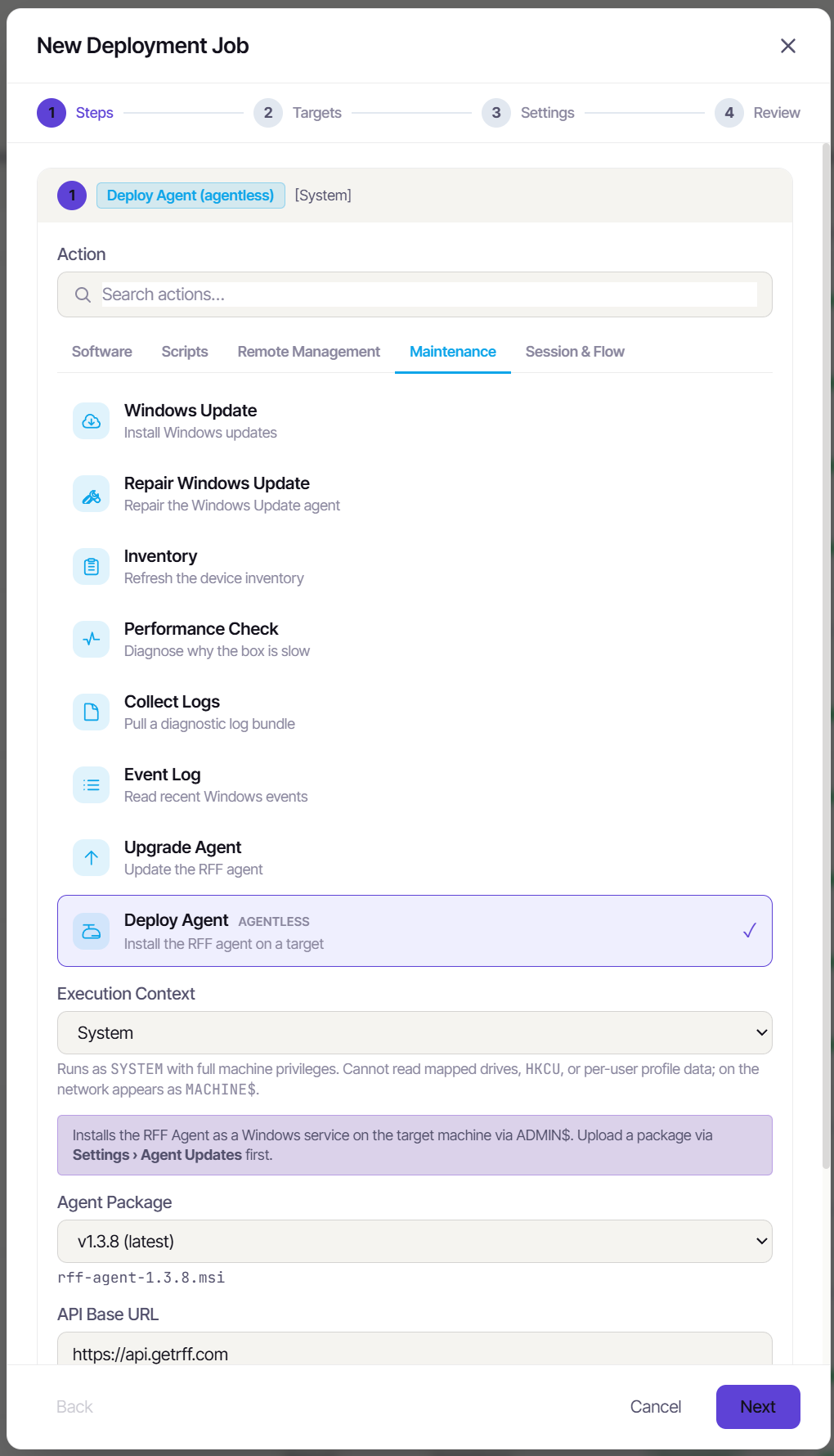
- Targets: type the hostnames you want to deploy to, one per line - or pick a group / saved targets.
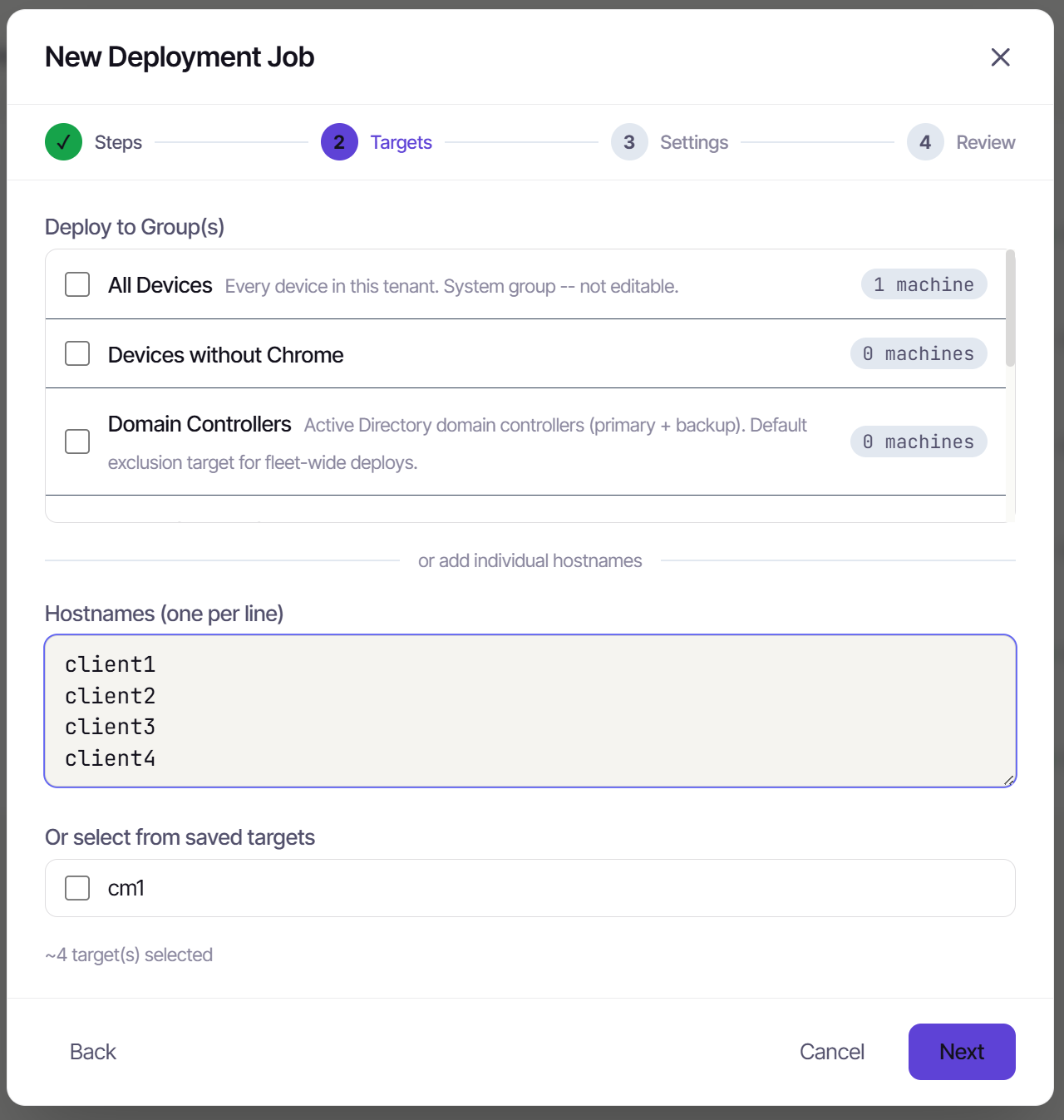
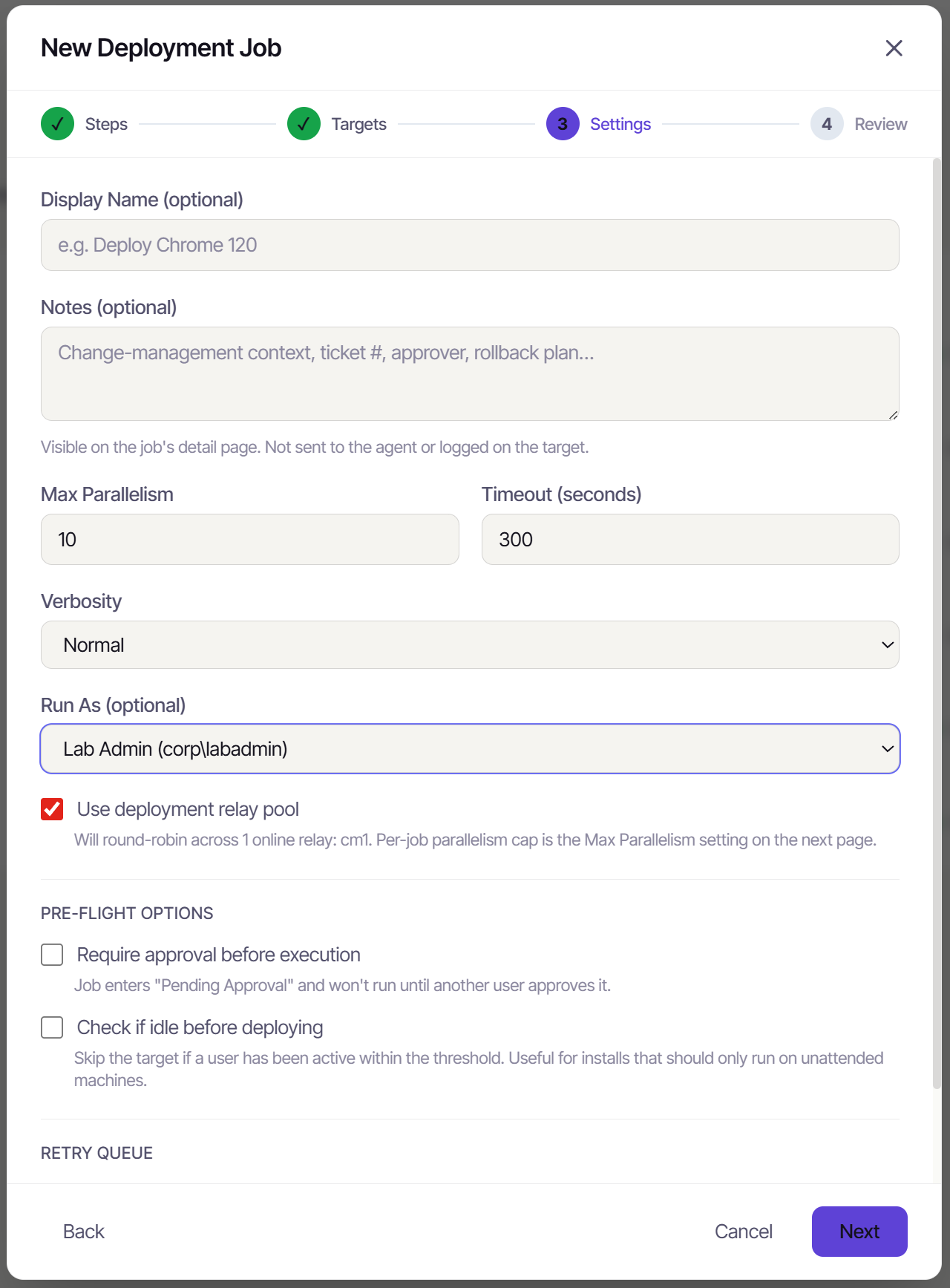
- Settings: under Run As, pick the credential you just created. Leave Use deployment relay pool checked - one of your online agents does the push to each target.
- Review: confirm the targets and the Run As credential, then Create Job.
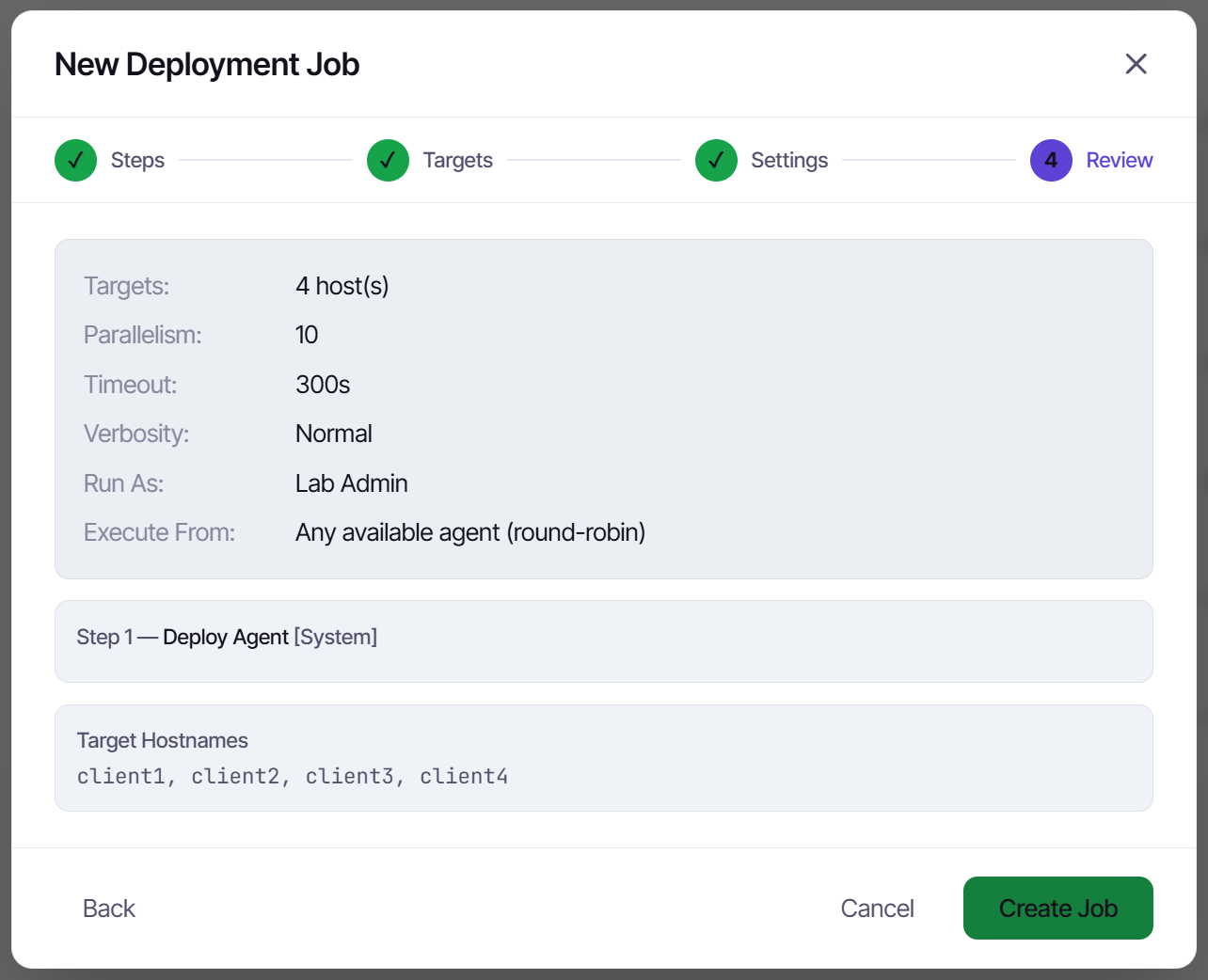
Each machine gets the agent installed and enrolled automatically - no one-liner, no remote-desktop session. From here on, those endpoints behave exactly like the first one: jobs, policies, patching, the lot.
4. Run a one-off job
Let’s run a quick PowerShell script to confirm everything works. Go to Jobs → New Job. The job wizard has four steps: Steps → Targets → Settings → Review.
Step 1 - Steps. Pick an Action. RFF has a lot of them, grouped into families across the top - Software, Scripts, Remote Management, Maintenance, Session & Flow. Most run on the installed agent; the agentless ones (Deploy Agent, Remote Run) carry an agentless badge:
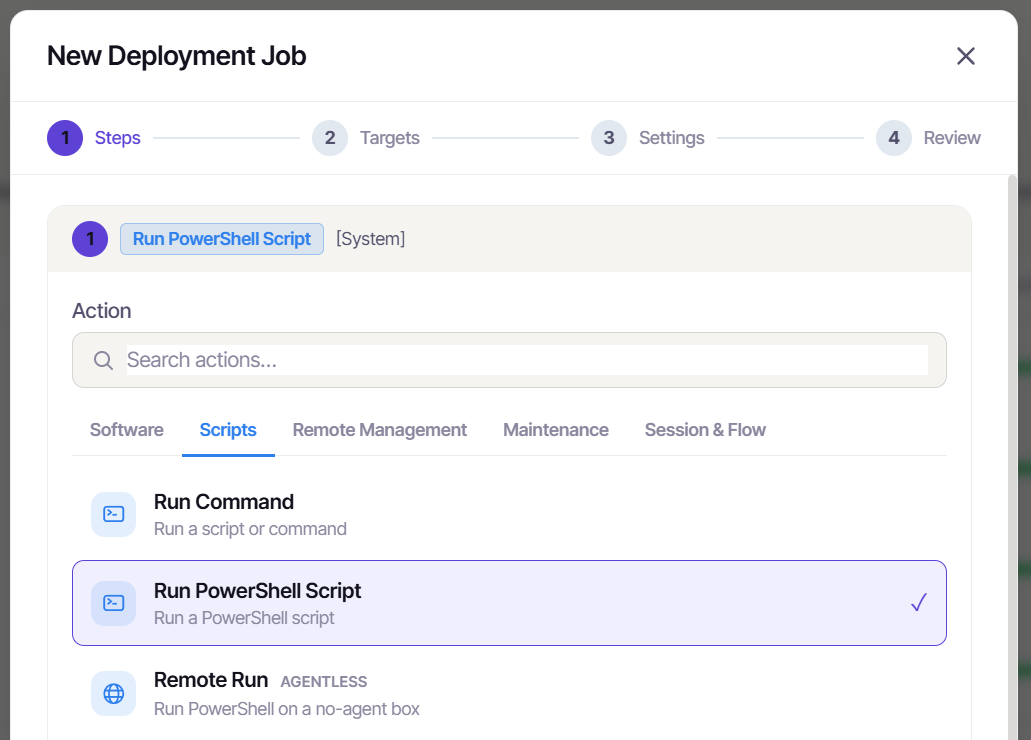
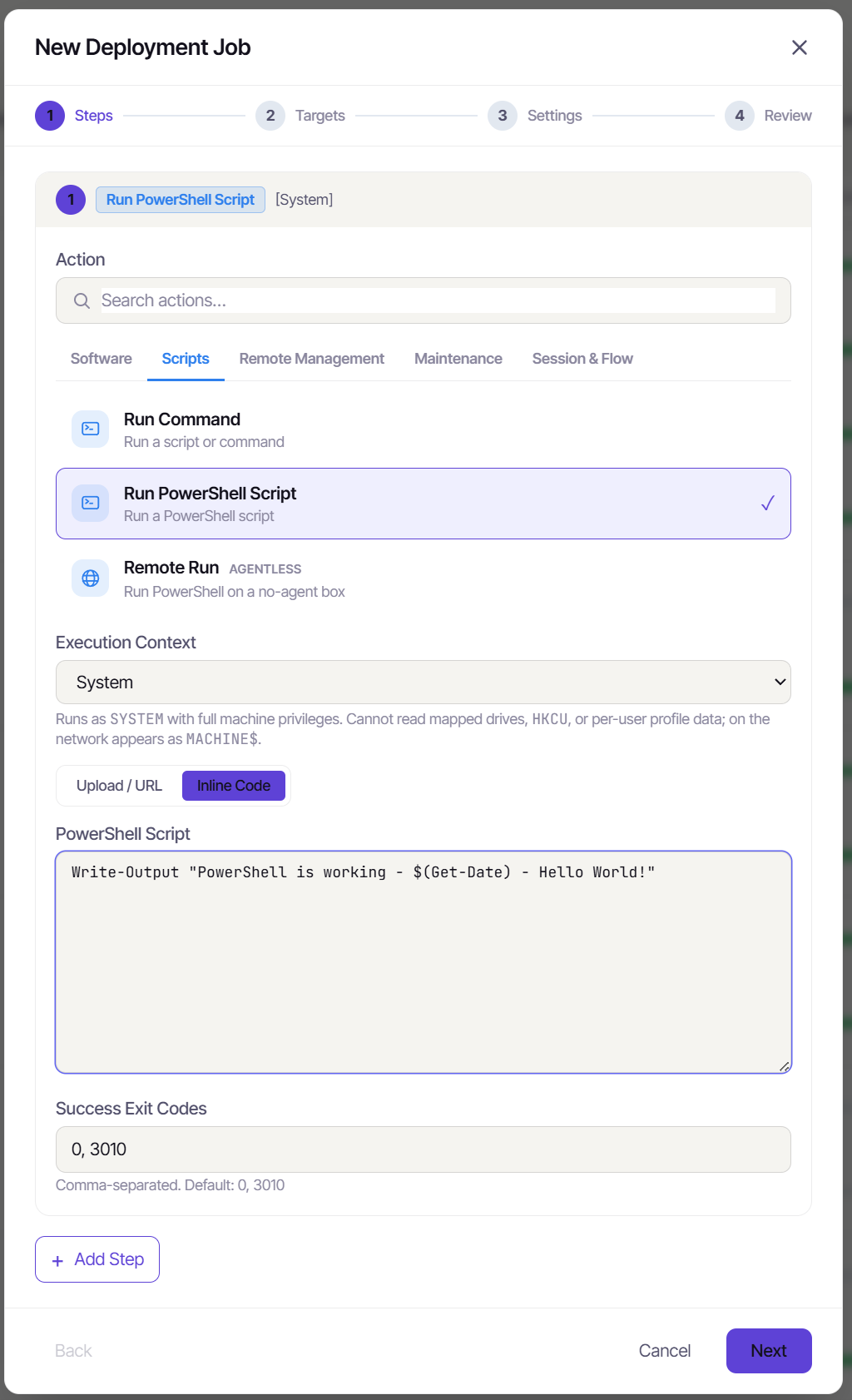
Choose Run PowerShell Script. Leave Execution Context on System (the default - full machine privileges). Switch to Inline Code and drop in a one-liner like Write-Output "PowerShell is working - $(Get-Date)". You can chain more actions with + Add Step, but one is enough here. Click Next.
Step 2 - Targets. Tick the checkbox next to your machine. Click Next.
Step 3 - Settings. Here you set the display name, notes, parallelism (how many machines run at once), timeout, log verbosity, run-as, preflight checks, and the retry queue. The defaults are fine. Click Next.
Step 4 - Review. Confirm the summary and click Create Job.
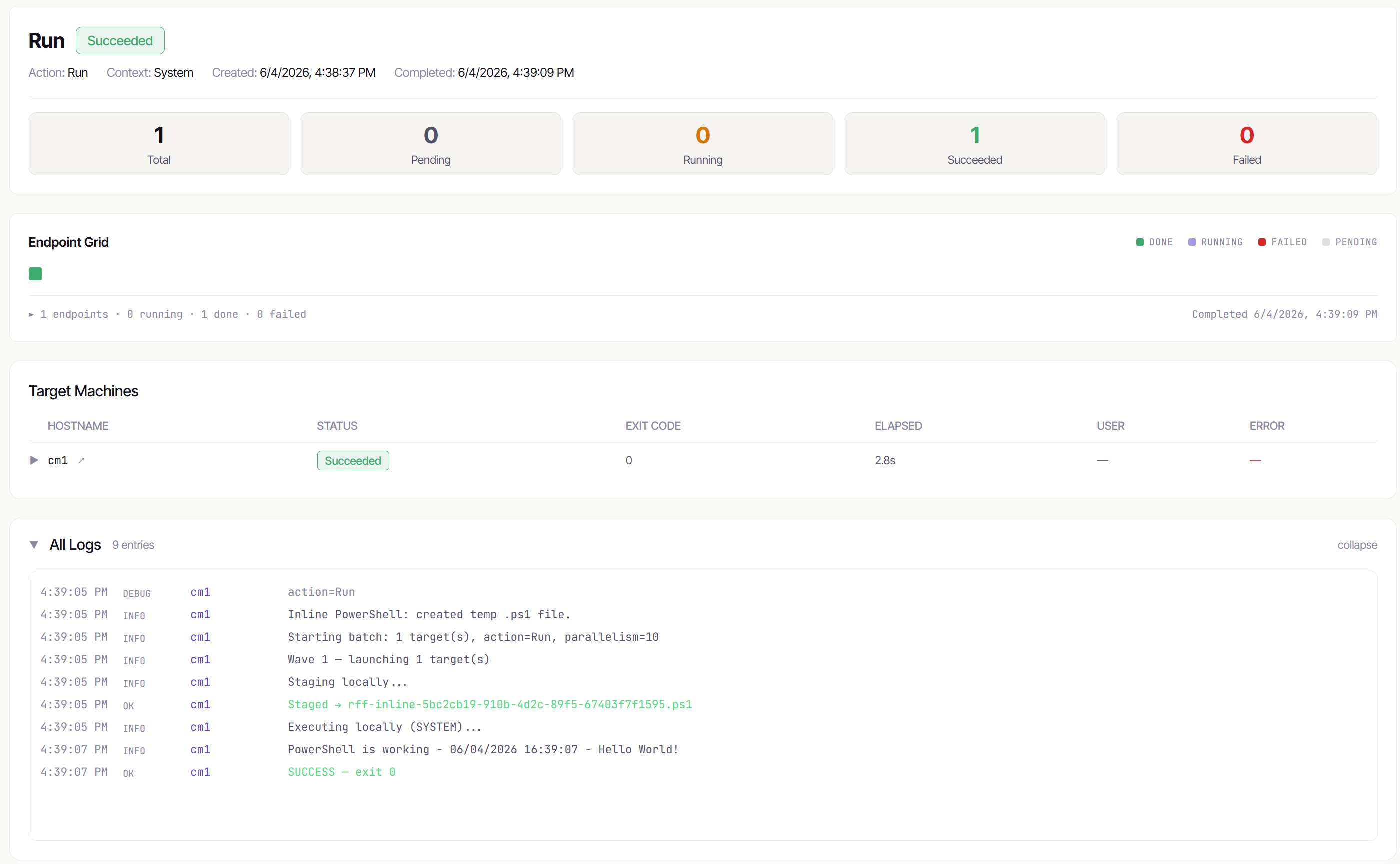
Watch the live output stream in on the job page - each target gets its own log with the exit code.
5. Deploy software the smart way - a self-healing policy
You could push software with a one-off job. But the better pattern is a policy: a rule that RFF re-checks on a schedule and only acts on machines that need it. Let’s keep Google Chrome installed across the fleet automatically.
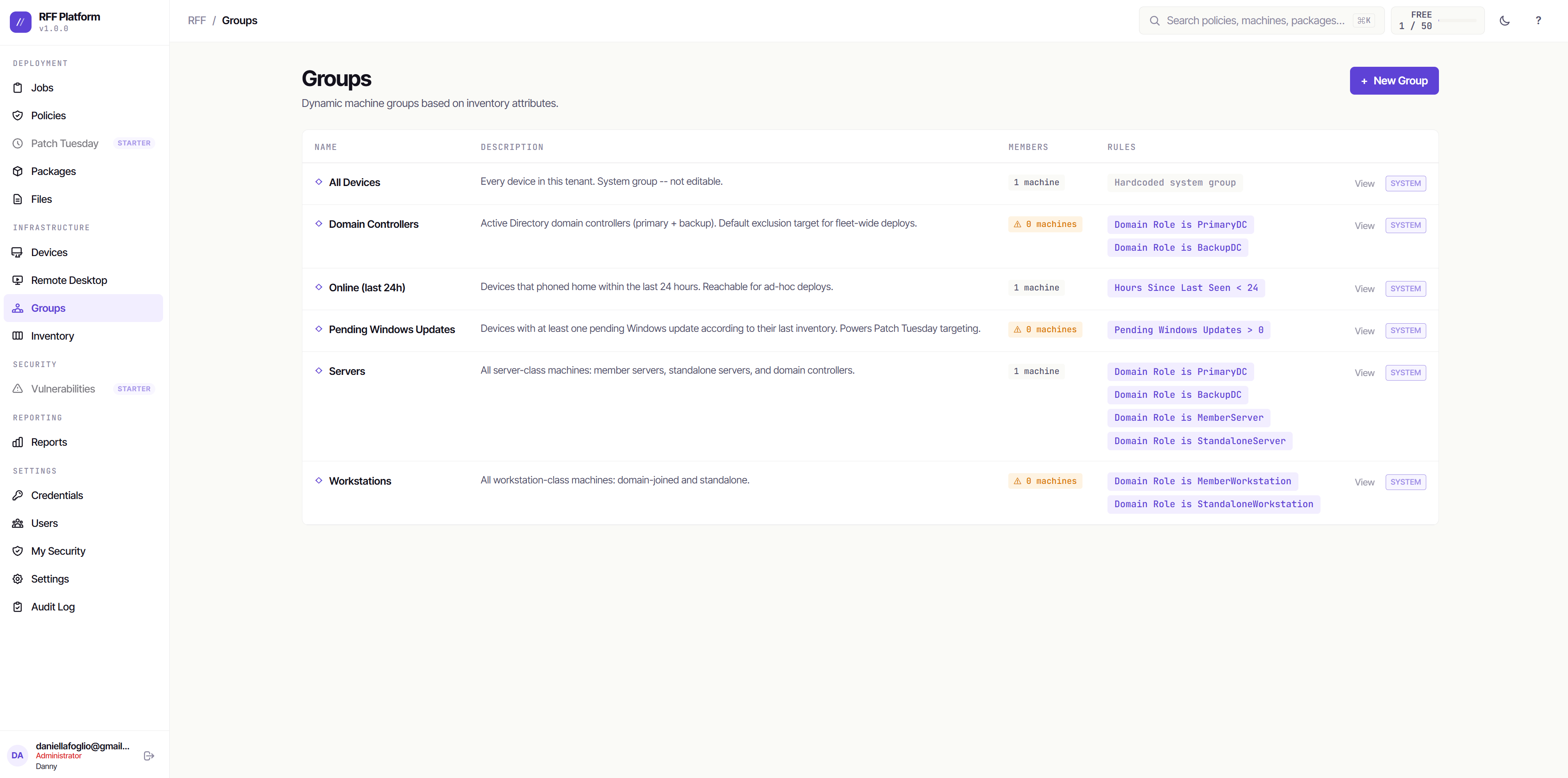
5a. Create a dynamic group of machines that need Chrome
Go to Groups → New Group. Choose Smart (rules) and name it Devices without Chrome.
Under Rules, add: Installed Software → name does not contain → Chrome. Save.
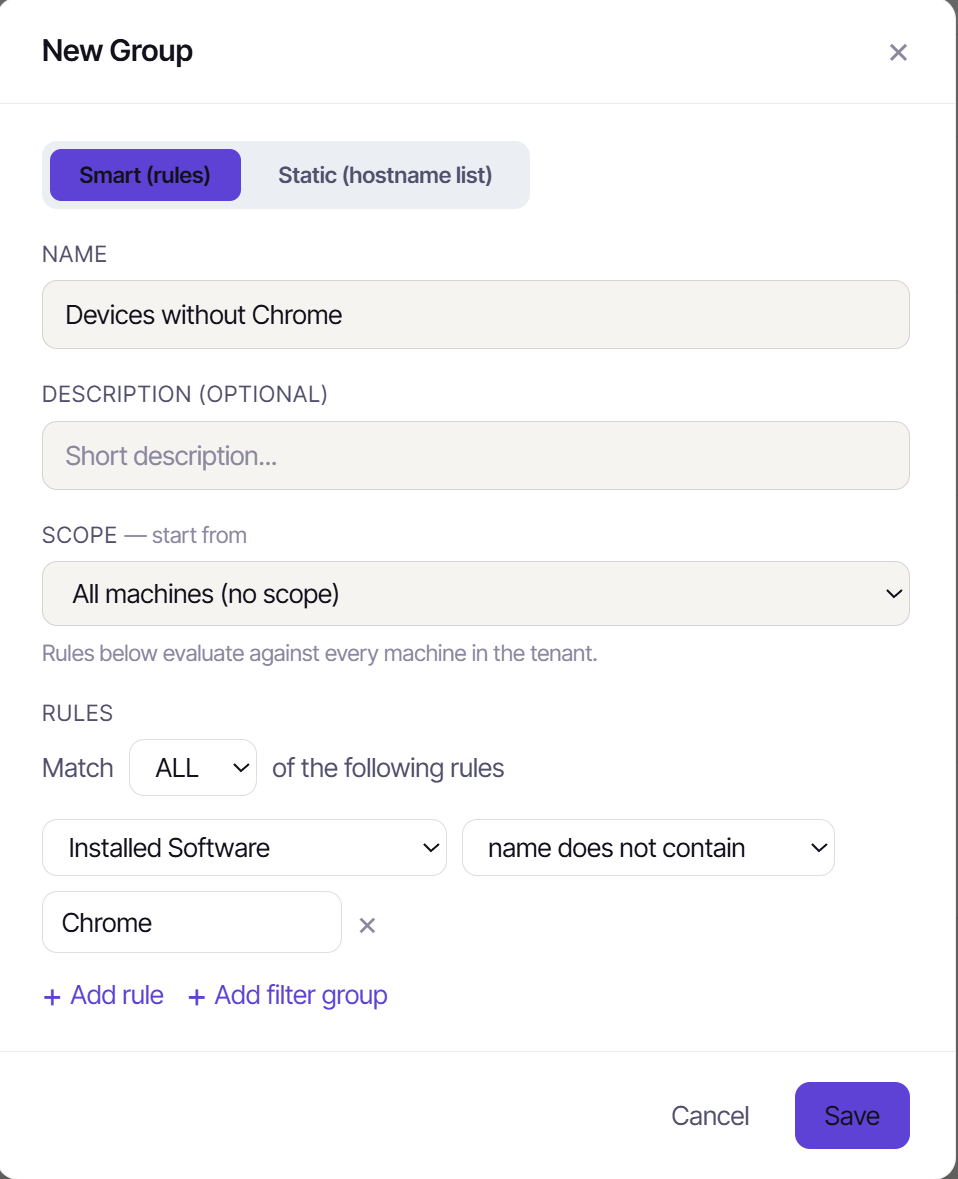
This is a dynamic group - membership is recalculated every time it’s evaluated. A machine that gets Chrome installed automatically drops out of the group; a freshly imaged machine without Chrome automatically joins.
5b. Create a policy that installs Chrome where it’s missing
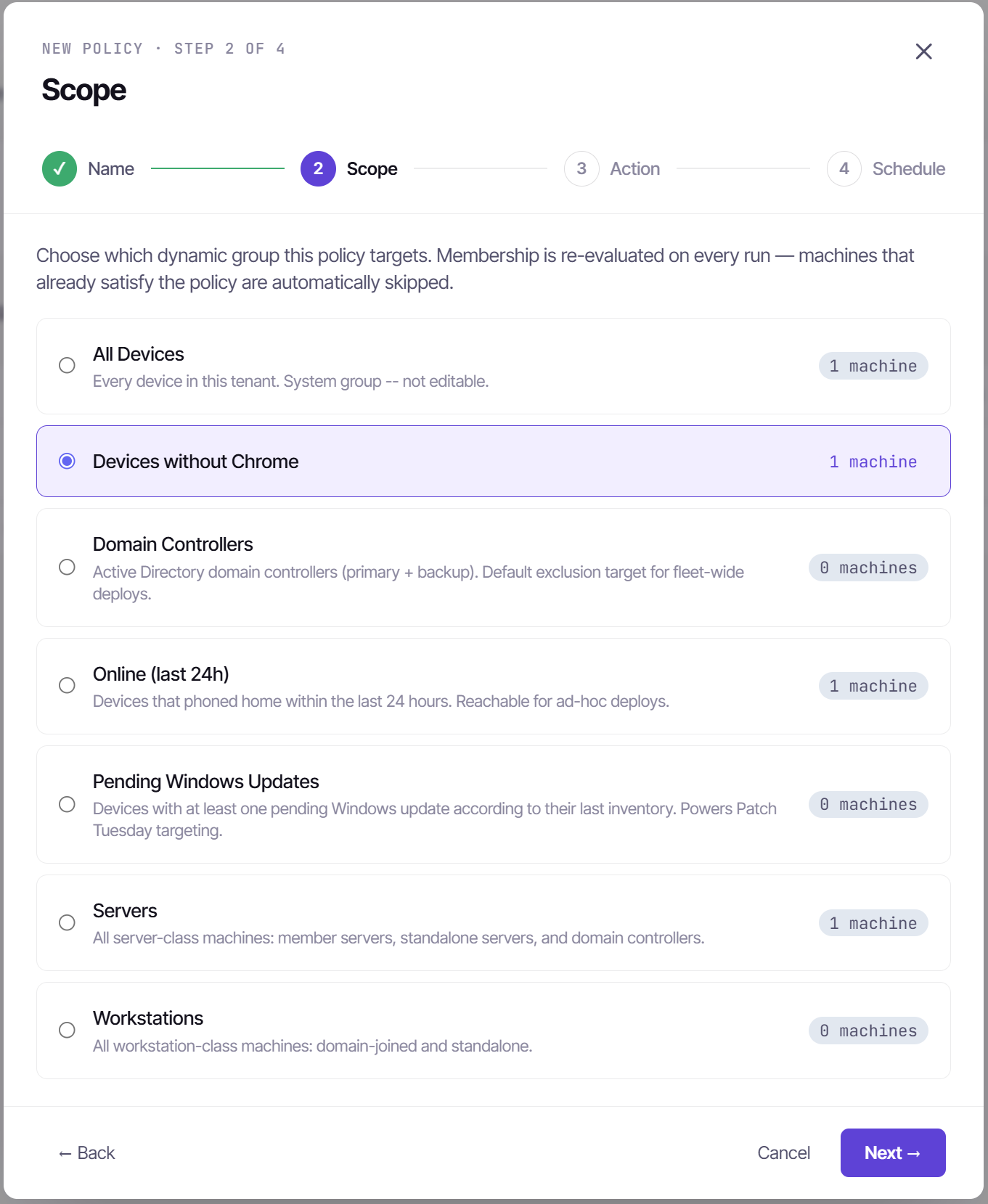
Go to Policies → New Policy. The policy wizard has four steps: Name → Scope → Action → Schedule.
- Name:
Install Chrome if missing - Scope: pick the Devices without Chrome group you just made. Every run re-evaluates membership, so machines that already have Chrome are skipped.
-
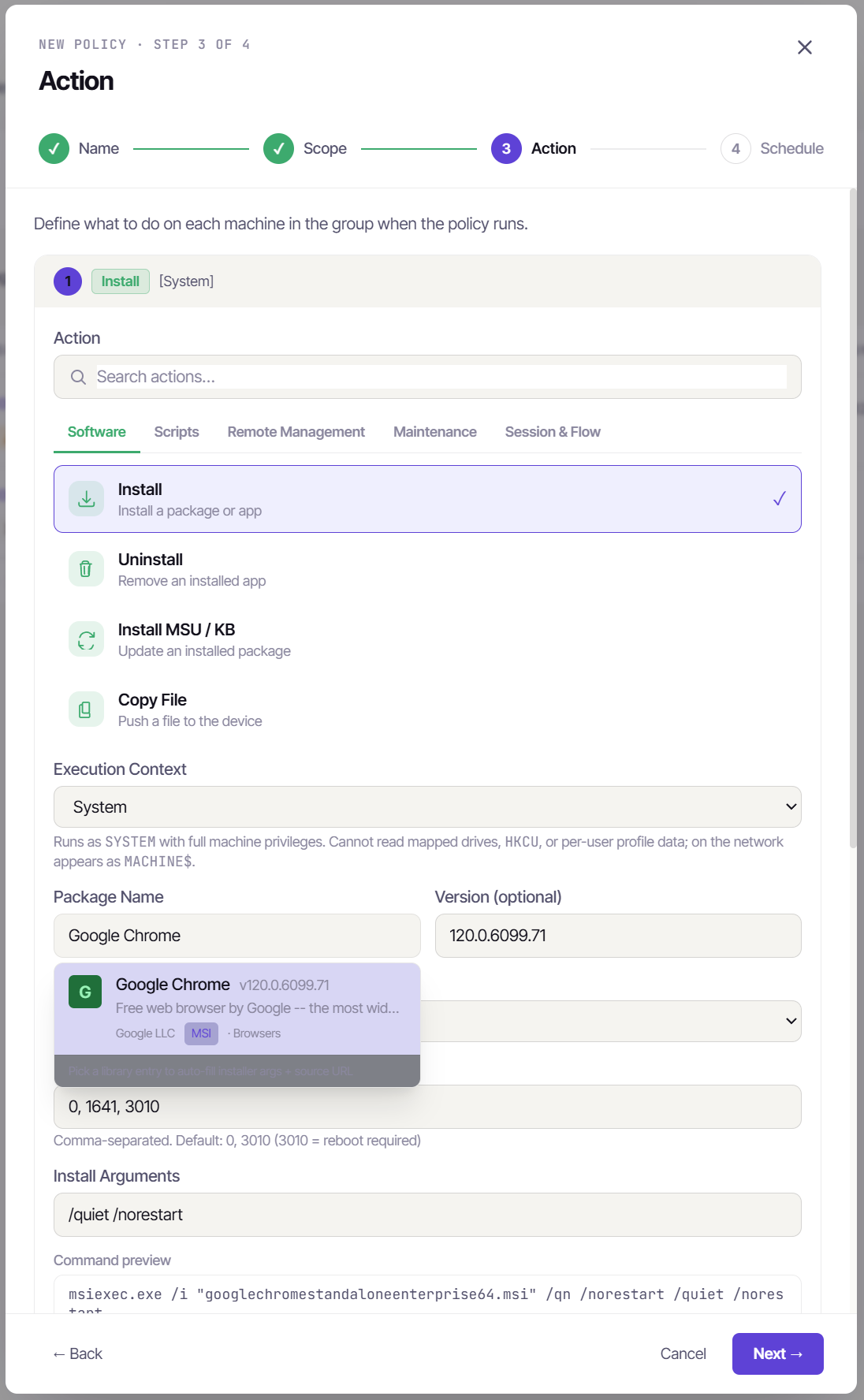
Action: choose Install, then start typing “Chrome” and pick Google Chrome from the dropdown list.
This step matters: selecting the entry from the list is what fills in the download source, installer type (MSI), and silent-install arguments. If you just type the name without picking the suggestion, RFF will stop you - an Install needs a real package source, not just a name.
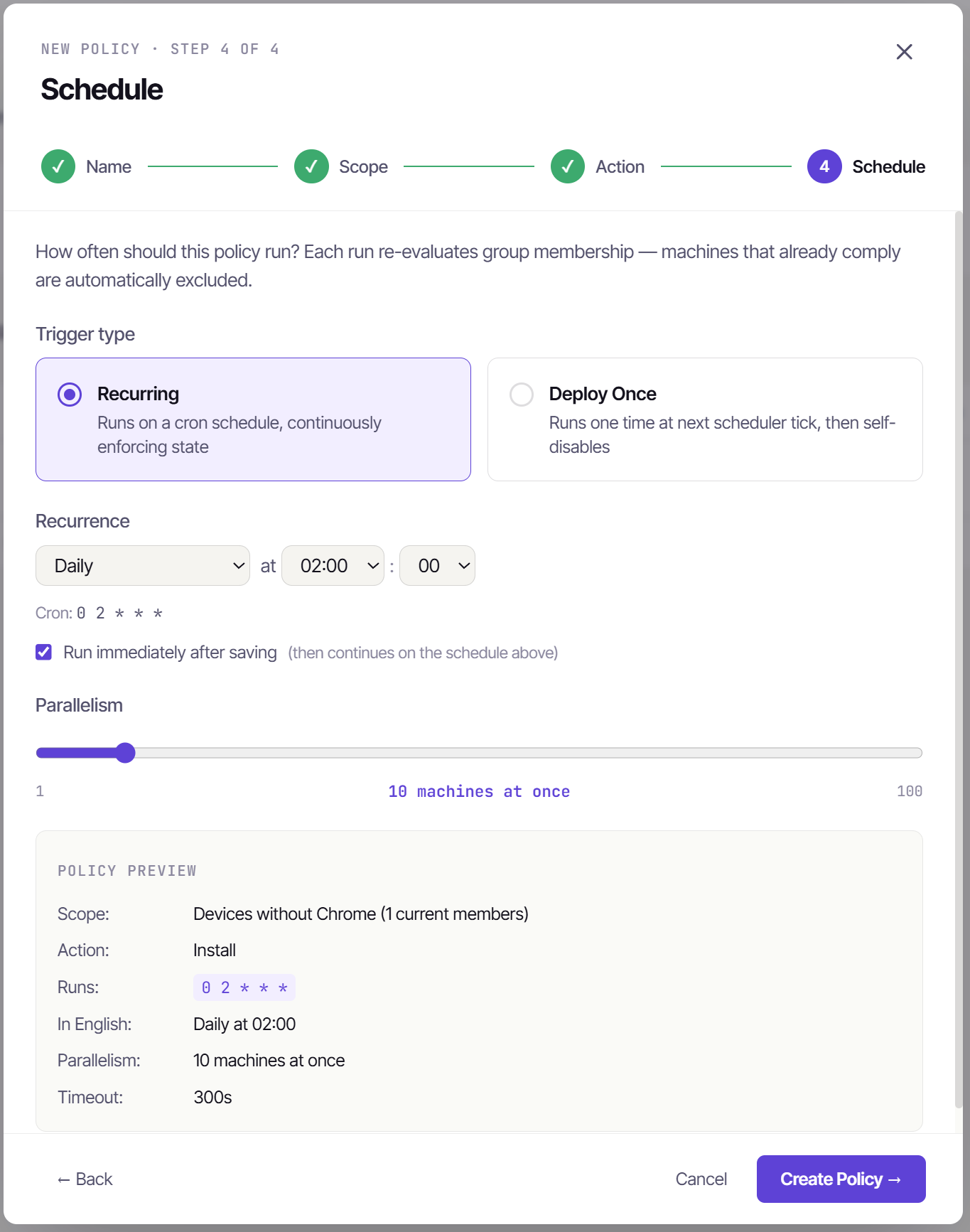
- Schedule: choose Recurring, set it to Daily at 02:00, and tick Run immediately after saving so it fires once now instead of waiting for tonight. Check the policy preview, then click Create Policy.
5c. Watch it run
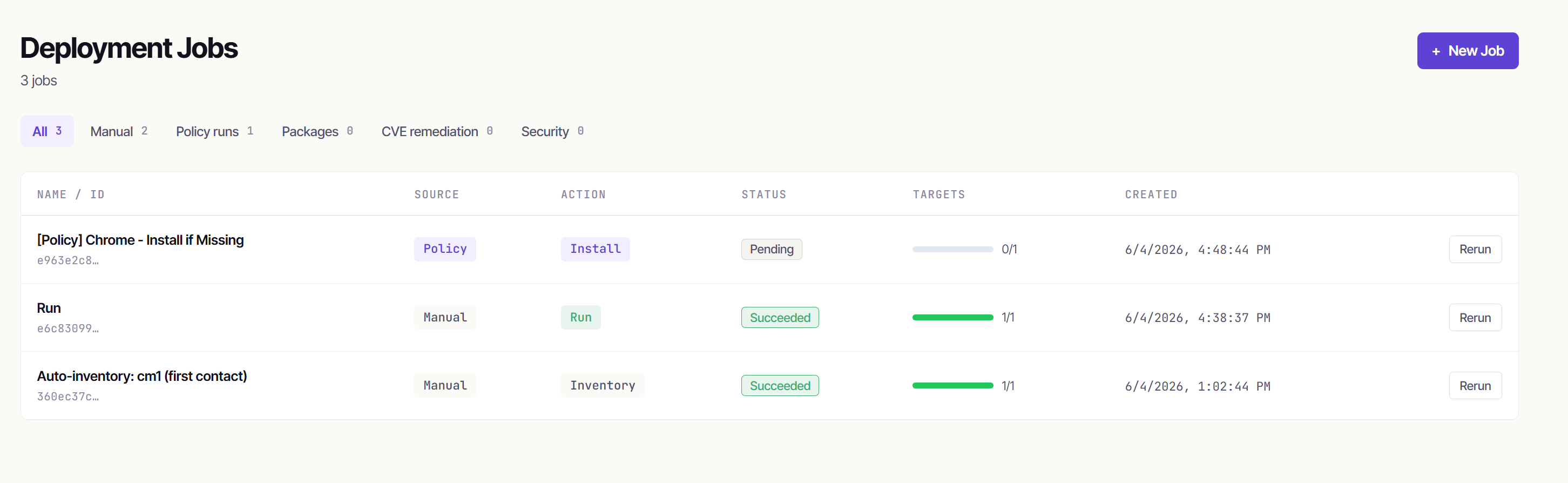
Head to the Jobs page. You’ll see the policy’s run land. Machines without Chrome get the install; anything that already has it is skipped. On every nightly run the group re-evaluates, so the fleet self-heals - new machines get caught, compliant ones are left alone.
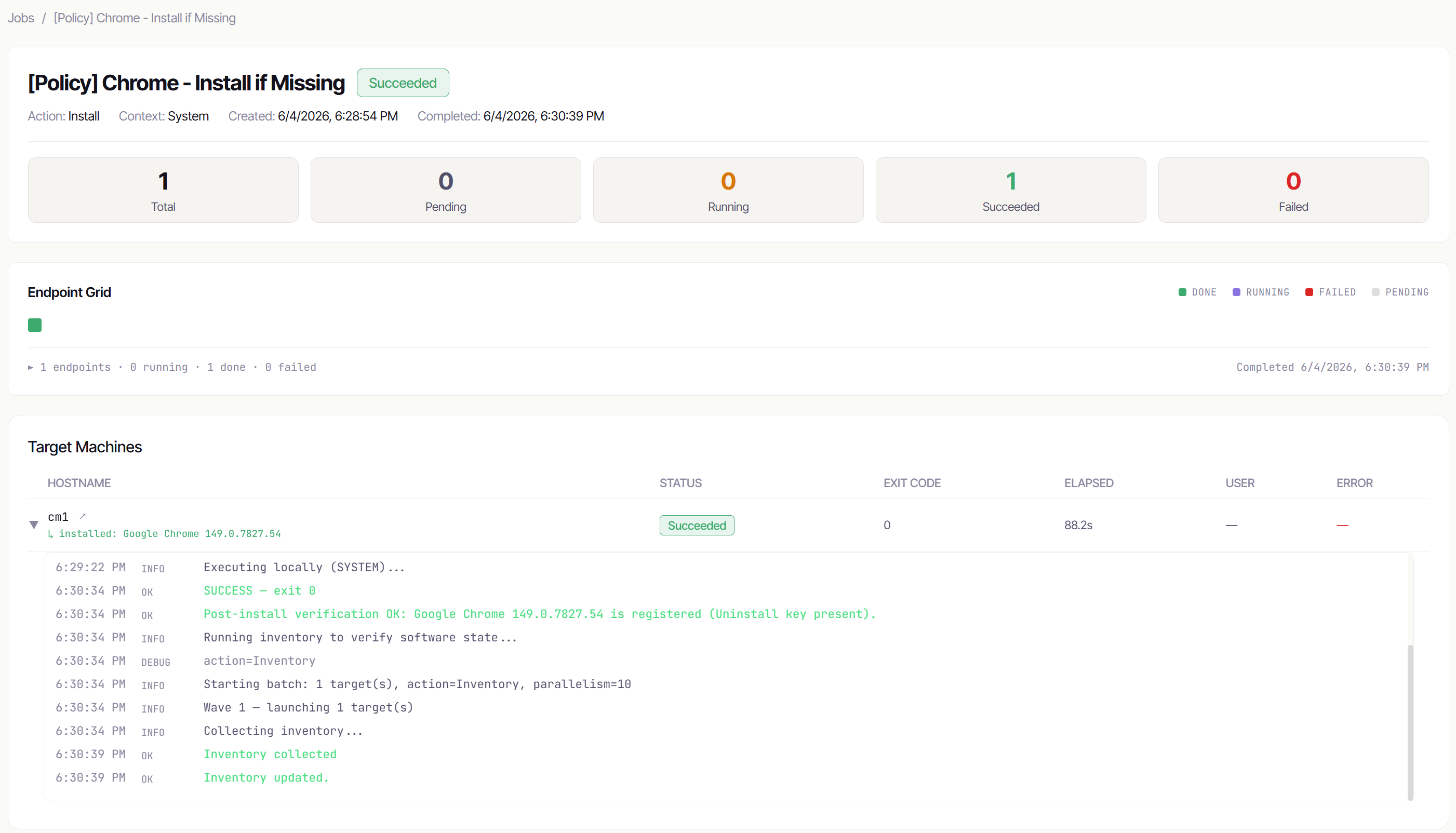
Open the run to see each machine’s result. RFF installs Chrome, then runs a post-install check to confirm it actually registered - so a green “Succeeded” means the software is verified on the box, not just that the installer exited cleanly.
Tip: The Packages page (under Deployment) is a curated library of common Windows apps you can deploy directly with one click - the same catalog the Install action draws from.
6. What else you can do
Once your fleet is enrolled, the rest of RFF opens up:
- Patch Tuesday automation - under Patch Tuesday, turn on automated Windows + app patching on a delay you choose. Set it and forget it.
- Vulnerabilities - NVD + CISA KEV feeds scanned daily against your fleet’s inventory. The KEV flag shows what attackers are actively exploiting; click any CVE to see affected machines.
- Remote Desktop - click an online device and take its screen in your browser tab. Works even on the Windows login screen, no VPN, outbound-only. Free covers 2 hours a month.
- Inventory - search installed software across the whole fleet and bulk-uninstall anything in one move.
- Users - invite your team with three roles: Admin (everything), Operator (run jobs, manage devices), Viewer (read-only).
RFF is built for Windows-first teams that want hosted fleet management without the enterprise price tag or the sales call. Start free for 100 endpoints →
Enroll your first agent
Everything in RFF runs on devices, so the first job is getting an agent onto one. Budget about a minute per machine.
What you need
- A Windows machine you can open an elevated PowerShell on (the installer is an MSI; msiexec needs admin).
- Outbound HTTPS (443) from that machine. That’s the whole network requirement - no inbound holes, no VPN, no SMB to the cloud.
Step 1: grab the install command
Sign in and go to Devices → Install Agent. (New tenant? The quickstart above walks this same flow with a first job and a policy on the end - this guide goes deeper on the enrollment piece itself.)
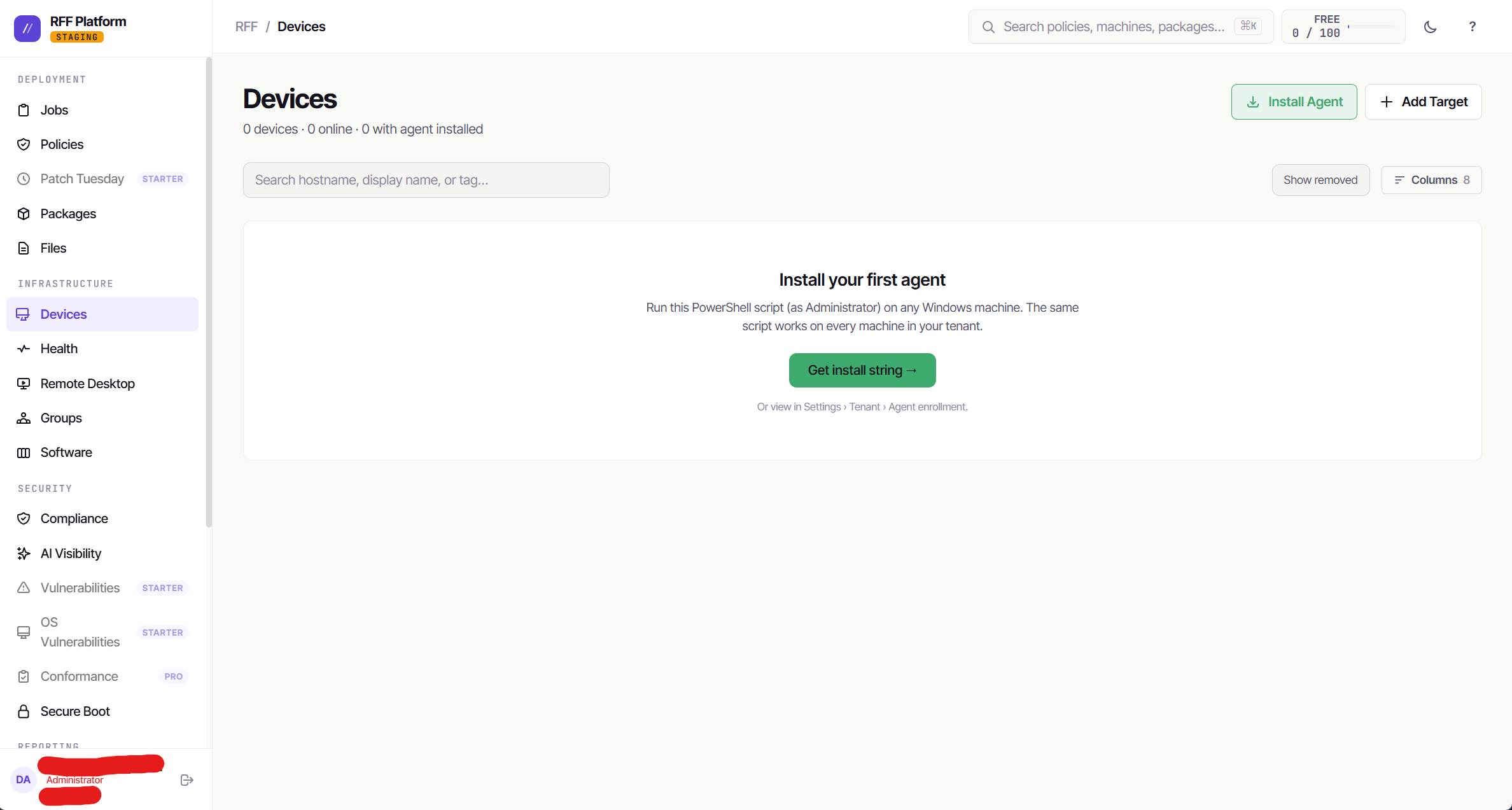
The modal mints you a one-time command:
irm 'https://api.getrff.com/install.ps1?t=<token>' | iexThe token is single-use and short-lived (15-60 minutes depending on how it’s minted), which is what makes this safe to paste into a terminal or send to a colleague - once a machine enrolls with it, it’s spent. You can optionally name the token for a specific machine, which binds enrollment strictly to that hostname. The script it fetches downloads the signed MSI, verifies the signature, installs the agent as a service, and enrolls - after which the agent seals its credential to the machine with DPAPI and blanks the cleartext.
There’s also a tenant-wide install script on the Settings page (same MSI, your long-lived enrollment token as an msiexec property, verbose log to %TEMP%\rff-install.log) for imaging pipelines and GPO startup scripts where minting per-machine tokens doesn’t fit.
Step 2: run it on the machine
Open PowerShell as Administrator on the target, paste, enter. The download is quick (the script suppresses PowerShell’s progress bar, which is what usually makes big downloads crawl in PS 5.1) and the install itself takes a couple of seconds.
Success looks like: RFF Agent installed and enrolled as <HOSTNAME>.
If msiexec exits non-zero, the message points you at the install log - read the tail of %TEMP%\rff-install.log and the failing action is usually within the last screen of text.
On a Mac or a Linux box instead
In Install Agent, pick macOS or Linux before you mint the token. You get the same single-use token in a Terminal one-liner instead of a PowerShell one:
- macOS:
curl -fsSL '<your RFF URL>/install.sh?t=<token>' | sudo bash. It downloads the notarized agent, writes its config, and starts it as a LaunchDaemon, which is why it needs sudo. - Linux: the console gives you a slightly longer line that uses whichever of
curlorwgetthe machine has (stock Ubuntu desktop shipswgetonly, minimal Rocky/RHEL shipscurlonly), and runs throughsudoonly when you aren’t already root. Copy it as shown rather than retyping the short form.
For many machines at once, the same dialog shows a script for your MDM (Jamf, Intune, Kandji, Mosyle) or config tool (Ansible, Puppet, Salt). It uses your reusable tenant token and no sudo, because those tools already run as root.
Step 3: watch it appear
Back in Devices, the machine shows up as soon as it makes its first poll. Free-tier agents poll every 60 seconds, paid tiers every 20 - so “installed” to “visible and ready for jobs” is under a minute either way.
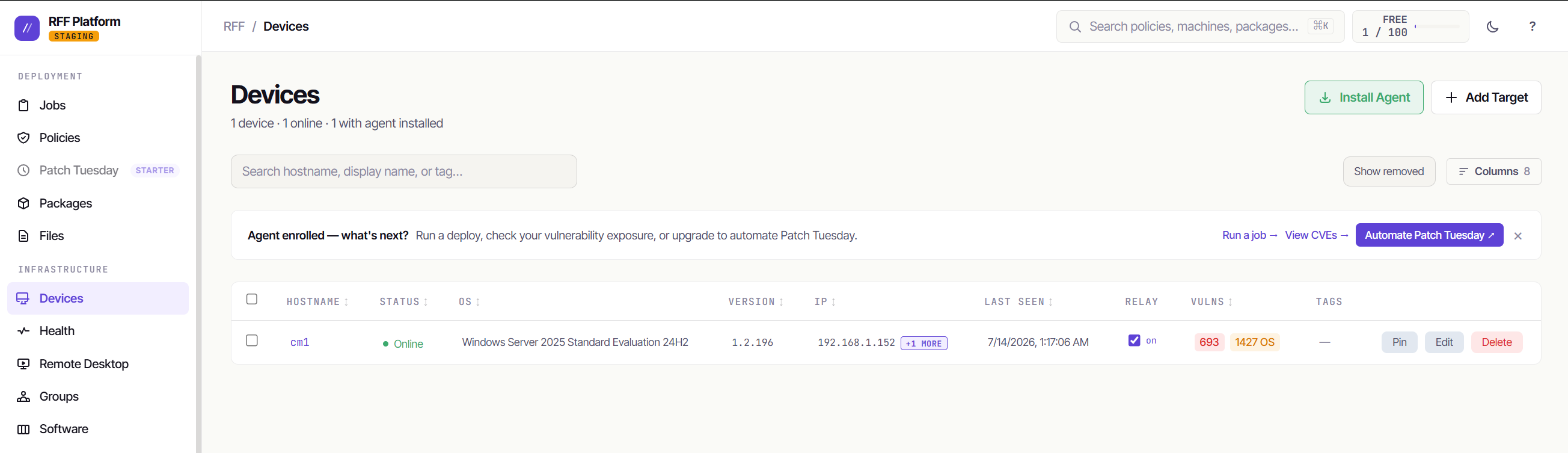
You don’t have to ask for the first inventory - RFF queues it automatically on first contact, so installed software, OS state, and hardware fill in the device detail page within the first poll cycle or two.
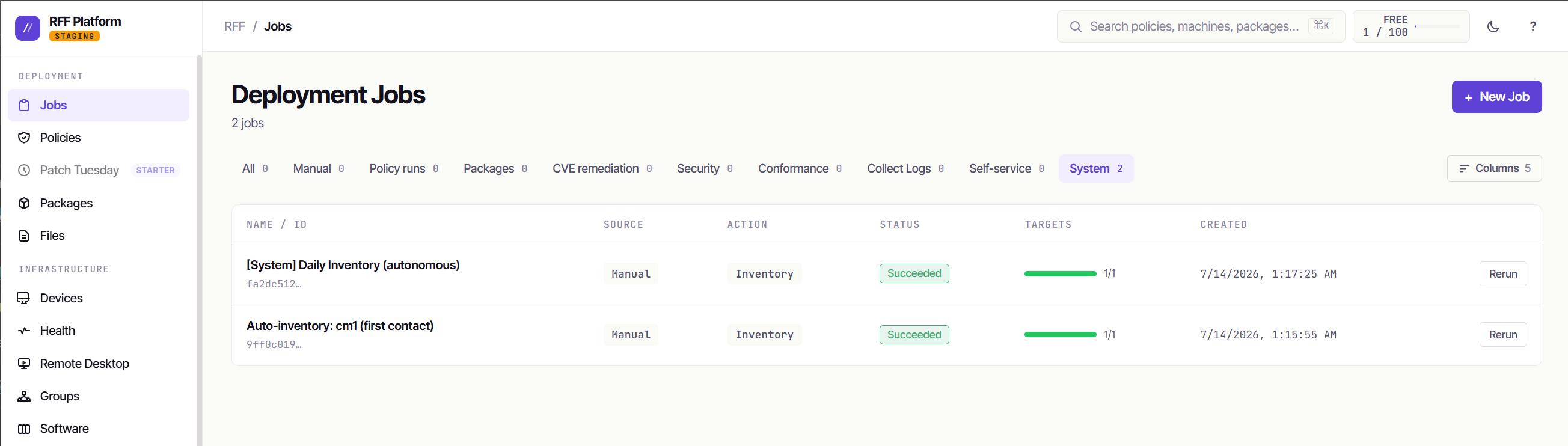
Re-running an install on the same machine is safe: enrollment is idempotent per hostname and just rotates that agent’s key (mint a fresh one-time token if the old one was spent).
Step 4: your first agent is already a relay
The first agent enrolled in a tenant is auto-promoted to deployment relay - no toggle to find. A relay can deploy to machines that don’t have an agent yet: it reaches them over your LAN with admin credentials you store in RFF (Settings → Credentials), so that single enrolled box can bootstrap a whole subnet via the Deploy Agent action.
That’s the pattern for rolling out a site: hand-install one machine, deploy the rest from your chair. Agents you enroll after the first aren’t auto-promoted - you decide which boxes carry relay duty with the Relay toggle on the Devices page.
Housekeeping
- The tenant-wide enrollment token (the Settings install card) is long-lived - treat it like a password, and rotate it in Settings if it ever leaks. This only concerns you if you use that script; the Devices-page one-time tokens are already spent the moment a machine enrolls. Either way, existing agents keep their own per-agent keys and are unaffected by a rotation.
- Agent updates depend on your plan: Free agents always auto-update (you’re never running an old agent, and there’s no toggle). Starter and above opt in - auto-update is off by default so you choose what version to move to and when (Settings → auto-update, or push updates deliberately). In no case is there a “go re-run the installer” step - updates flow through the agent’s own updater.
Next: your first deployment job.
Your first deployment job
A job in RFF is one or more steps run against one or more targets. The wizard walks four screens - Steps, Targets, Settings, Review - and most deploys only need you to touch the first two.
Step 1: Steps - what to run
Click New Job on the Jobs page. The first screen is the step builder.

Pick an action. The everyday ones: Install and Uninstall (MSI/EXE/winget), Run and Run PowerShell (a command line or an inline script), Windows Update, Reboot, Copy File, Notify User, Inventory. There are more (kill process, check idle, collect logs, deploy agent to agentless machines) but those five cover most days.
For an Install, start typing the app name - the package field autocompletes against the software library. Picking a library entry fills in the download source, installer type, silent arguments, and success exit codes for you. You can also ignore the library entirely: drop your own MSI/EXE onto the step and set the arguments yourself.
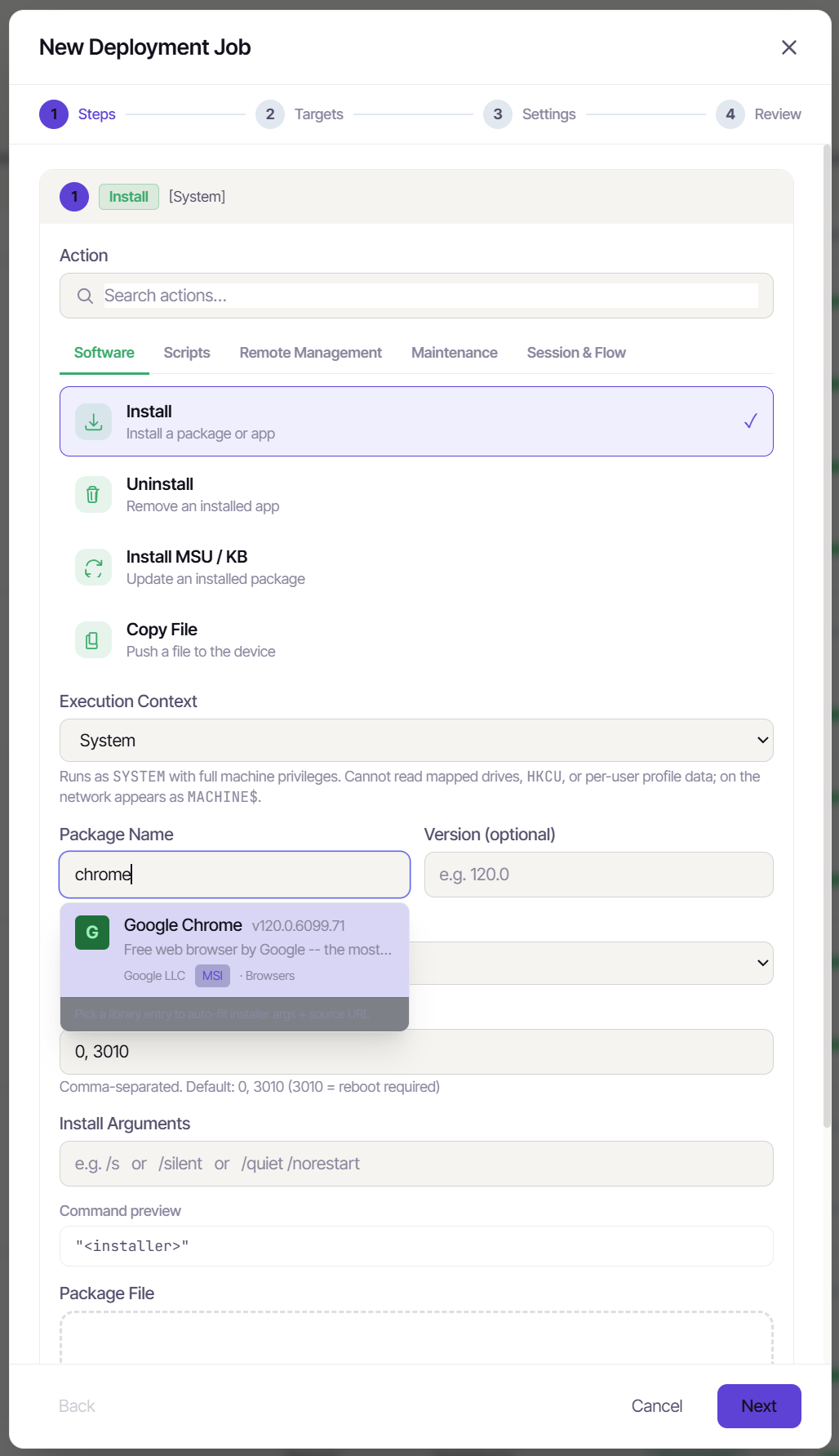
Two fields worth understanding before you trust them:
- Execution context.
Systemruns with full machine privileges but can’t see mapped drives or the user’s HKCU.LoggedOnUserruns in the signed-in user’s session - the right choice for per-user apps like Slack or Chrome-per-user. When an install “succeeds but the user can’t see it,” this field is usually why. - Success exit codes. Defaults to
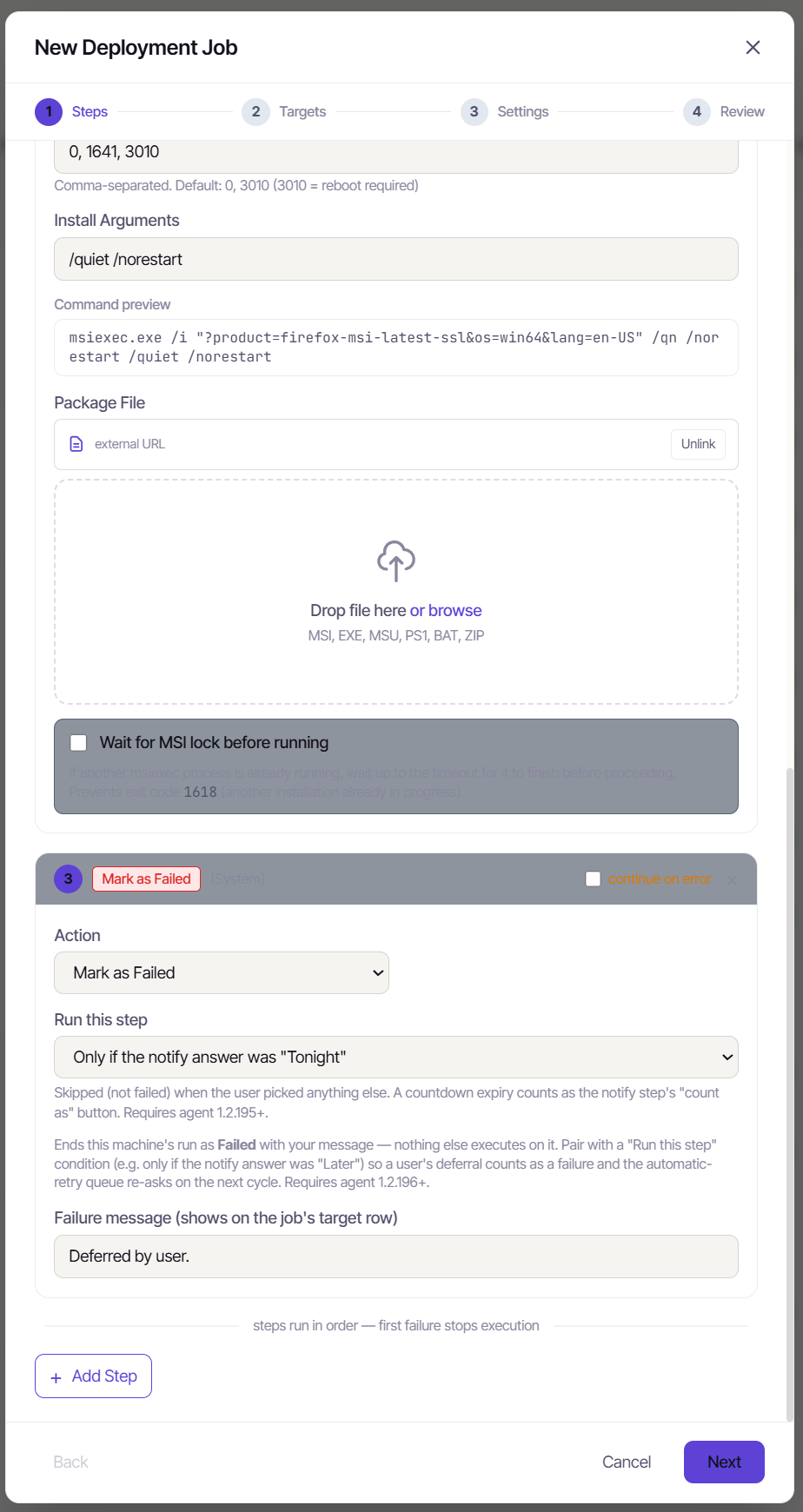
0, 3010(3010 = installed fine, wants a reboot). Leave it unless a vendor documents something weirder.
Add Step chains more actions into one job - install, then reboot, then verify - and they run in order on each machine. A failed step stops the sequence unless you tick continue on error on it.
Step 2: Targets - where to run it
Type hostnames, tick devices from the list, or select groups. Groups and manual picks combine; the server dedupes. If you target a group, membership resolves at dispatch time - a smart group like “devices with pending updates” targets whatever matches when the job fires, not when you built it.
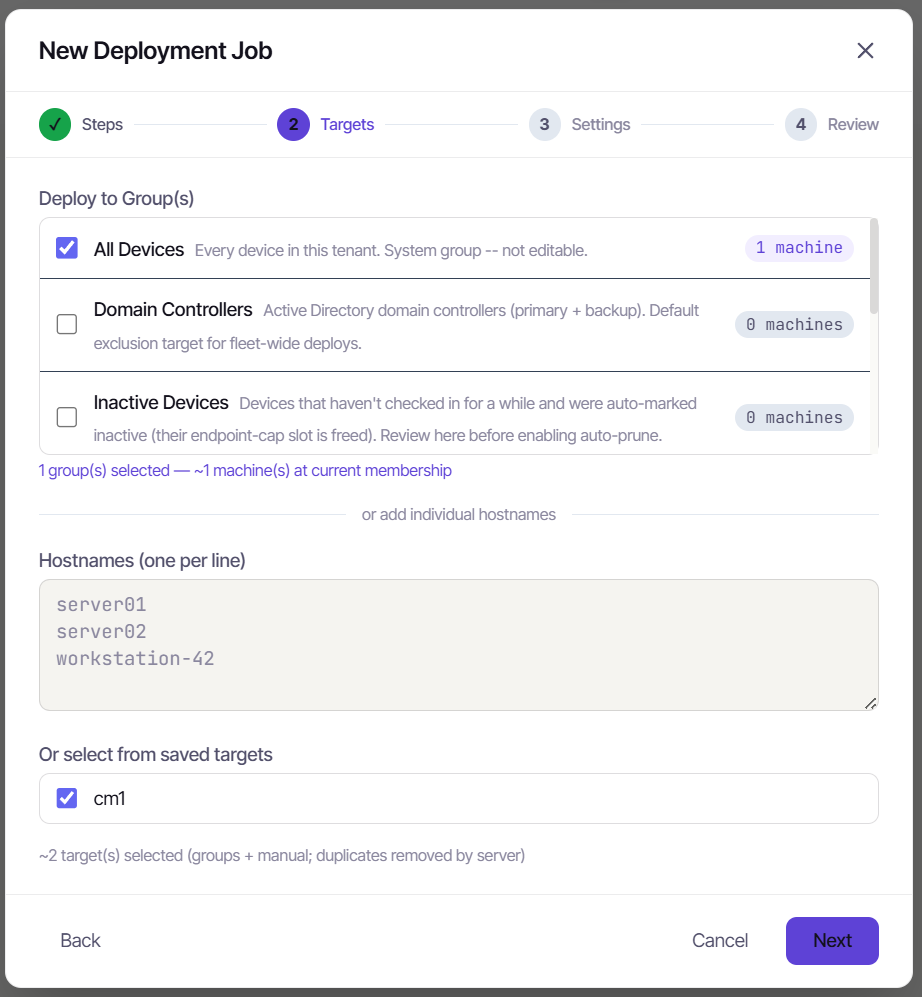
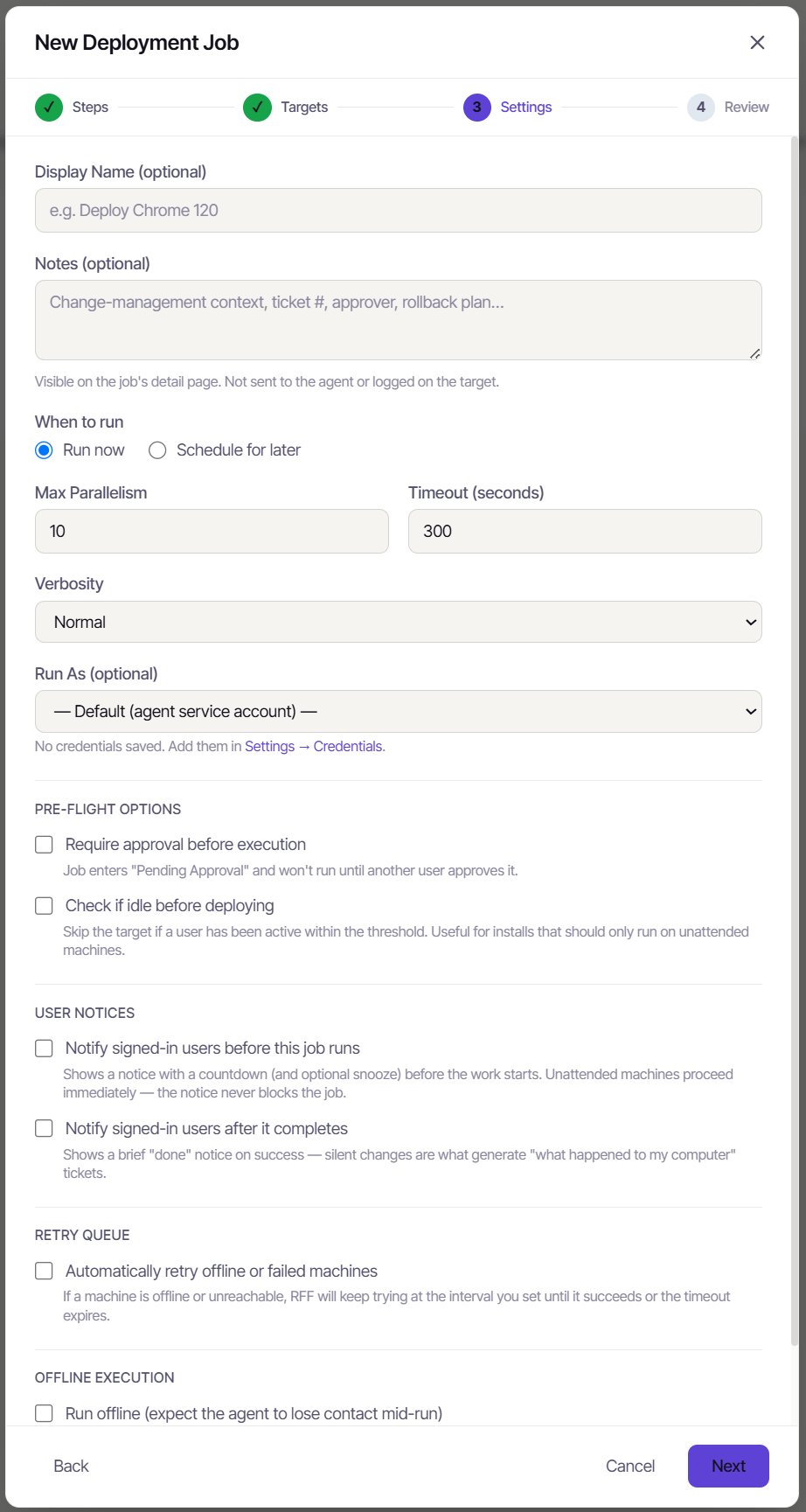
Step 3: Settings - the ones that matter
Everything here has a sane default. The ones you’ll actually change:
- Run now vs. Schedule for later. Schedule fires once at a chosen time (your local timezone) and can be cancelled until it runs. For recurring deploys, don’t schedule a job - use a Policy; that’s what they’re for.
- Max parallelism. How many machines run simultaneously. Crank it for a small pilot; keep it modest for a big wave so you don’t saturate a site’s downlink pulling installers.
- Timeout. Per-target. The default suits normal installs; Windows Update jobs get a longer floor automatically because cumulative updates genuinely take hours on a slow box.
- Run As. Optional stored credential for actions that need to reach beyond the local machine.
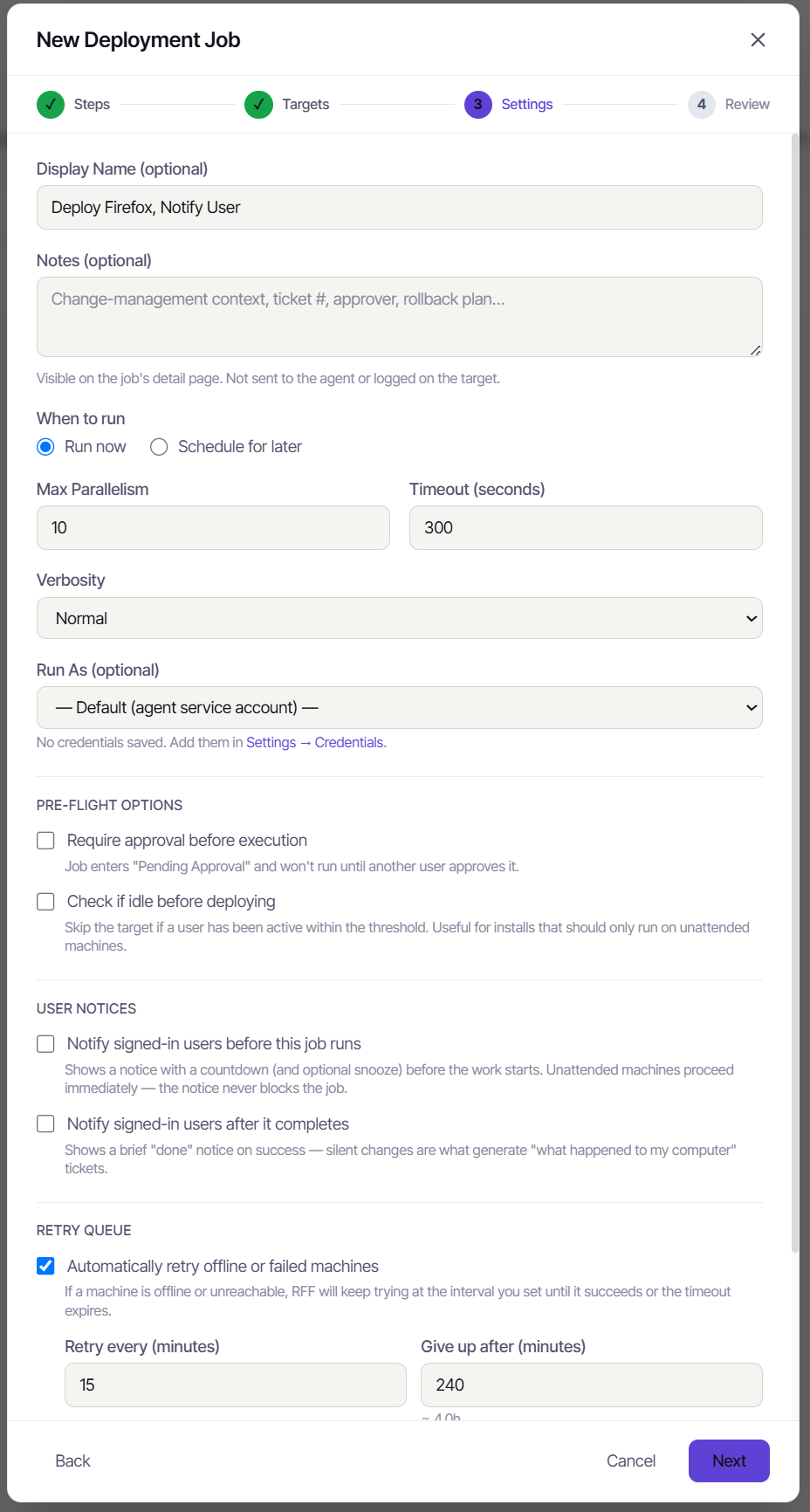
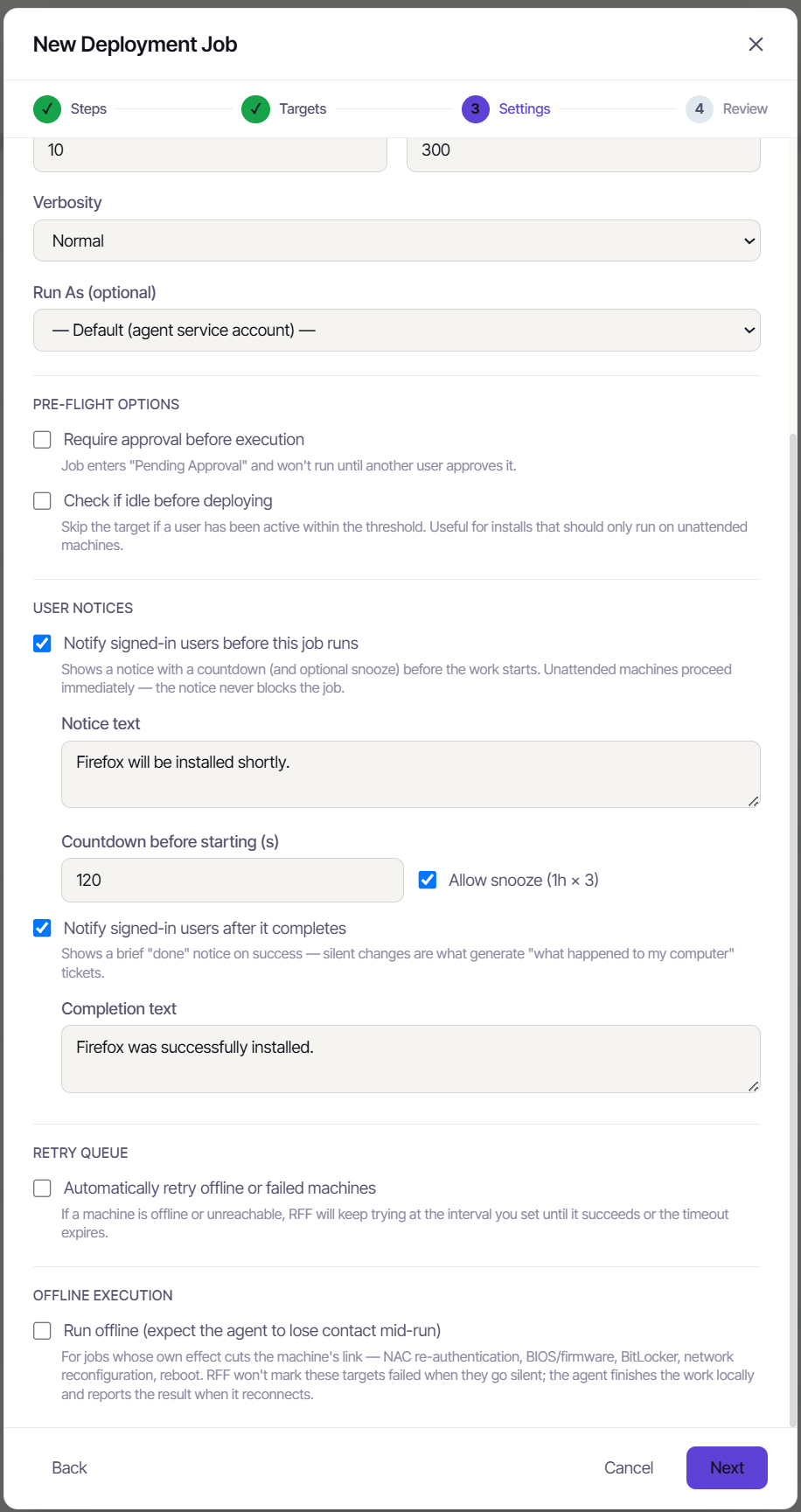
- Notify signed-in users before and/or after - a countdown notice via the RFF Companion before the job touches the machine, and a completion notice after. Both are courtesies, not gates: an empty machine proceeds without waiting.
- Display name and notes. The notes field is for change-management context - ticket number, approver, rollback plan. It shows on the job detail page and is never sent to the target.
- Preflight checks and the retry queue live here too - ping-before-deploy, only-run-if-idle, and automatic retry for failed machines - but the defaults are right until you have a reason to touch them.
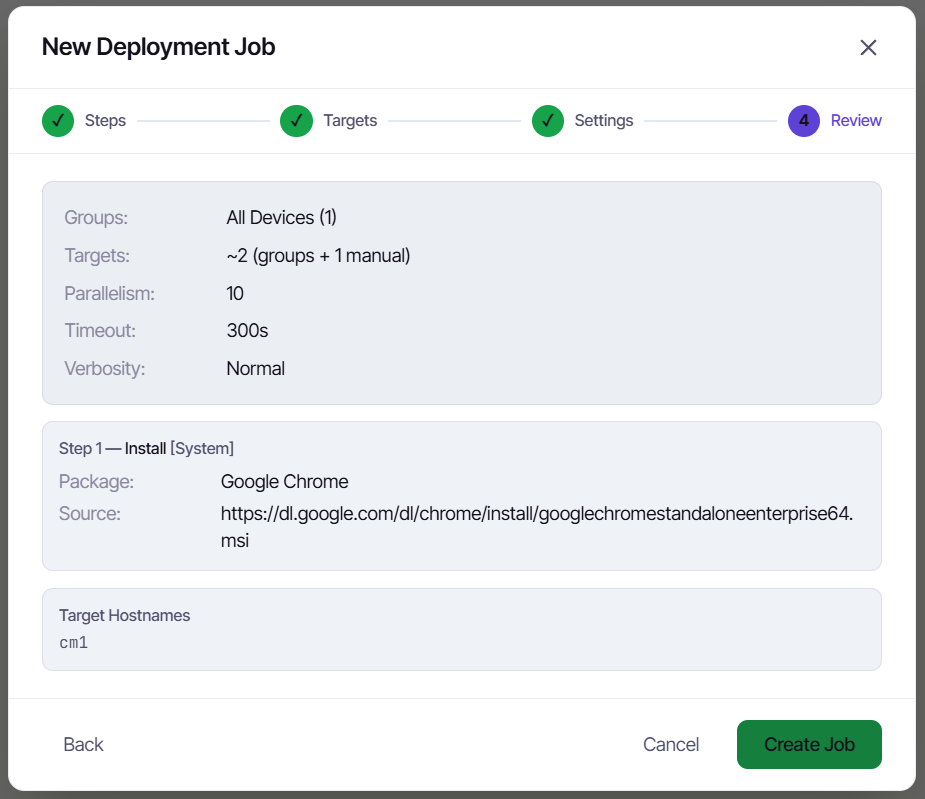
Step 4: Review, then watch it land
Review shows the plan - the steps with their arguments and every resolved target - before anything fires. Create, and you land on the job detail page: a live per-machine grid (pending → running → done/failed), per-target exit codes, and streaming logs under each hostname.
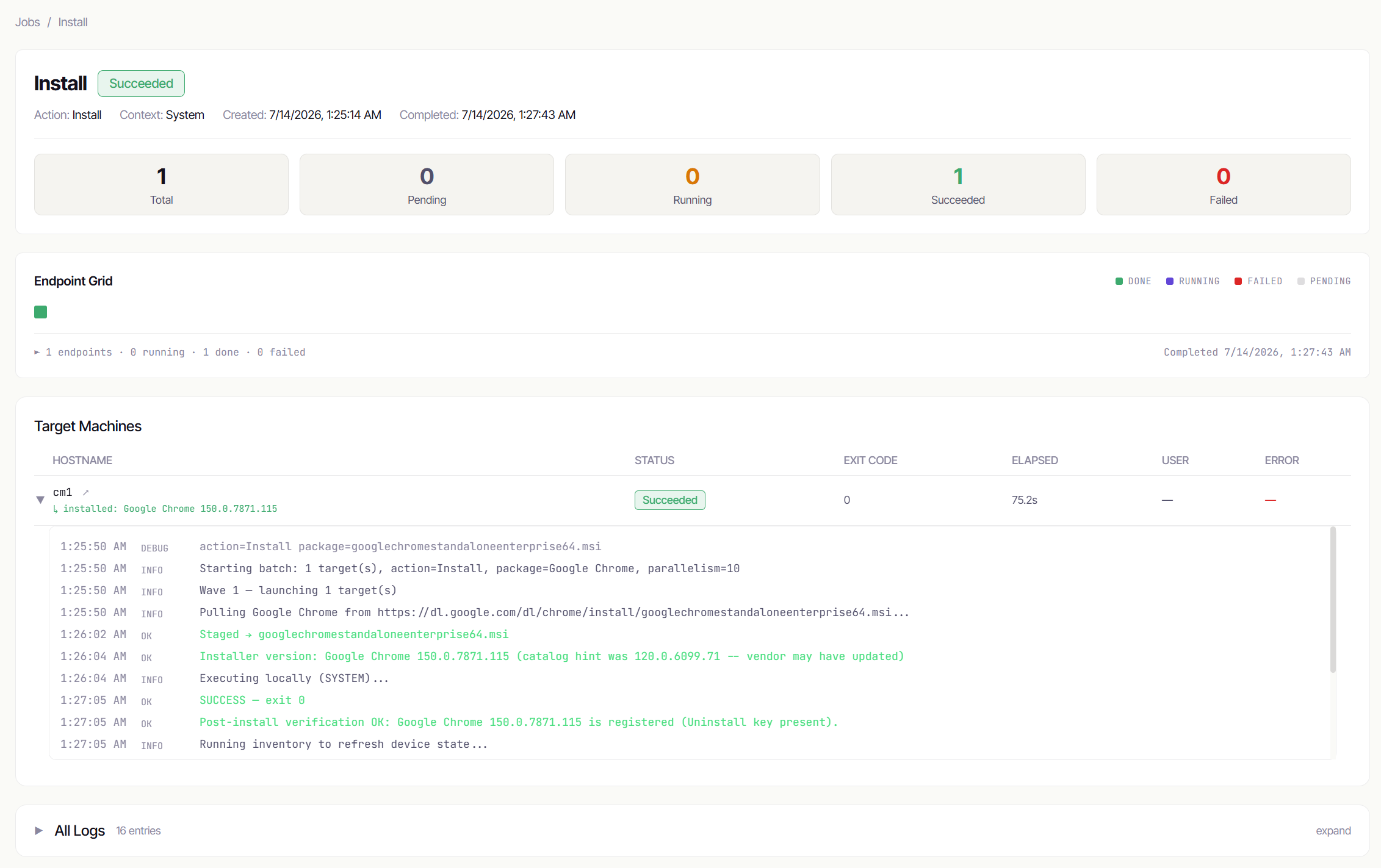
Reading results honestly:
- Succeeded with exit 0 or 3010 - done (3010 machines want a reboot; chain a Reboot step or a reboot policy).
- Failed shows the exit code and the last error line right in the row. Expand the target for the full log - you will almost never need to touch the endpoint to find out what happened.
- Rerun on the job page clones the job against the same targets - the fast path for “fix the package, go again.”
The five-minute version
New Job → Install → type the app, let the library fill it in → pick a group → Run now → Review → Create. Watch the grid go green. That’s the product.
Notify users - and branch the job on their answer
The Notify User action puts a real question in front of the signed-in user - a topmost window with a title, a message, up to three buttons, and a countdown - and makes the clicked button available to the rest of the job. Later steps can then run only for a specific answer. That turns “deploy and hope” into “ask, then do what they chose”:
Notify: “Update ready - install now or tonight?” [Install now | Tonight] → Install step, runs only if the answer was Install now → Notify “Scheduled for tonight”, runs only if the answer was Tonight
Requires agent 1.2.195 or newer for branching (the Notify action itself works from 1.2.177).
Building the chooser
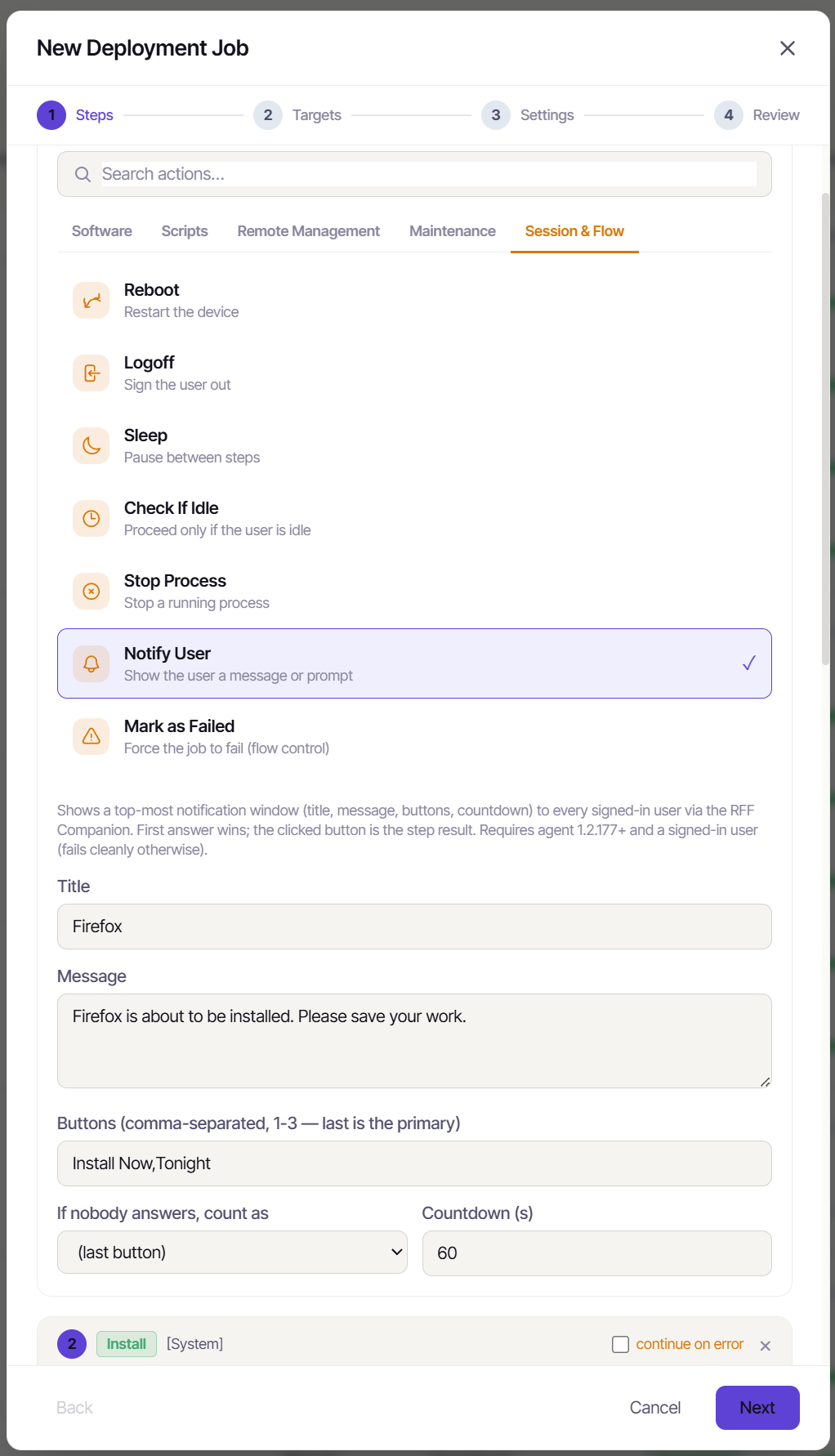
Add a Notify User step. Fields:
- Title / Message - what the user sees. Keep the message to the decision; the window is deliberately simple.
- Buttons - comma-separated, one to three. The last one renders as the primary. Order them so the safe choice is the default read.
- If nobody answers, count as - the button a countdown expiry converts into. This is the important one for unattended desks: pick the least disruptive button here (usually the “later” option) and an expired timer behaves exactly as if the user had clicked it - including for branching.
- Countdown - seconds until the count-as kicks in. Always bounded, so a notify can never hang a job.
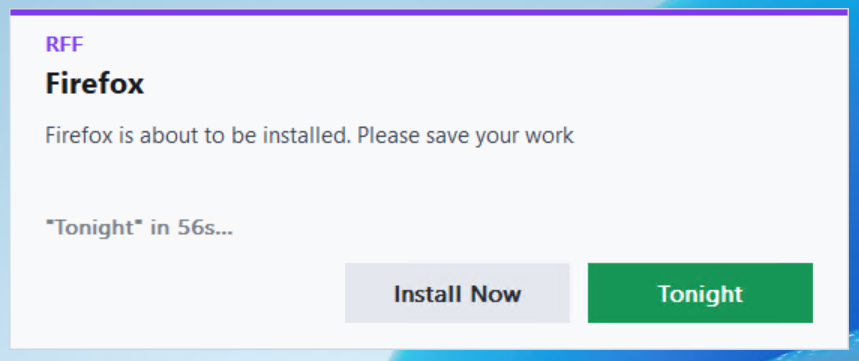
The notification shows in every signed-in session on the machine; the first answer wins. On a machine with nobody signed in, the step fails cleanly with “no interactive user session” - by design, because you asked to talk to a human who isn’t there. If the machine may be unattended, that’s your cue to branch on the count-as answer instead of relying on a click.
Branching later steps
Every step after a multi-button Notify grows a “Run this step” dropdown: Always (the default - today’s behavior), or Only if the notify answer was “X” for each button any earlier chooser offered.
A conditioned step whose answer doesn’t match is skipped, not failed - the job log records the skip and the reason, the job’s outcome reflects only the steps that actually ran. Several consecutive steps can branch off one chooser, so a three-button question fans out switch-case style.
Rules worth knowing, because they’re what make the branching predictable:
- Only multi-button notifies are choosers. A single-button notify (an “OK, got it” acknowledgement) doesn’t offer branch options and doesn’t change the remembered answer - so you can drop confirmation dialogs between branched steps without breaking the chain.
- The remembered answer is the most recent chooser that actually ran. Skipped steps never overwrite it.
- Answers survive reboots. If a branch runs a Reboot step mid-sequence, the remaining steps resume after the machine returns with the answer intact.
- The exit code is the button. A Notify step reports the 1-based index of the answered button (clicked or counted-as) as its exit code, so the job detail page tells you which path each machine took at a glance.
The patterns this unlocks
- Deferred installs that come back: chooser [Install now | Later], count-as Later, install branch on now - and a Mark as Failed step branched on Later (“Deferred by user”). The deferral ends that machine as Failed, which is exactly what the automatic retry for failed machines setting feeds on: the job re-dispatches on your retry cadence and the user gets asked again, until they say yes or the retry window closes. Deferral with a memory, not a shrug.
- Reboot etiquette: after a 3010 install, ask [Reboot now | I’ll do it later] with count-as later - the machines whose users consented reboot immediately, everyone else keeps the pending-reboot flag for your maintenance window.
- Change-window confirmation on shared machines: “Maintenance starts in 10 minutes” [Proceed | Not this machine], and the do-work steps branch on Proceed - a human veto per machine without splitting the deployment.
What it looks like afterward
On the job detail page each machine’s log shows the question, who answered, what they picked and after how many seconds (or that the countdown expired and what it counted as), then a line per skipped step naming the branch that didn’t match. The whole decision trail is in the job - no endpoint spelunking to reconstruct what the user chose.
The simpler way: just let them postpone
Everything above is the powerful path - different actions per answer, a re-ask loop, per-machine branching. It’s what you reach for when “Later” needs to mean something specific. But if all you want is “warn the user and let them push it back a bit,” you don’t need any of it. That’s a checkbox on the Settings step.
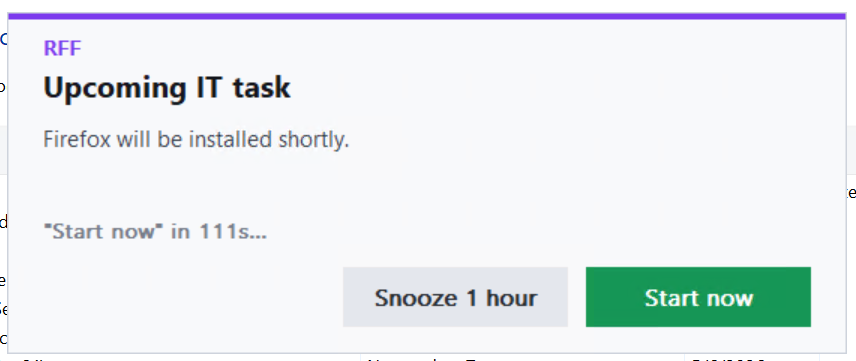
Tick Notify signed-in users before this job runs, and turn on Allow snooze (1h × 3). Now every signed-in user gets a countdown notice before the work starts, with a Snooze button - they can defer the whole job up to three times, an hour each, before it runs anyway. Unattended machines proceed immediately; the notice never blocks the job.
To the person at the keyboard it’s a single, unintimidating prompt:
Which one to use
- Built-in notify + snooze (this section) - one checkbox, zero steps. The user can delay the whole job by up to 3 hours, then it runs. Best for “heads-up, and you can push it an hour if you’re mid-something.”
- Notify chooser + Mark as Failed + retry (the rest of this guide) - full branching. Different actions per answer, and “Later” can mean come back tomorrow (the retry queue re-asks across days, not just hours). Best when the deferral needs a memory, or the answers should do genuinely different things.
Reach for the checkbox first. Graduate to the step-based branch when the checkbox isn’t enough.
Patching and vulnerabilities
Two jobs that sound like one: install the updates (Patch Tuesday), and know what is still exposed (vulnerability scanning). RFF does both, and they feed each other - a CVE that patching closes disappears from the vulnerability list on the next scan.
Turn on Patch Tuesday automation
Open Patch Tuesday. This is a toggle, not a project: pick how many days after Microsoft’s release you want updates to land, choose whether to include optional and driver updates, and decide the reboot behavior.
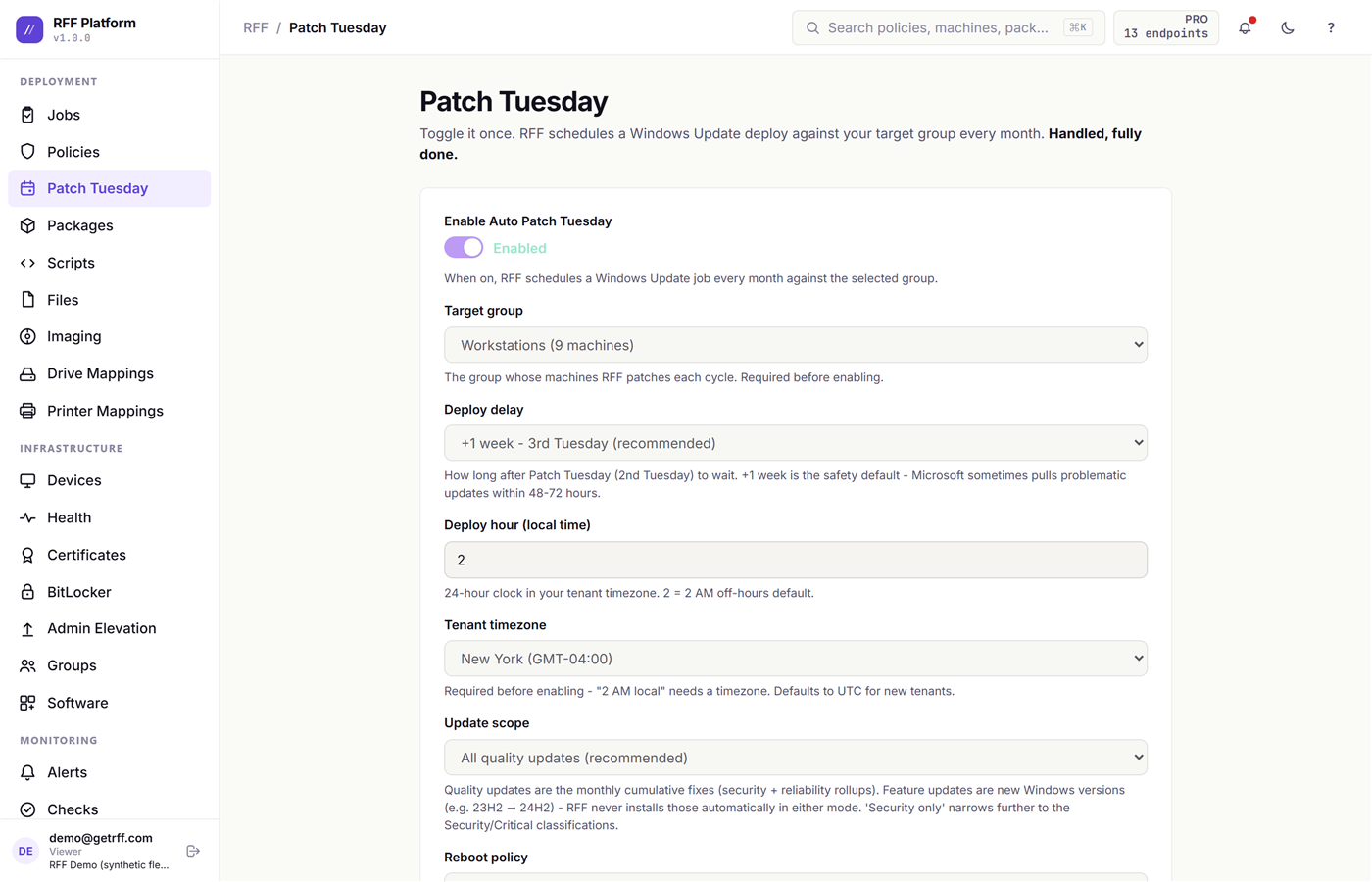
The part worth understanding is the rollout. RFF does not shove updates at 400 machines at once. It runs them in rings - a small canary group first, then the rest - with a health gate between them. If the canary ring comes back with failures above your threshold, the rollout halts itself and waits for a human instead of continuing into the fleet.
Set it once and Patch Tuesday stops being a calendar event.
See what is actually exposed
Vulnerabilities scans your fleet’s real installed-software inventory against the NVD feed and CISA’s Known Exploited Vulnerabilities catalog, daily.
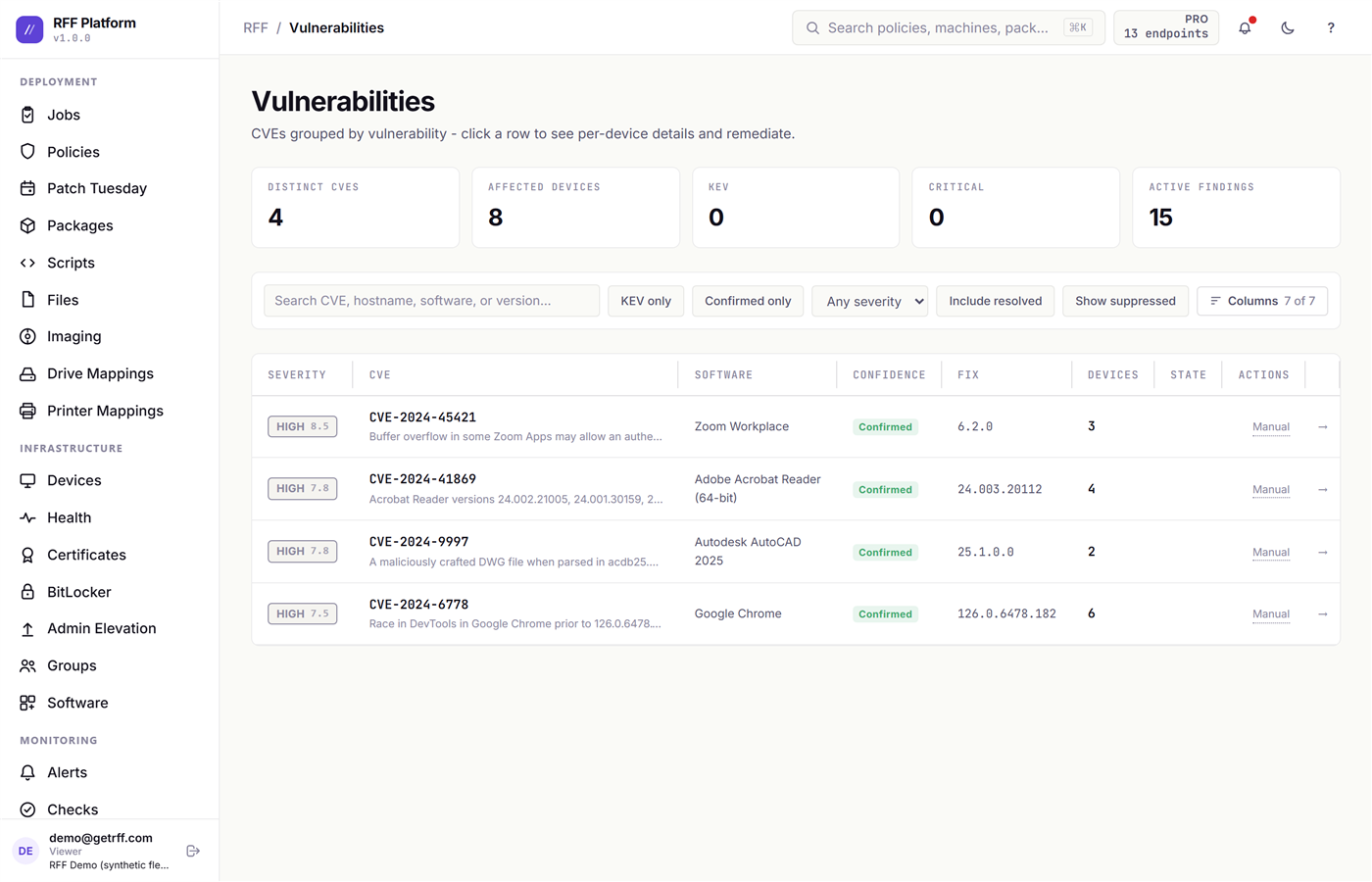
CVEs are grouped by vulnerability, not sprayed per machine, so the list reads as work rather than noise. The KEV flag is the one to sort by first - that is the subset attackers are known to be exploiting right now, which is a very different question from “has a high CVSS score.”
Click any row to see exactly which machines are affected, then fix it from there.
OS Vulnerabilities answers the same question for Windows itself - missing security updates mapped to their CVEs, so “this box is three months behind” becomes a specific, countable list.
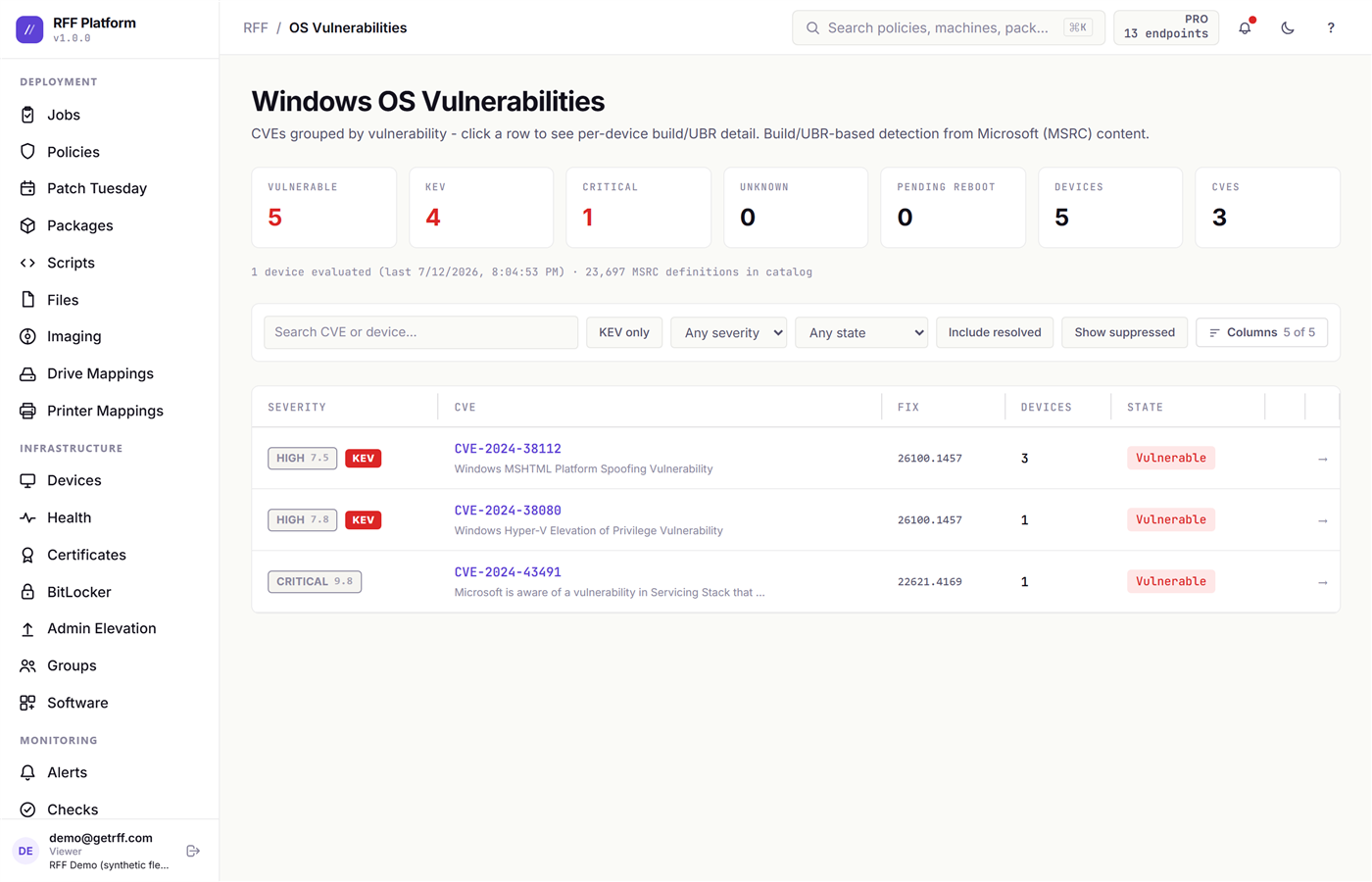
Browsers get their own page
The browser is the most-attacked application on any endpoint and the one users most reliably refuse to restart, so it has its own view: which browsers are installed, which versions, and which machines are behind.
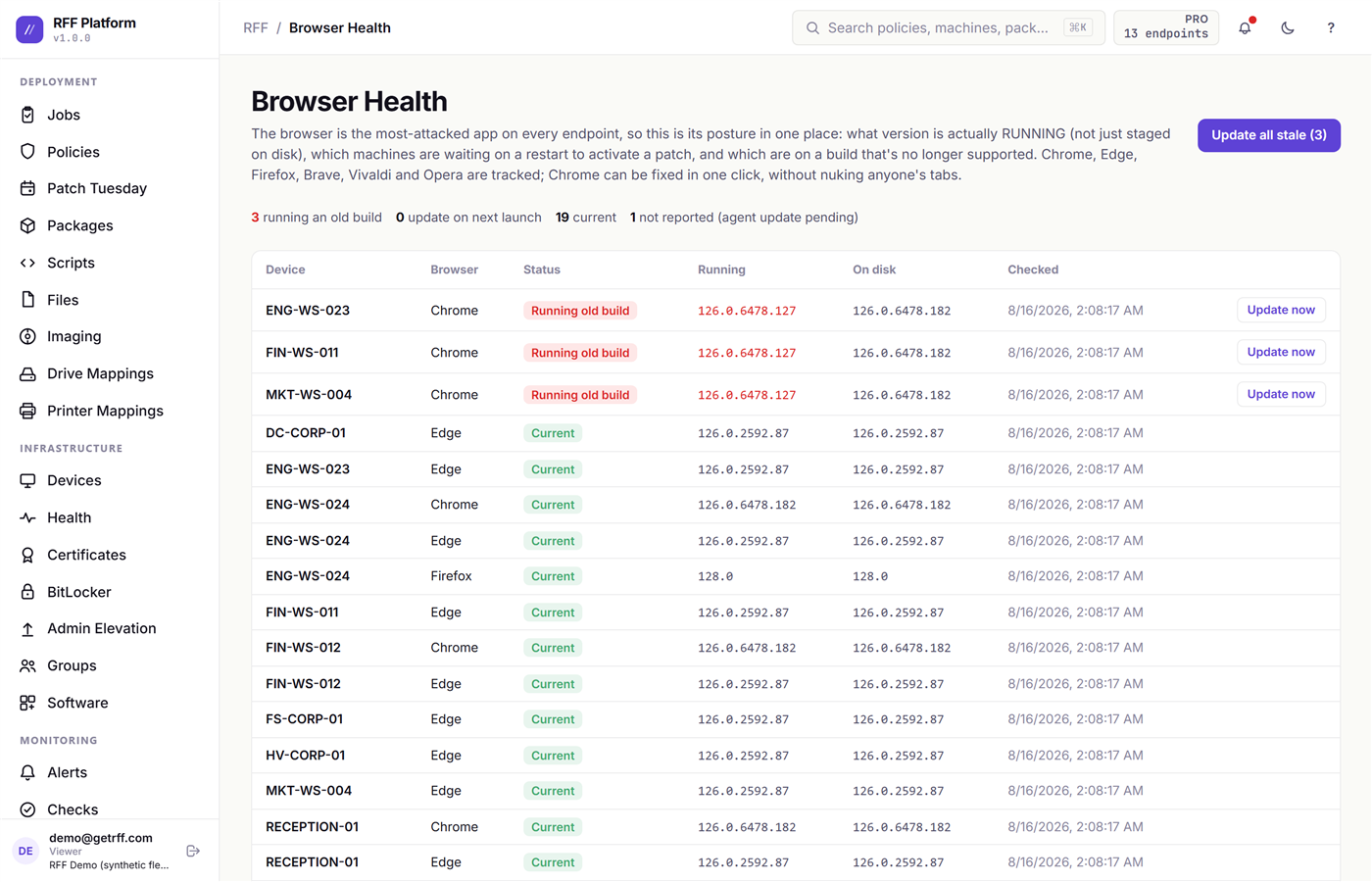
You can push an update to the out-of-date machines from here. RFF restores the user’s tabs afterwards, which is the difference between a browser update that lands and one that gets postponed forever.
Group Policy without a domain controller
gpedit.msc is on every Windows machine and it is genuinely good. It is also per-machine, so enforcing one setting across thirty boxes is thirty remote sessions. Intune solves the scale problem but wants Entra join and licensing first.
RFF’s Settings Catalog is the gpedit experience across a fleet, with neither prerequisite.
1. Get your catalog
Open Settings Catalog. You need the Administrative Templates once, and there are two ways to get them:
- Collect from a device - pick any machine and RFF asks its agent for the templates it already has. On a domain controller it prefers the central store, which carries any custom ADMX you have added. Read-only on the device, and it is a manual job on purpose - the templates are identical fleet-wide, so collecting everywhere would be pure waste.
- Upload ADMX - drop in a
PolicyDefinitionsfolder as a zip, or any single vendor template.
A stock Windows 11 folder parses into thousands of real settings, with Microsoft’s own names and explanations attached.
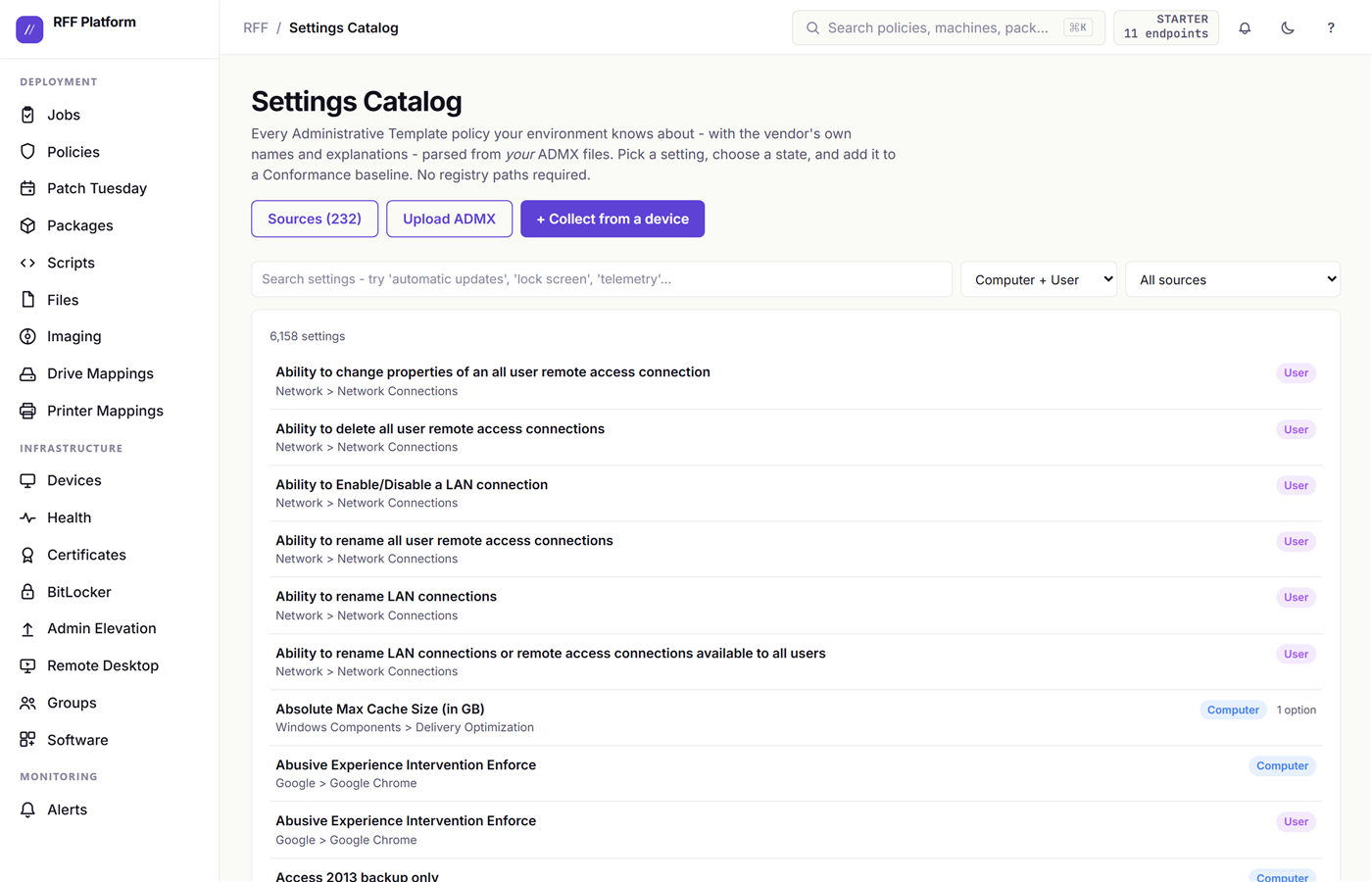
2. Find a setting in plain English
Search the way you would describe the problem, not the way the registry spells it.
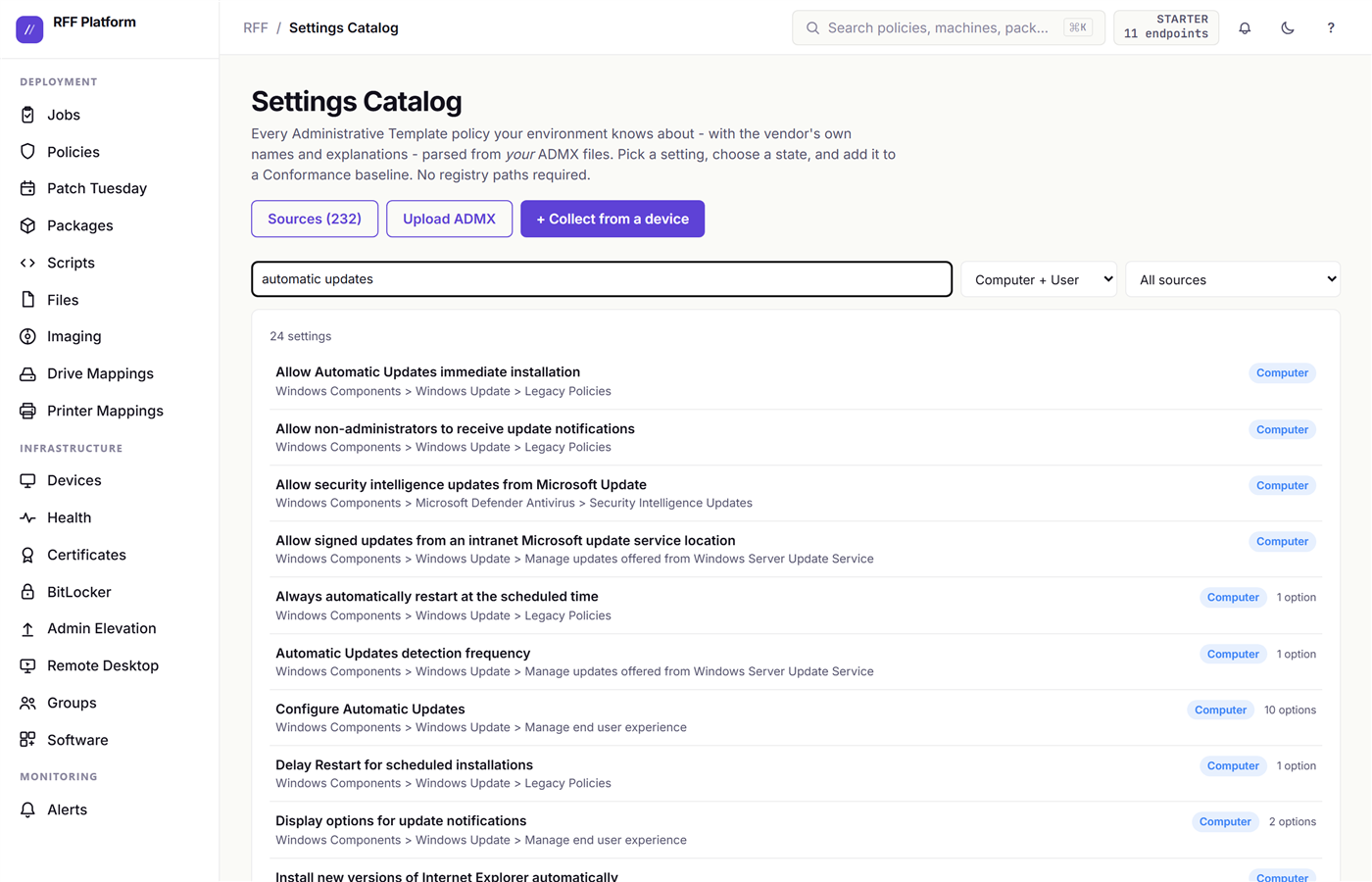
Filter by Computer or User scope, or by which ADMX source the setting came from.
3. Pick a state, like gpedit
Open a setting and you get what gpedit gives you, plus the thing gpedit hides: the exact registry value that will be written.
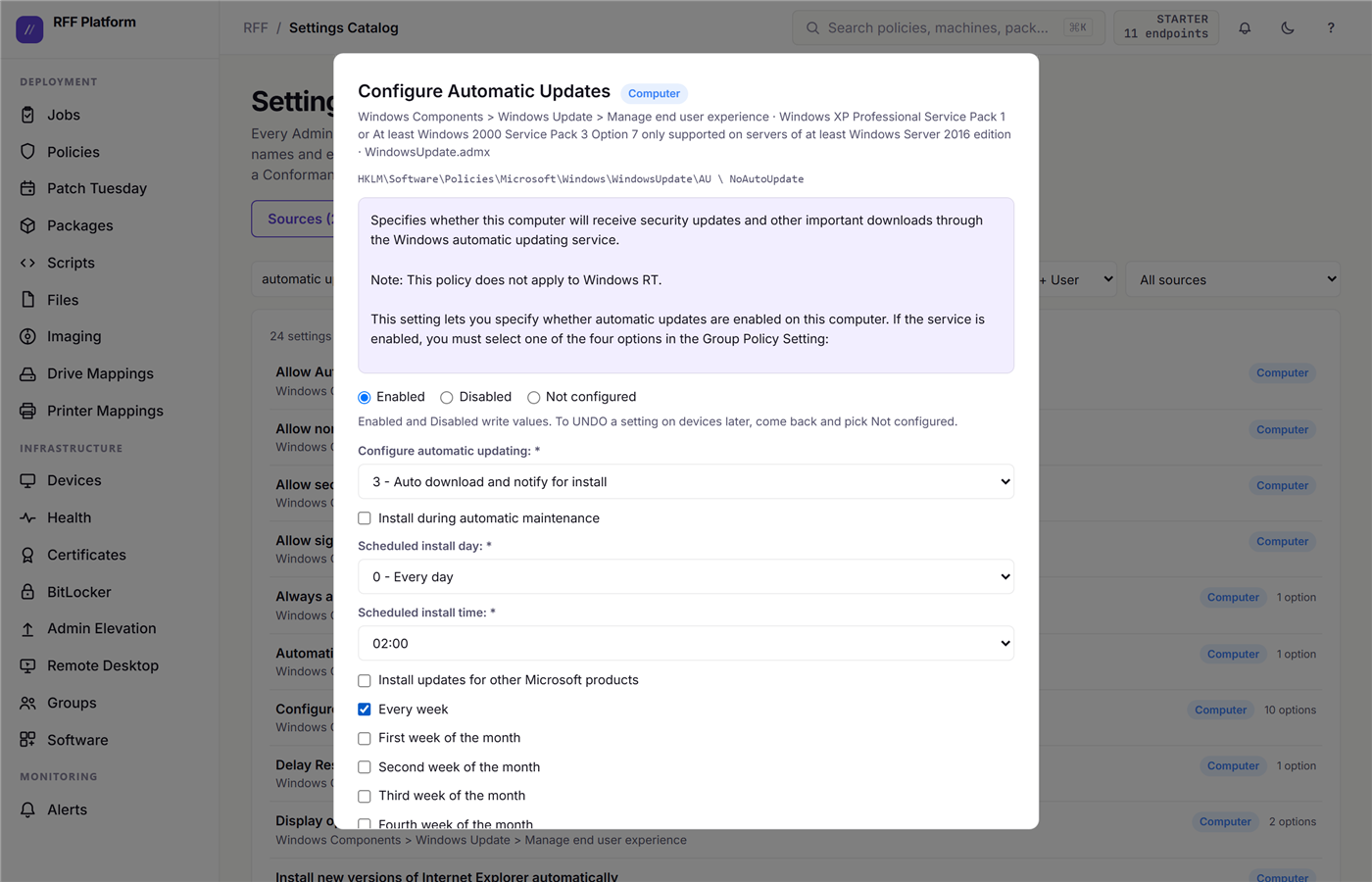
- Enabled and Disabled write values.
- Not configured is the one people miss. It does not mean “skip this” - it removes the values from managed machines. That is your undo, and it is why a setting you deploy today is not tattooed on those boxes forever.
- Options render from the ADMX itself, so a policy with four choices shows its four real choices.
4. Enforce it, with drift detection
Add the setting to a Conformance baseline and assign that baseline to a device group. From then on RFF diffs every machine against it and tells you, in plain English, which ones drifted.
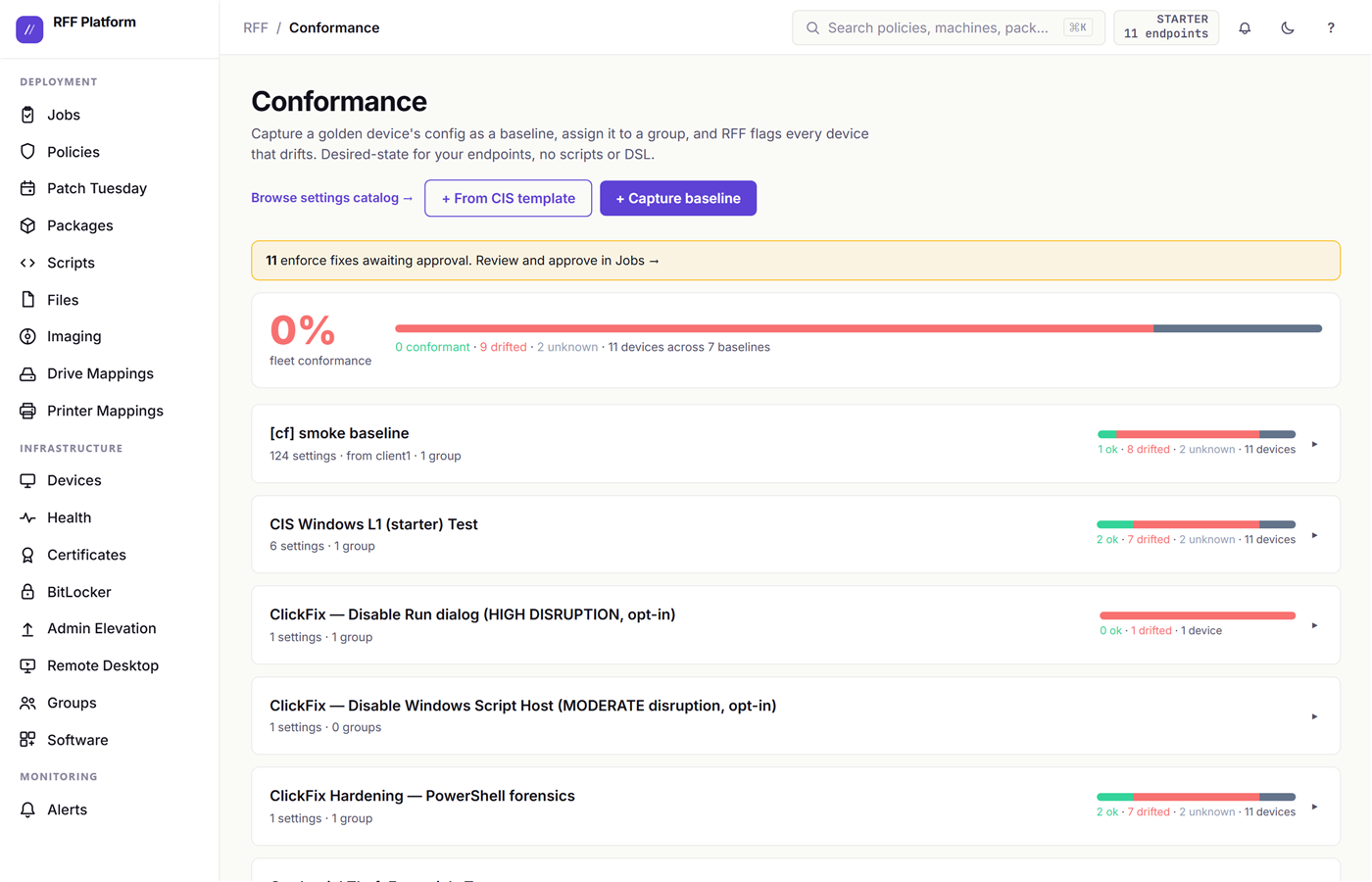
Two behaviors worth knowing before you turn on enforce:
- Fixes are approval-gated. RFF writes the remediation script and stages it for a human to read. Nothing runs until you approve it.
- Every fix is rollback-able, because the inverse script is captured before the change runs.
- If an active GPO owns a value, RFF will not fight it. Group Policy would just reimpose it on the next refresh and the machine would flap forever. Instead RFF names the owning GPO so you fix it at the source.
Any vendor’s ADMX works
Chrome, Edge, Zoom, Firefox, or a template you wrote. Upload it once and RFF is your central store - endpoints do not need the vendor’s template installed to receive the setting, because what ships is the registry state the template defines, not the template.
Monitoring and self-healing
Monitoring that only tells you something broke is half a product. RFF’s version is three pieces that chain: a check notices, an alert tells you, and a workflow fixes it before you read the alert.
1. Checks - what to watch
Open Checks. A check is a small, repeated question asked on every machine in its scope: is this service running, is this disk above 85 percent, is this process alive, does this registry value still say what it should.
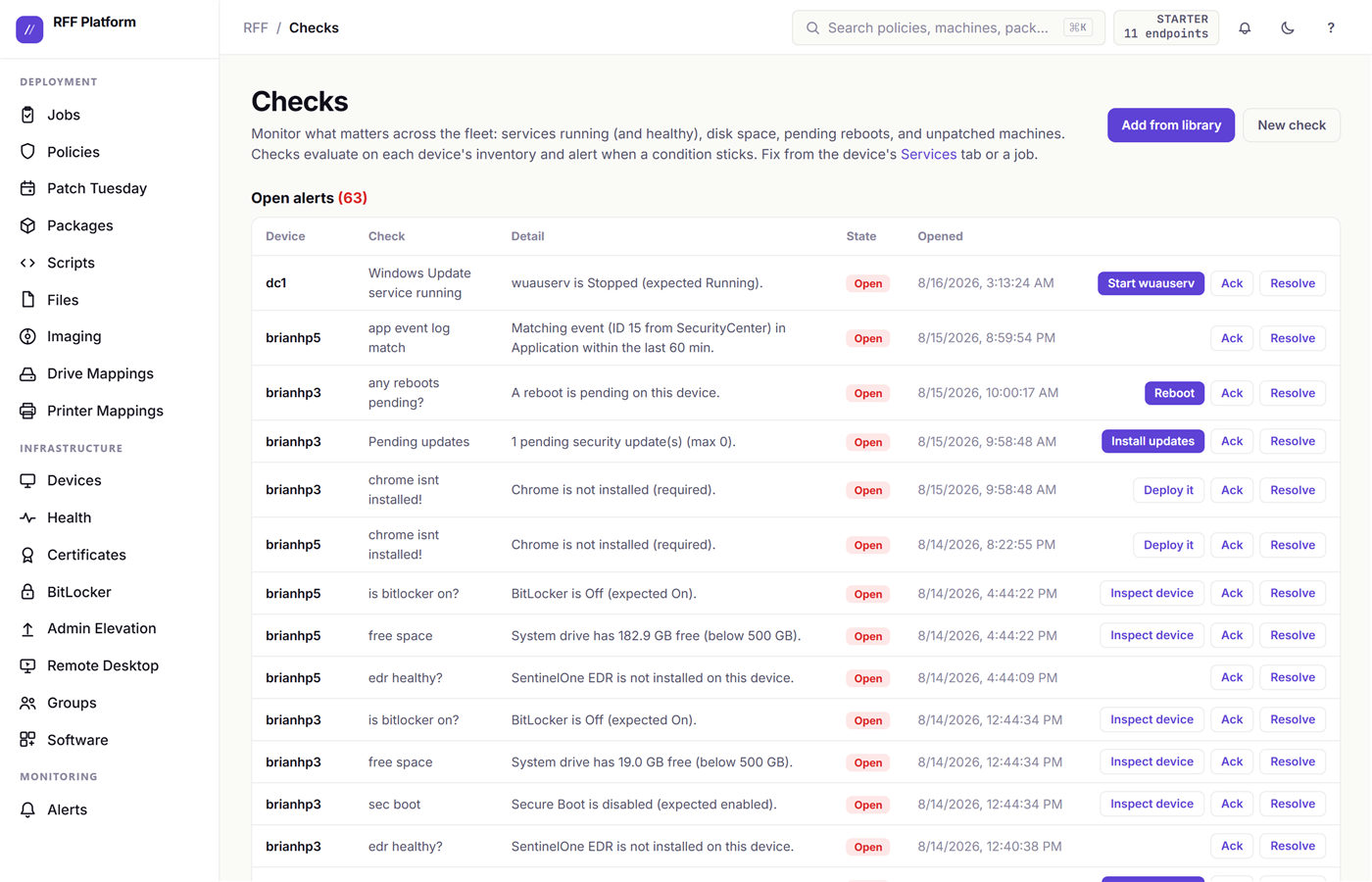
Start with two or three that map to real tickets you have gotten. “Print Spooler is running” and “system drive has more than 10 percent free” catch more real incidents than twenty exotic ones.
2. Alerts - one place for everything wrong
Alerts is the fleet’s inbox: failed checks, failed jobs, offline machines, and anything else that needs a human, in one list.
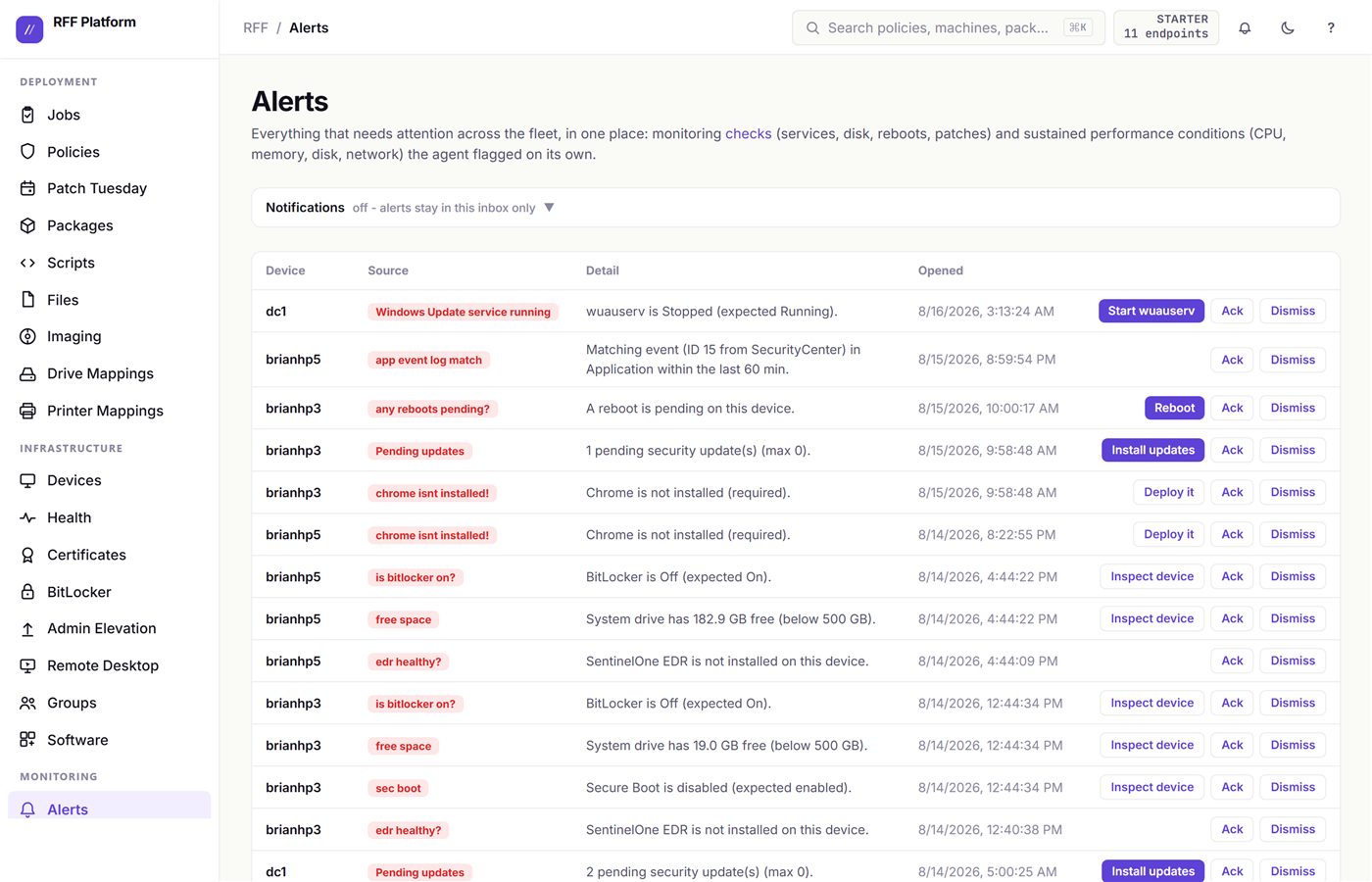
Route them to email or a webhook - the webhook goes to Slack, Teams, or whatever you already watch, so RFF does not become another tab you have to remember to open. Running HaloPSA? The alert email can open and close its tickets.
3. Workflows - fix it automatically
This is the payoff. A workflow runs a sequence of steps on the device where a check failed.
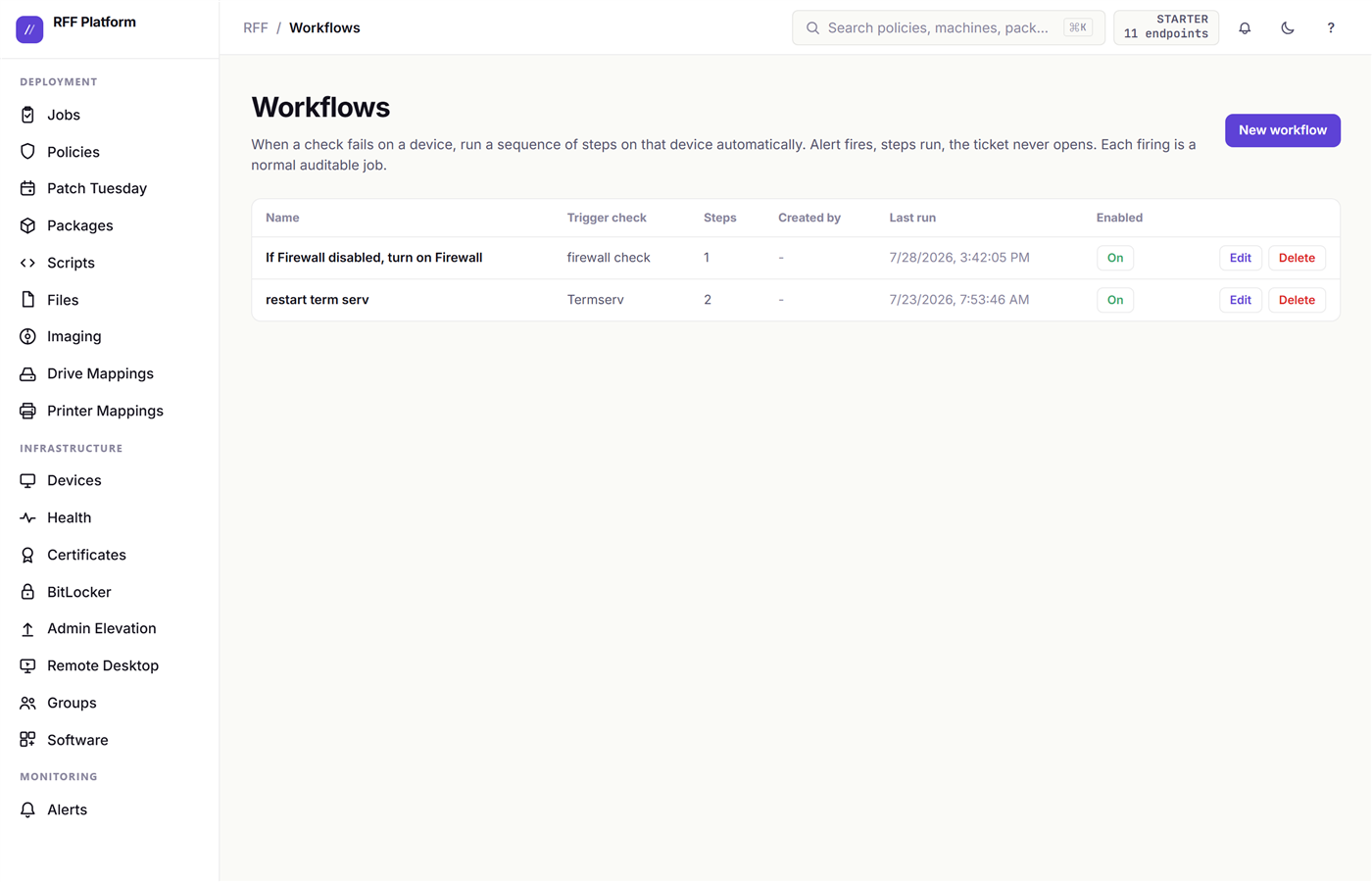
Both examples above took about ninety seconds to build. A firewall check fails on a machine, the workflow turns the firewall back on. A Terminal Services check fails, the workflow restarts the service. The next check run confirms it, and you get an alert that says it was handled rather than one asking you to go and do something.
Two guardrails matter here:
- The workflow runs on the device that failed, not the whole group.
- The check re-runs afterwards, so “fixed” means verified, not attempted.
The Health page
Health is the triage view: the machines worth your attention right now, ranked - crash-looping, slow, low on disk, or quietly offline.
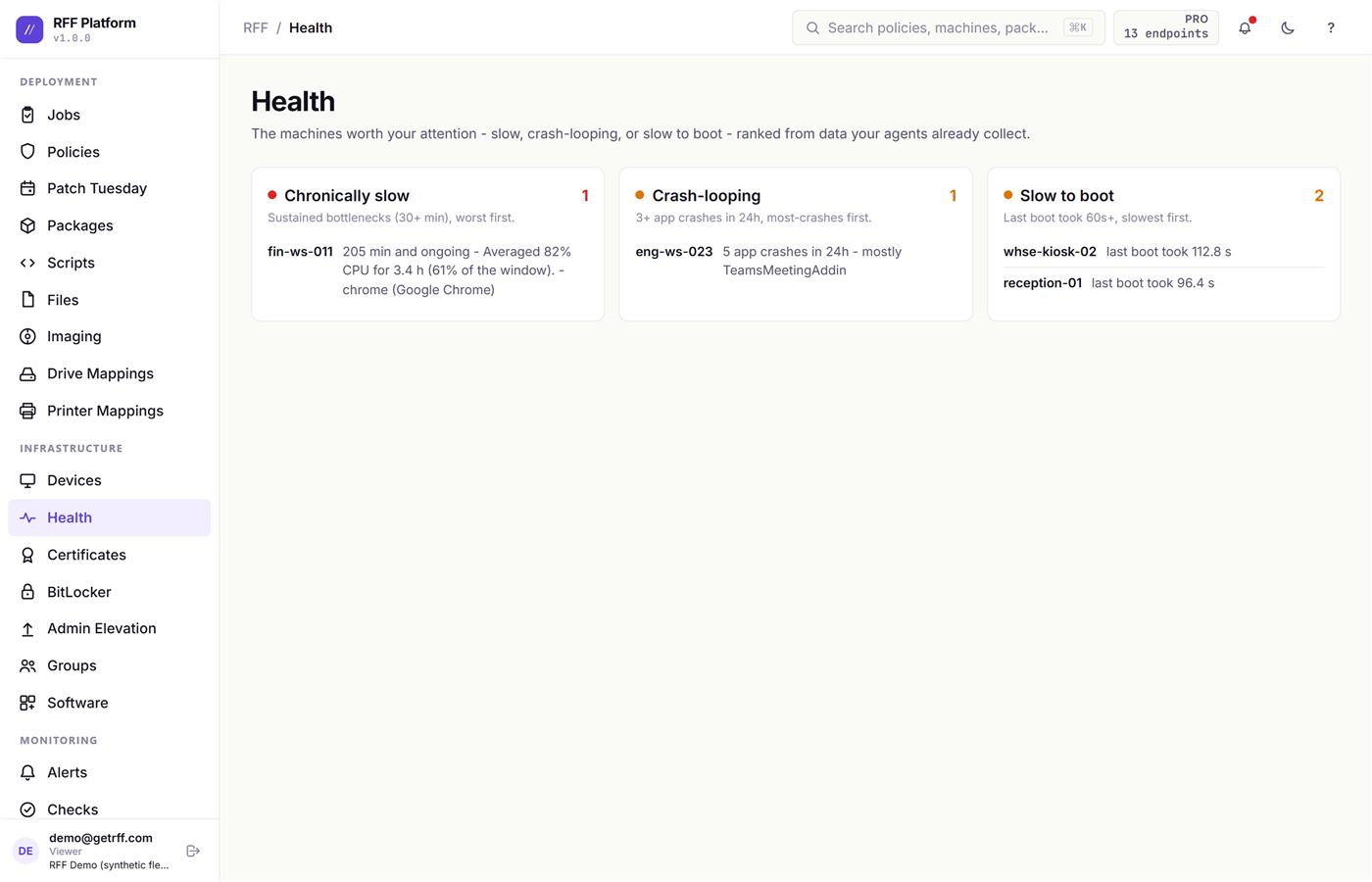
On a healthy fleet this page is boring, which is the entire point of it.
Hands on a single machine
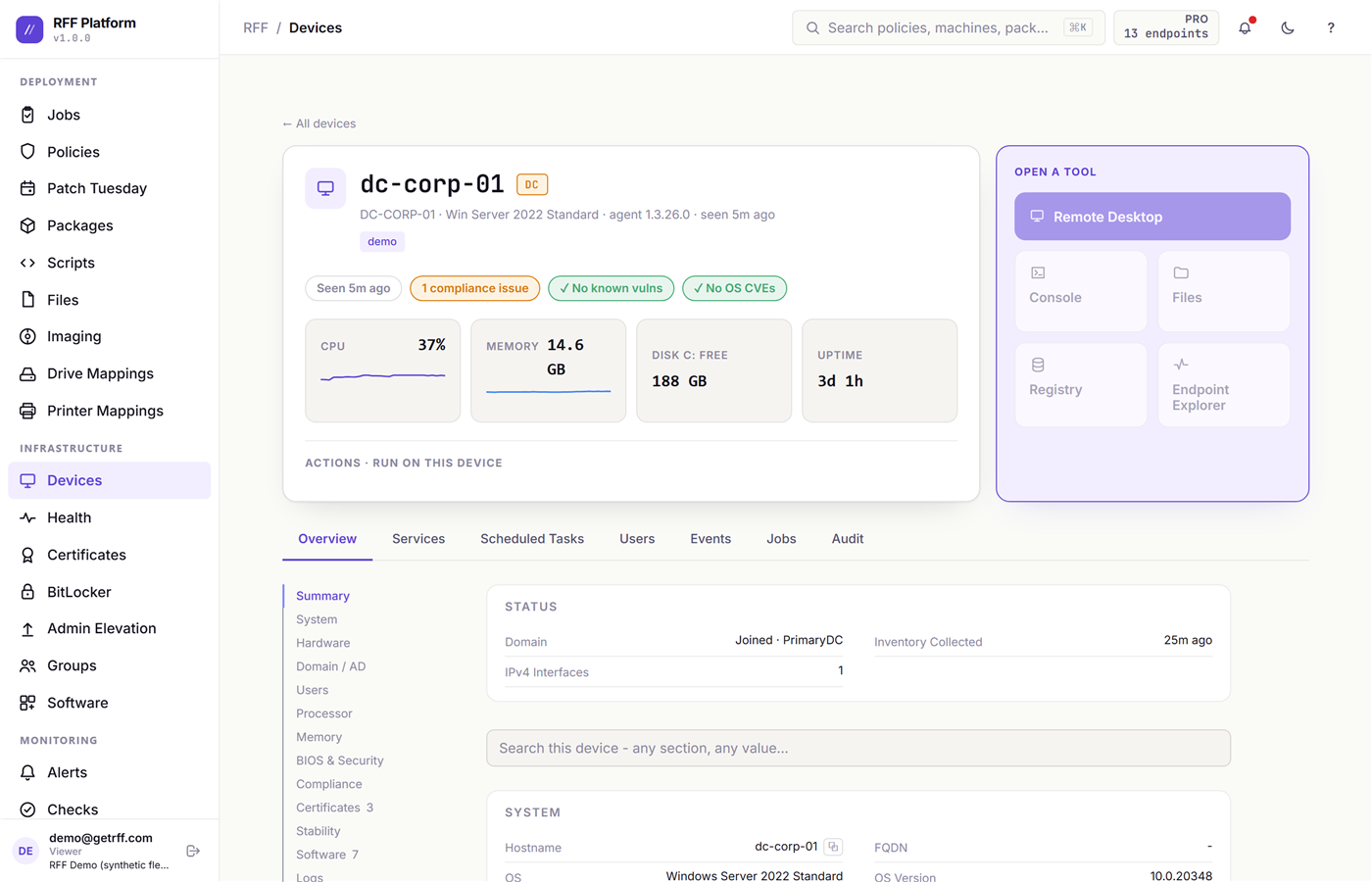
Fleet tools are for the fleet. Sometimes you need one specific machine, right now. Open any device from Devices and the per-machine view has the whole toolkit on it.
What the device page already knows
Before you touch anything remotely, the tabs across the device page usually answer the question on their own. Everything here is collected by the agent on its normal check-in, so it is there when you open the page rather than after you go and fetch it:
- Overview - hardware, OS and build, disk and memory, network, agent version, last check-in.
- Services - every Windows service with its state and start type. The first place to look when “it worked yesterday.”
- Scheduled Tasks - what is set to run on this machine and when. This is where the surprises live on a box somebody else built.
- Users - local accounts and group membership, including who is actually in local Administrators.
- Events - recent Windows event log entries pulled off the machine, so you are not opening Event Viewer over a screen share.
- Jobs - every RFF job that has targeted this device, with its result.
- Audit - who did what to this device, from the console.
The whole point of the tabs is that “can you look at my machine” is usually answerable without looking at their machine.
Remote Desktop - when you need to see it
Click Remote Desktop and the machine’s screen opens in your browser tab. No VPN, no client to install, outbound 443 only.
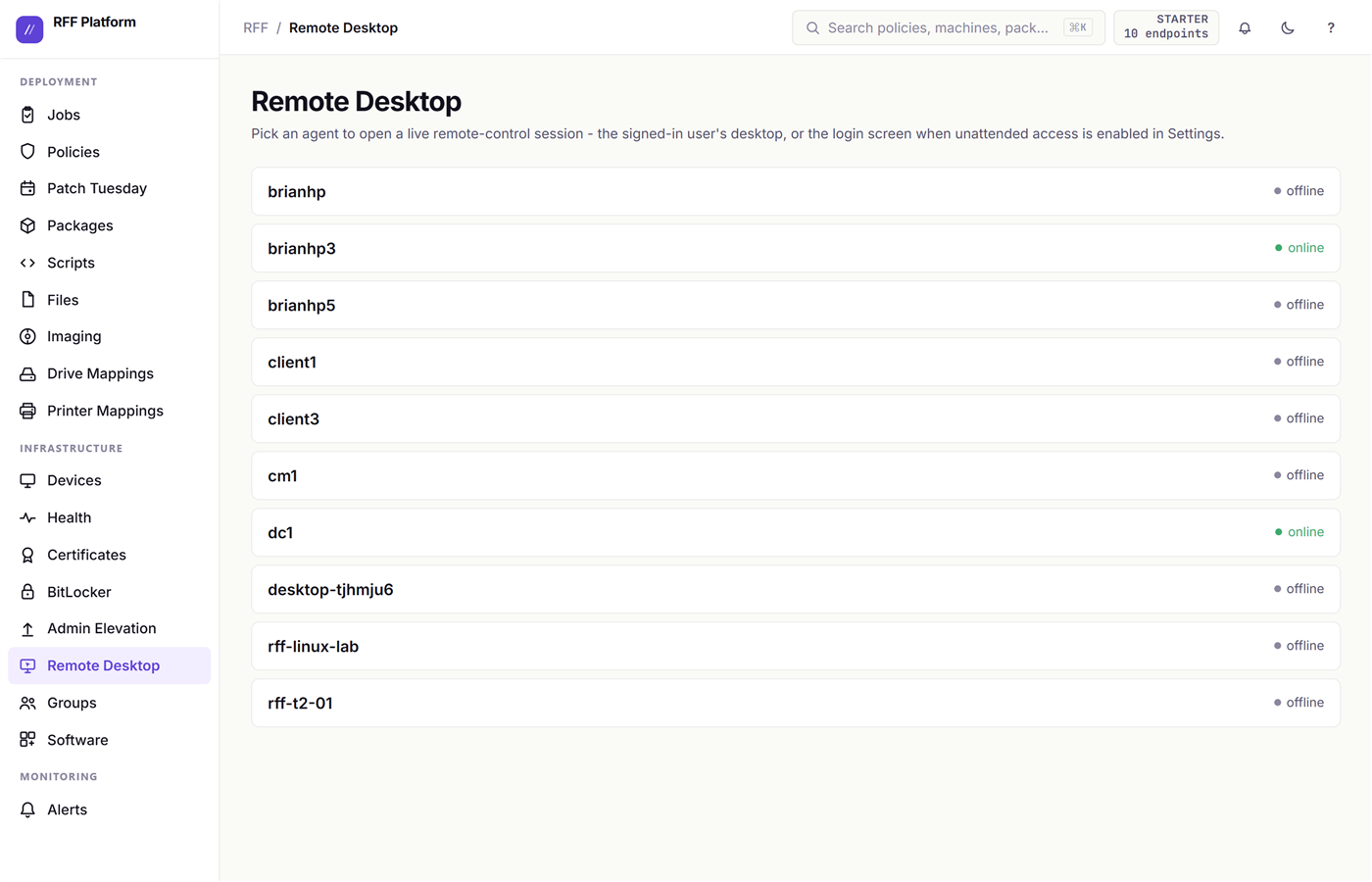
Things that usually cost extra elsewhere and do not here:
- It works at the Windows login screen, so you can fix a machine nobody is signed into.
- It can drive elevated windows and UAC prompts, which is where most remote tools quietly stop being useful.
- The user sees an on-screen indicator while you are viewing. That is deliberate and not configurable.
Remote desktop is on every plan including free, bounded by a monthly minute allowance and one concurrent session rather than by feature gates. Unattended access - a session with nobody signed in - additionally requires you to switch it on for the tenant, so it can never be a surprise default.
The three tools that do not interrupt anyone
Taking someone’s screen is disruptive and often unnecessary. These run in the background while the user keeps working:
- Console - a real SYSTEM shell on the box, in a browser tab. Every session is transcript-recorded, admin-only.
- Files - browse, download, and upload without a screen share. The fastest way to grab one log file.
- Registry - read and edit the live registry remotely, instead of talking someone through regedit on the phone.
- Live Manager - running processes and services, with the ability to kill or restart one.
Most “can you look at my machine” tickets are actually a log file or a stuck service, and all four of those are one click from the device page.
Agentless, for machines that have no agent
Remote Run and Deploy Agent reach a Windows machine that has never had RFF installed, over SMB and WMI from one of your existing agents. Same primitives as PsExec, driven from the console with stored credentials. That is how the agent gets onto the fleet in the first place - see the quickstart for the walkthrough.
Software across the fleet
Three questions, one page each: what is installed, how do I install more, and how do I get rid of something.
What is installed - Software
Software is the fleet’s installed-programs list, searchable in one box.
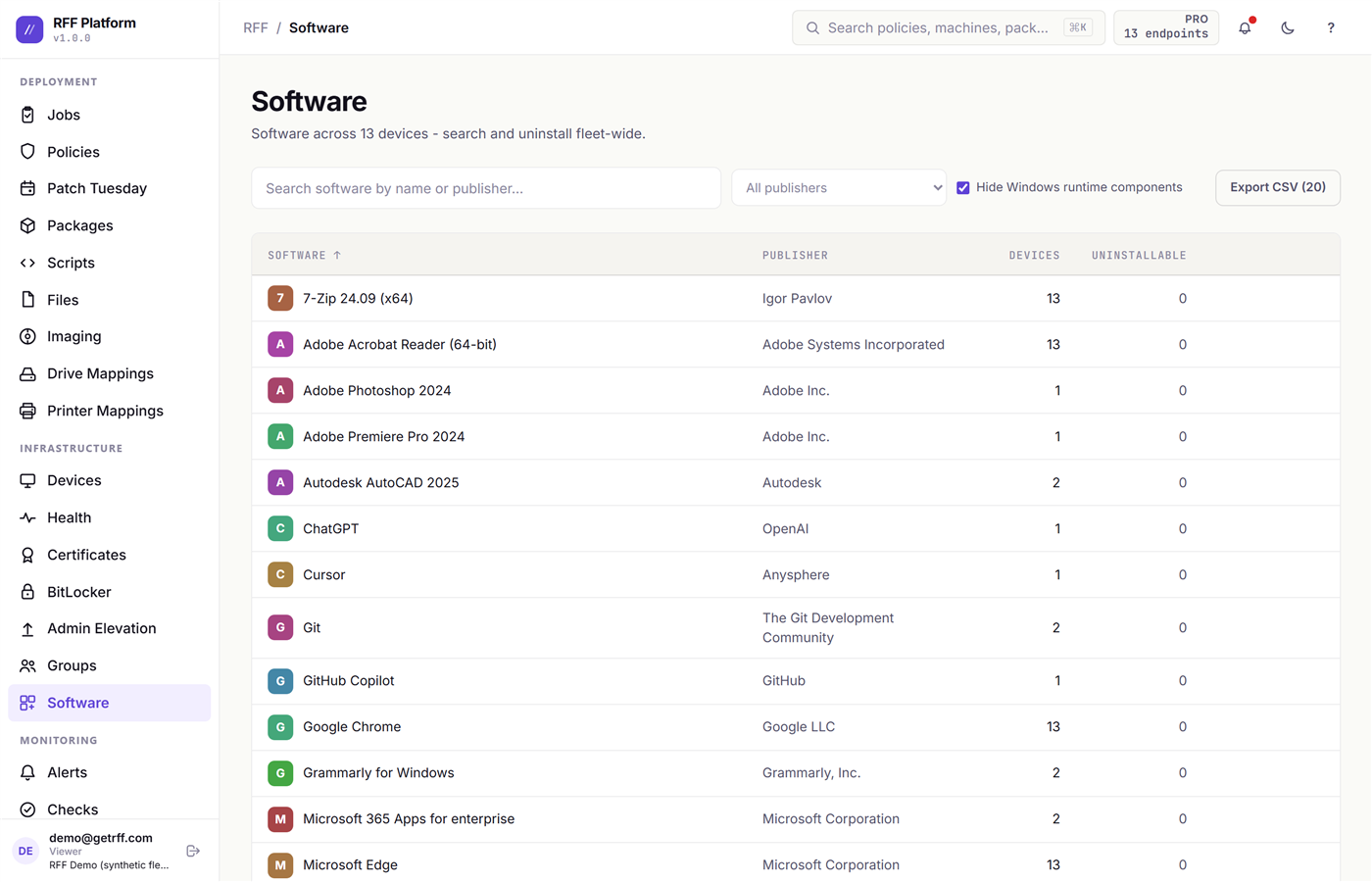
Search a name and you get every machine that has it, with versions. This is the page that answers “are we still running that” in ten seconds instead of a spreadsheet exercise, and it is also where a licensing question stops being a guess.
Found something that should not be there? Select the machines and uninstall it fleet-wide from here. RFF’s uninstall engine handles the awkward vendors - it knows the real silent switches, escalates through several strategies when the first one fails, and verifies the program actually left rather than trusting an exit code.
How to install more - Packages
Packages is a curated library of common Windows applications with the download source, installer type, and silent arguments already filled in - the full list is published here.
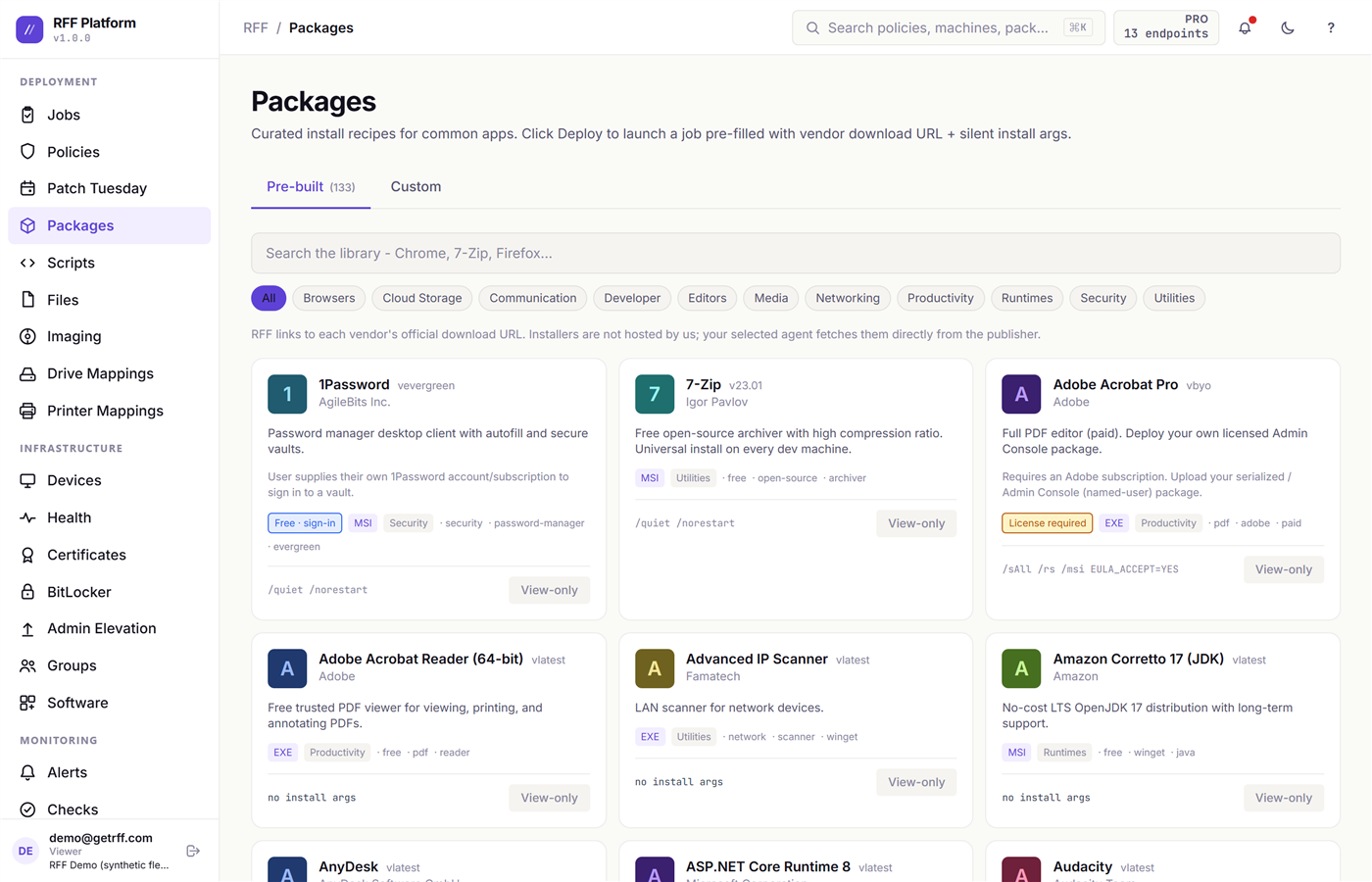
Click Deploy on one and it opens a job pre-filled. No hunting for the vendor’s silent switch, no .intunewin repackaging - RFF deploys plain MSI, EXE, PowerShell, or any script as-is.
For your own software, Files holds your uploaded MSI/EXE/PS1/ZIP artifacts, and any job step can point at one.
Scripts you did not have to write
Scripts is a library of curated Windows operations, each one break/fix tested rather than copied off a forum.
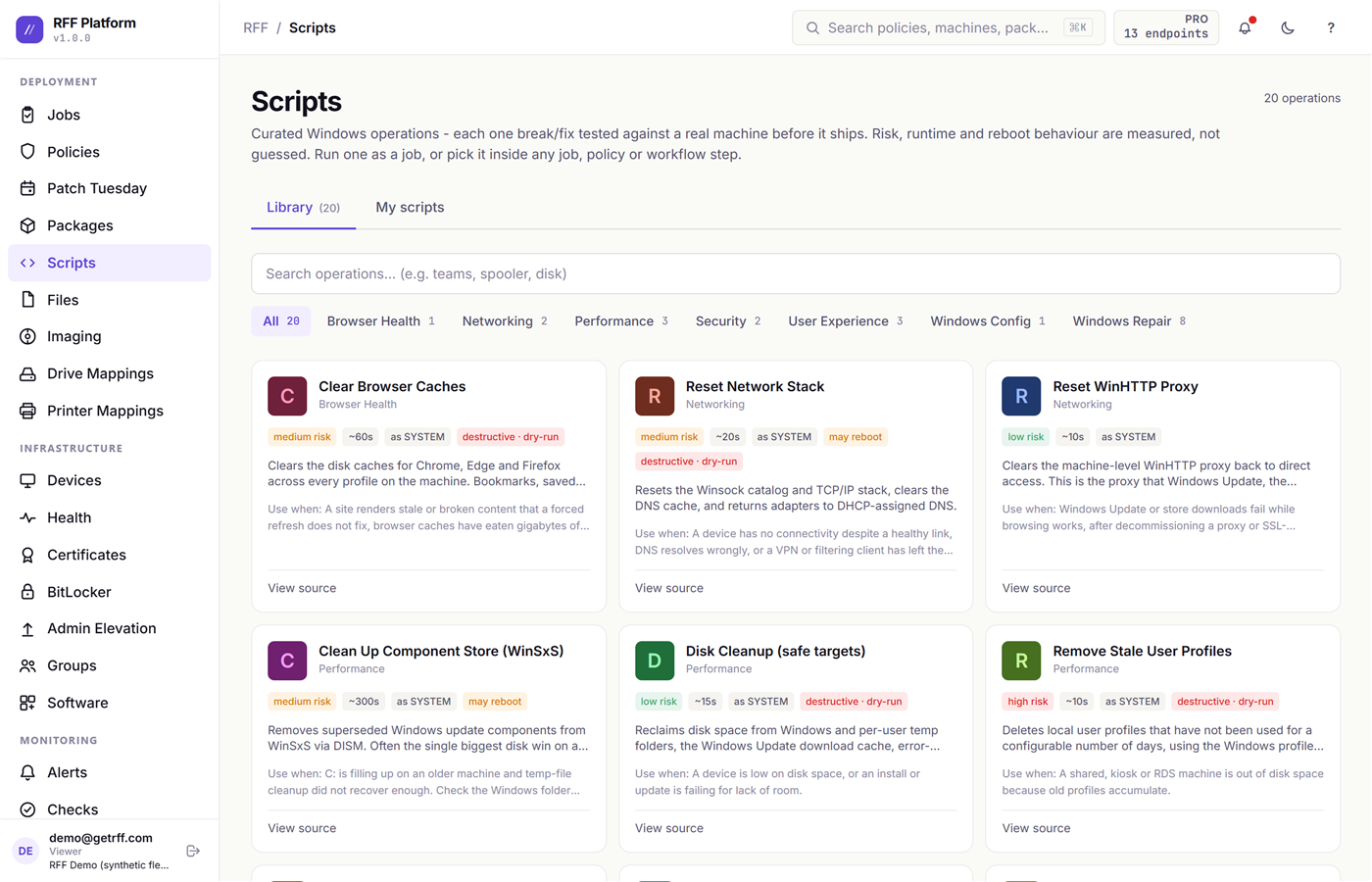
Use them as-is, or as a starting point for your own. Your own scripts live alongside them.
Let users install their own software
The self-service catalog flips the model: publish approved apps and the person at the keyboard installs them from a catalog on their own machine, without a ticket and without local admin. It is the JAMF-style pattern that Windows RMMs mostly do not offer.
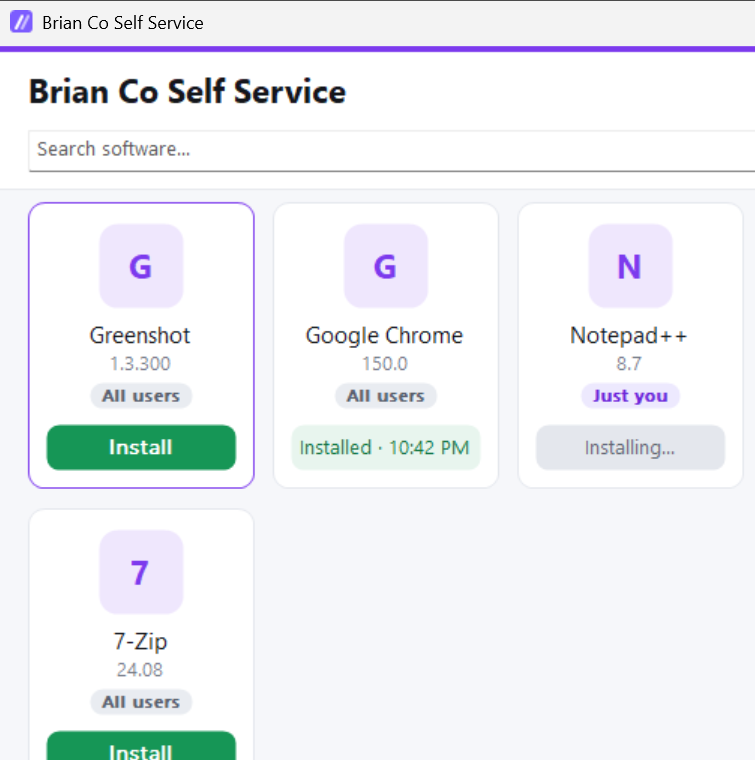
It carries your company name, and each app shows whether it installs for All users or Just you, plus its live state - available, installing, installed with a timestamp, or failed. The user sees the truth about their own machine rather than a support queue.
You pick what appears in it. Nothing publishes itself.
Next: Security posture →
Security posture
None of this needs a new agent or a separate scan. It is the inventory your endpoints already report, asked the questions an auditor asks.
Compliance - the one-screen answer
Compliance is fleet posture at a glance: end-of-life operating systems, antivirus and EDR state, screen lock, firewall, encryption.
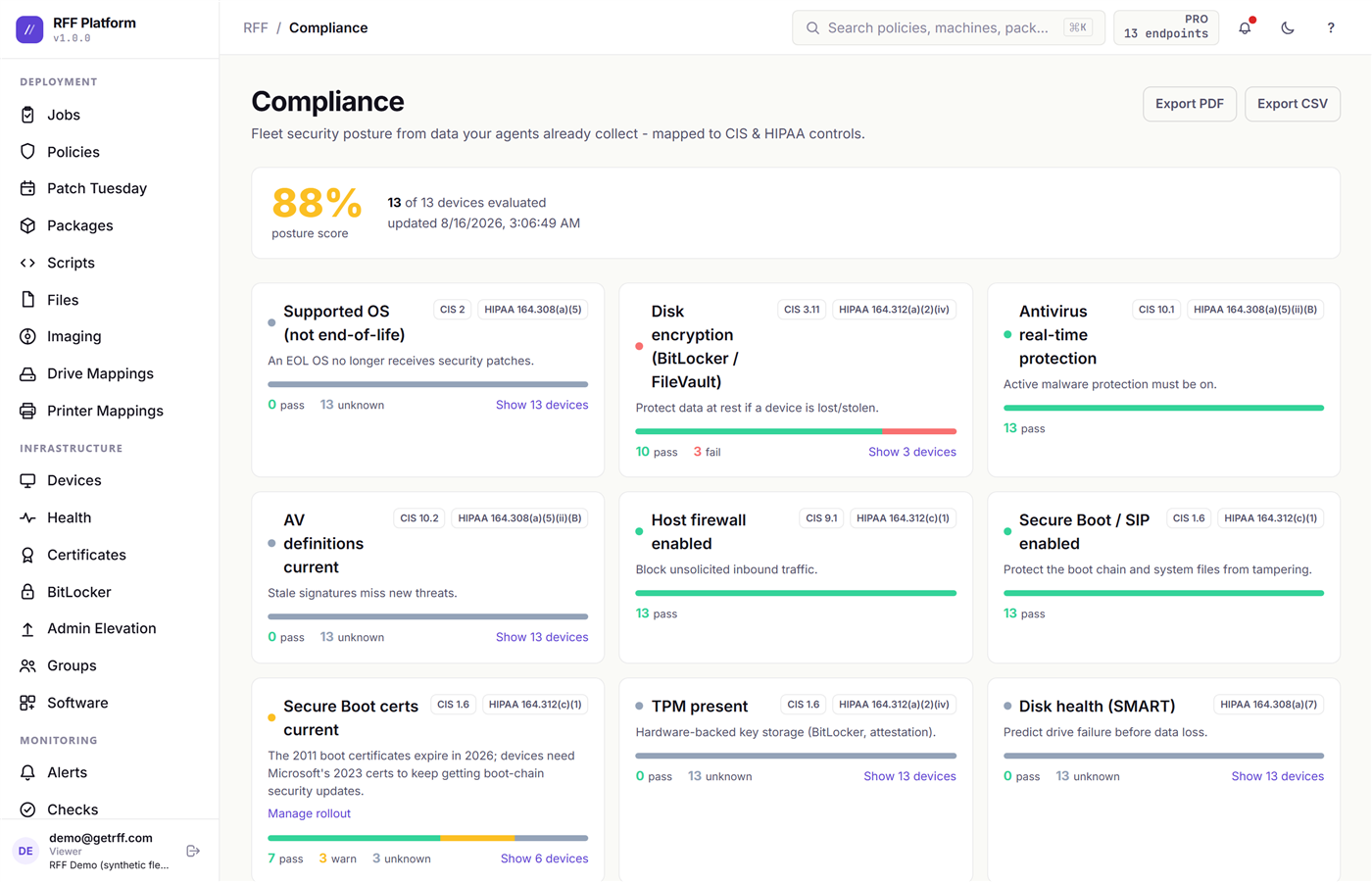
Each control lists the machines that fail it, so a red number is a work queue rather than a score to feel bad about.
BitLocker, and the question that actually matters
BitLocker shows every volume’s encryption state across the fleet.
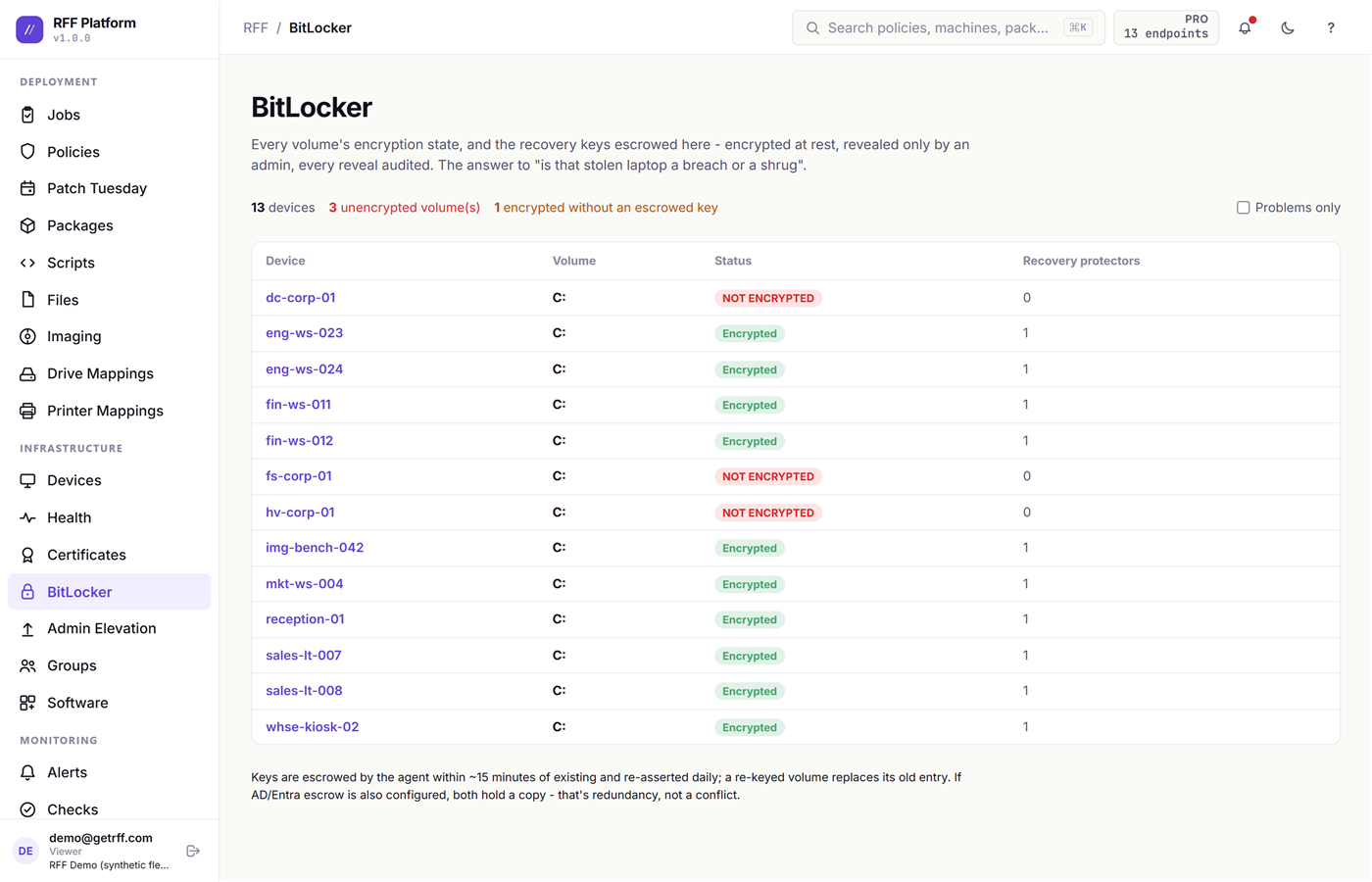
The important half is the recovery keys. RFF escrows them encrypted at rest, and revealing one requires an admin and is written to the audit log. That is the difference between a stolen laptop being a breach notification and a shrug.
Admin Elevation - admin rights with an expiry
Users occasionally need admin for one thing. The usual answers are both bad: add them to Administrators permanently, or have someone type a password.
Admin Elevation grants one specific program admin rights in that user’s session, for a set window.
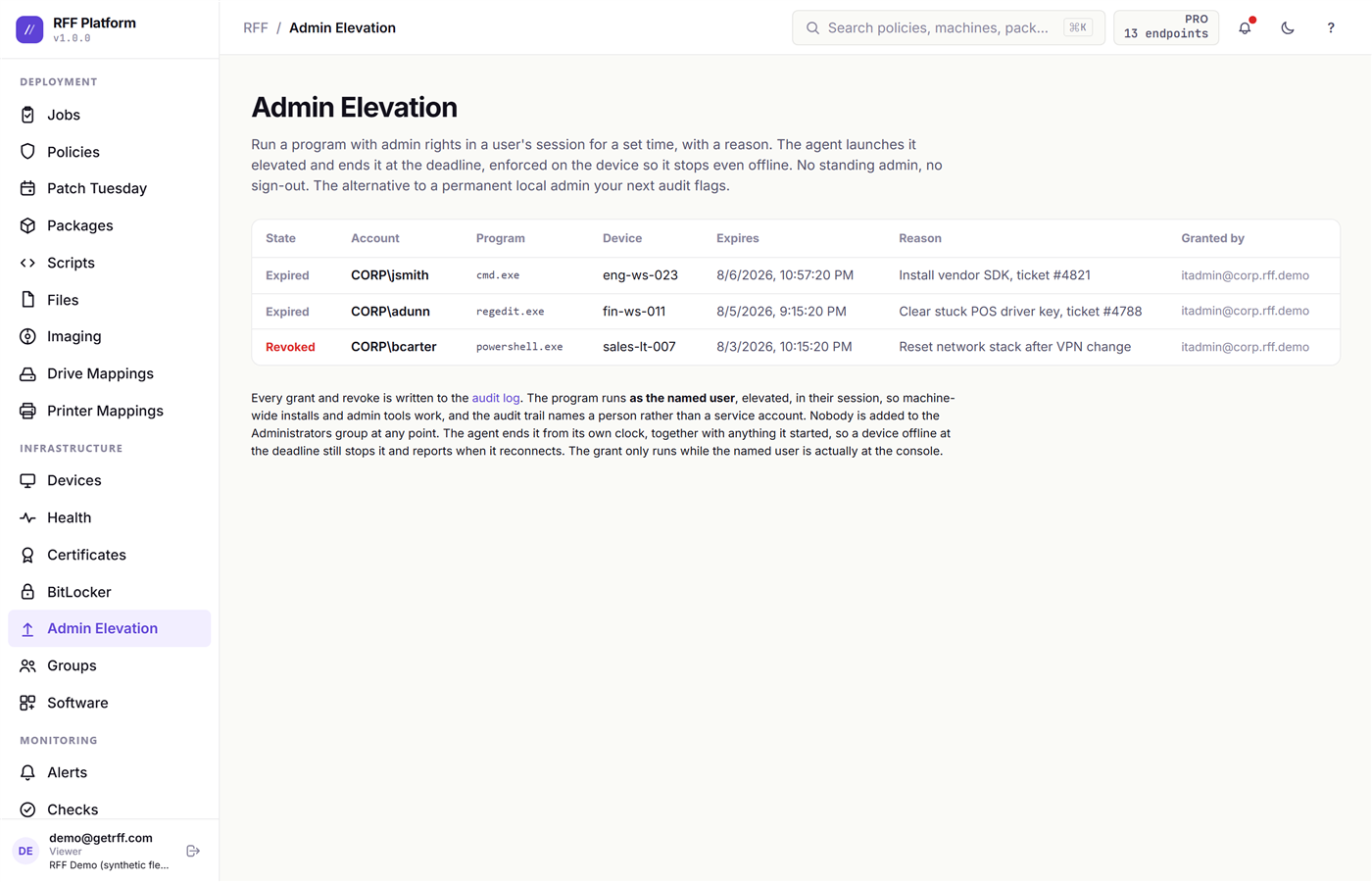
- The grant expires on the machine on its own, with no cleanup job to remember.
- Revoking kills the whole process tree.
- Every grant is audited: who, what program, how long, who approved.
Certificates
Certificates inventories machine certificates fleet-wide, soonest expiry first.
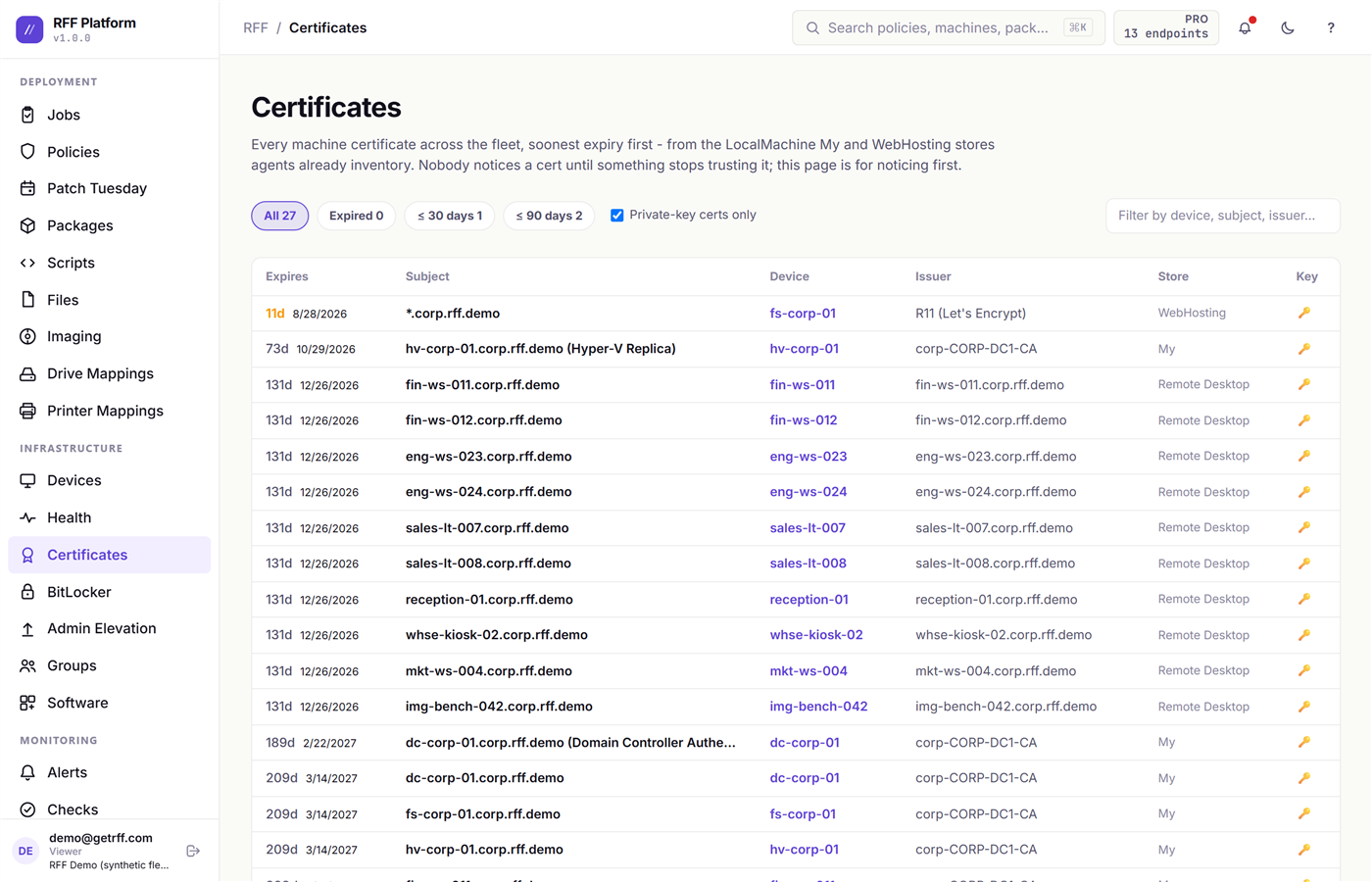
Nobody plans to be surprised by an expired certificate. This is the page that makes it not a surprise.
AI Visibility
AI Visibility catalogs the AI tools on your fleet - installed applications, browser extensions, and the local model runners like Ollama and LM Studio that network-level tooling structurally cannot see, because they never talk to a cloud service.
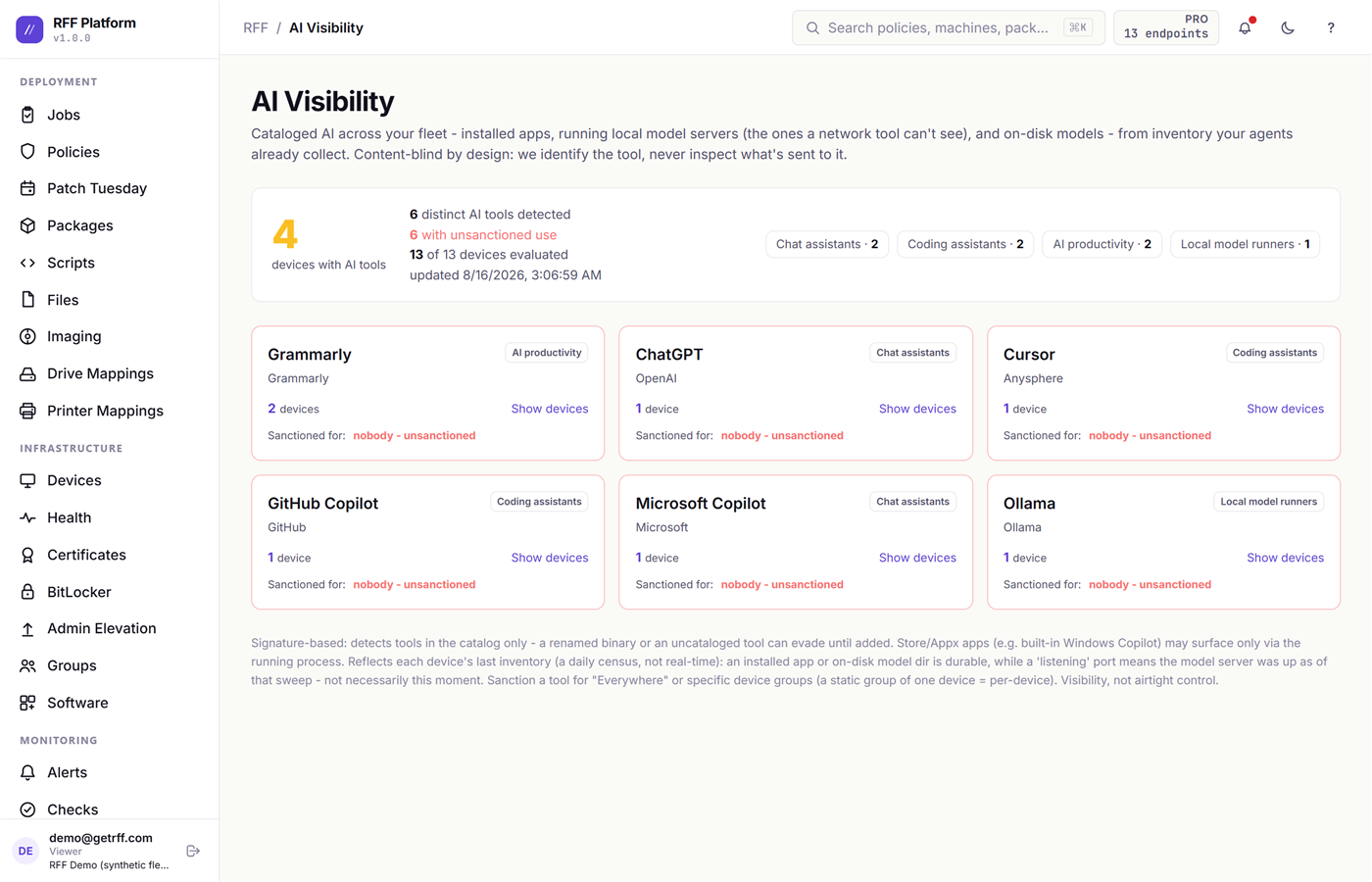
It is deliberately content-blind: identity and metadata only, never a prompt, never a document. The goal is answering “what is being used here” so you can make a policy, not surveillance of your own staff.
Next: The user’s desktop →
The user’s desktop
The two things that used to be trivial with Group Policy Preferences and got harder when shops moved to modern management: mapped drives and printers. Both are back here, and both work the way admins expect rather than the way an MDM wishes they did.
Drive mappings
Drive Mappings maps network drives for users, GPP-style.
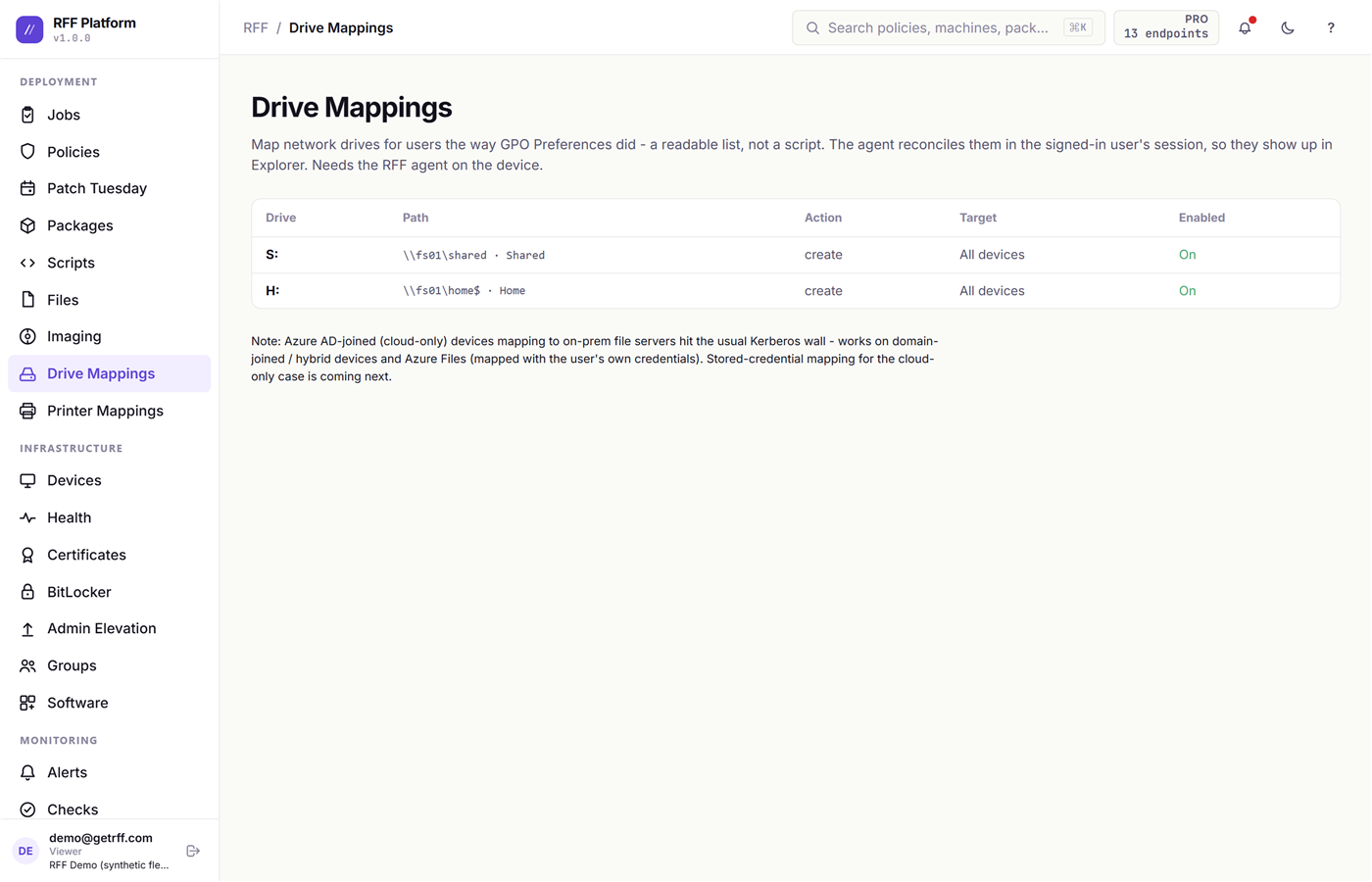
The detail that makes this actually work: RFF reconciles the mapping in the user’s real desktop session, not from a SYSTEM context that cannot see the user’s drive letters. That distinction is why so many script-based approaches “run successfully” and map nothing.
Target by device group or by user / AD security group, the same two axes GPP gave you. Change the target and the mapping follows on the next reconcile - no logon script to edit.
Printer mappings
Printer Mappings does the same for shared printers.
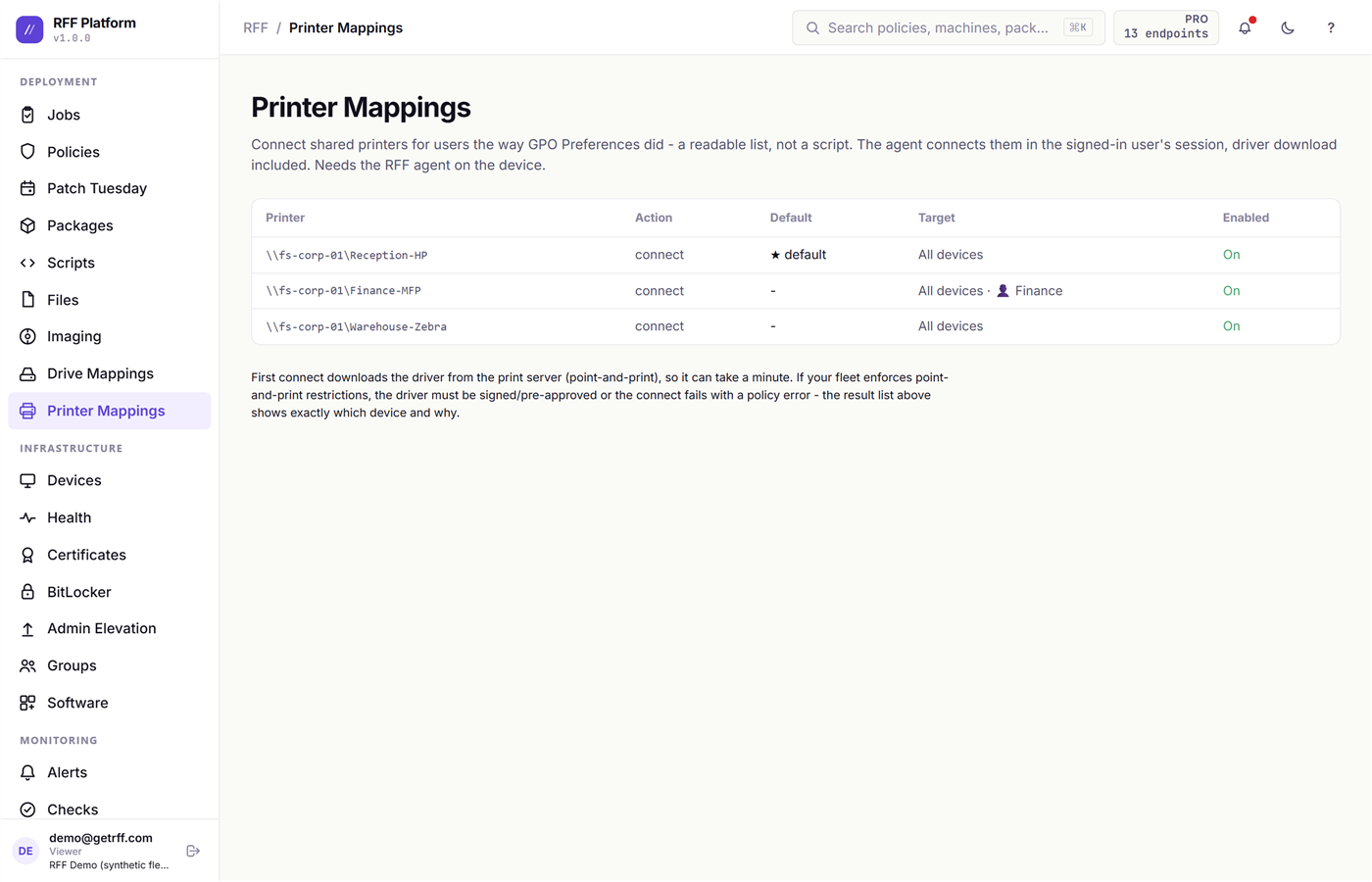
Connect a shared printer for a group of users, set a default, and let RFF keep it connected. The person who moves desks gets the printer at the new desk without a ticket.
Talking to the person at the keyboard
Jobs can put a message in front of a user and branch on the answer - “we need to restart for updates, now or in an hour?” - so a deployment can be polite instead of surprising. That flow has its own walkthrough in Notify and branch.
The same per-session helper powers the self-service catalog, so one component covers notifications, prompts, and user-initiated installs.
Next: Bare-metal imaging →
Bare-metal imaging
⚠ This media erases the target machine
Booting an RFF imaging stick wipes every disk on that computer and installs a fresh copy of Windows. There is no confirmation prompt on the machine, and nothing on it is recoverable afterwards. Only boot it on hardware you intend to rebuild, and label the stick.
The last mile of Windows deployment is usually three touches: image the machine, go back and install the management agent, go back again because the agent installed but never enrolled. RFF’s imaging is one touch.
Build the stick
Open Imaging and build a bootable USB from the console.
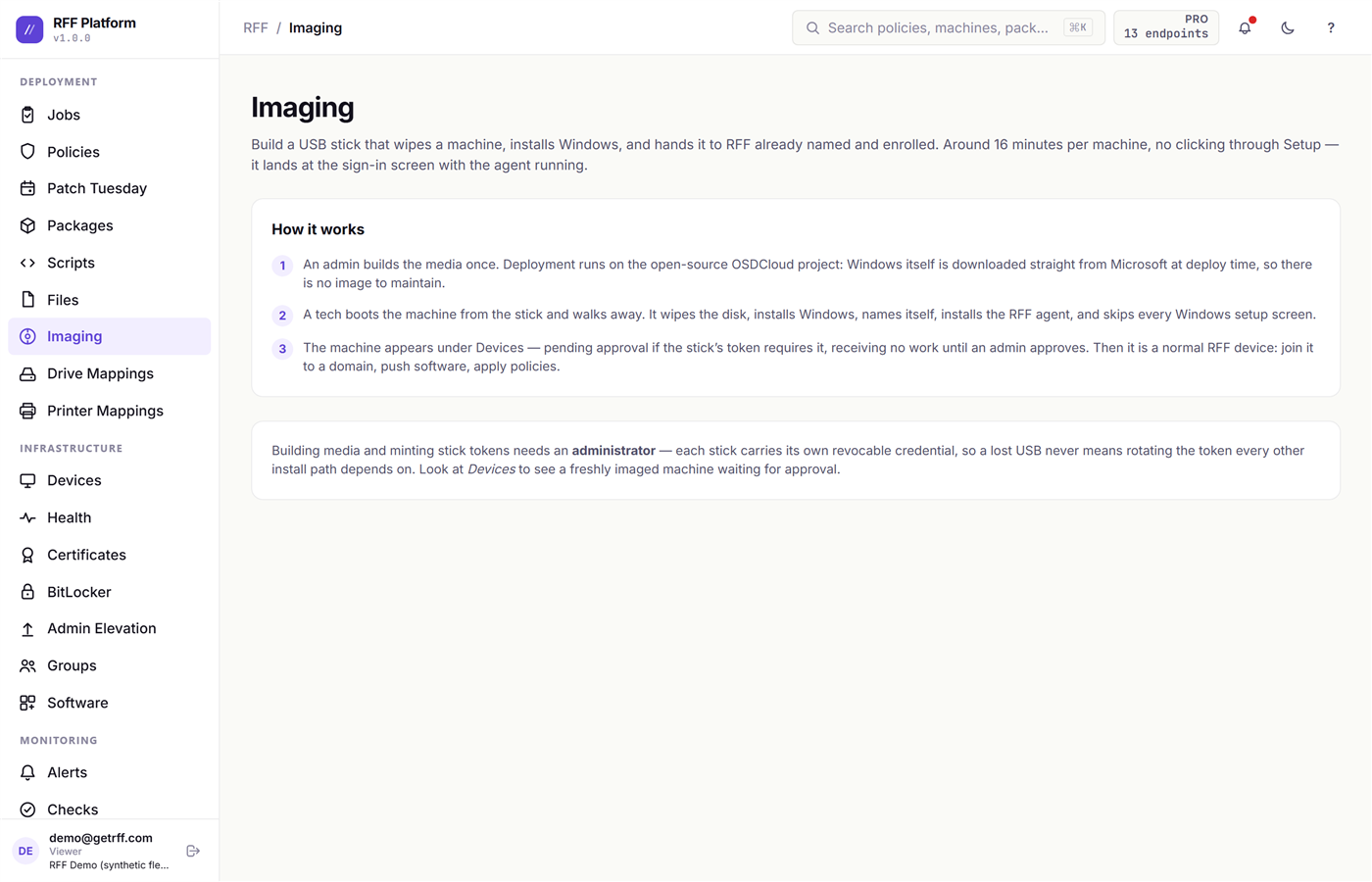
You choose the Windows image, the naming behavior, and whether the machine joins a domain. RFF produces the media.
What happens when it boots
Plug it into a bare machine - one you are deliberately rebuilding - and walk away. In order, unattended, with no prompts:
- Wipes every disk and installs Windows.
- Applies the machine name - either the one you typed at boot or one from your naming scheme.
- Optionally joins the domain, with a pre-check that explains itself if the DC is unreachable rather than failing cryptically.
- Installs the RFF agent and enrolls it to your tenant.
- The device appears in Devices as pending approval.
That last step is the point. The machine is in your console, named and enrolled, before you have walked back to your desk.
The security detail worth knowing
An imaging stick has to carry an enrollment credential, which is exactly the kind of thing that goes missing in a drawer. So each stick gets its own enrollment token, and each one is individually revocable.
A lost stick is a single revoke. It does not force a rotation that breaks every other install path you have, and it does not leave you deciding between a rotation and pretending it is fine.
Local administrator passwords set during imaging are escrowed encrypted to the console and the on-disk copy is removed once the console acknowledges it, so the build does not leave a password sitting in a text file on the machine.
When to use it
Imaging earns its keep on new hardware, on repurposed machines, and on any box you would otherwise rebuild by hand. For machines that already run Windows and just need the agent, the agentless Deploy Agent job in the quickstart is faster.
Next: Reporting →
Reporting
Reports
Reports aggregates inventory across the fleet and exports it. Five tabs across the top, each answering a different question:
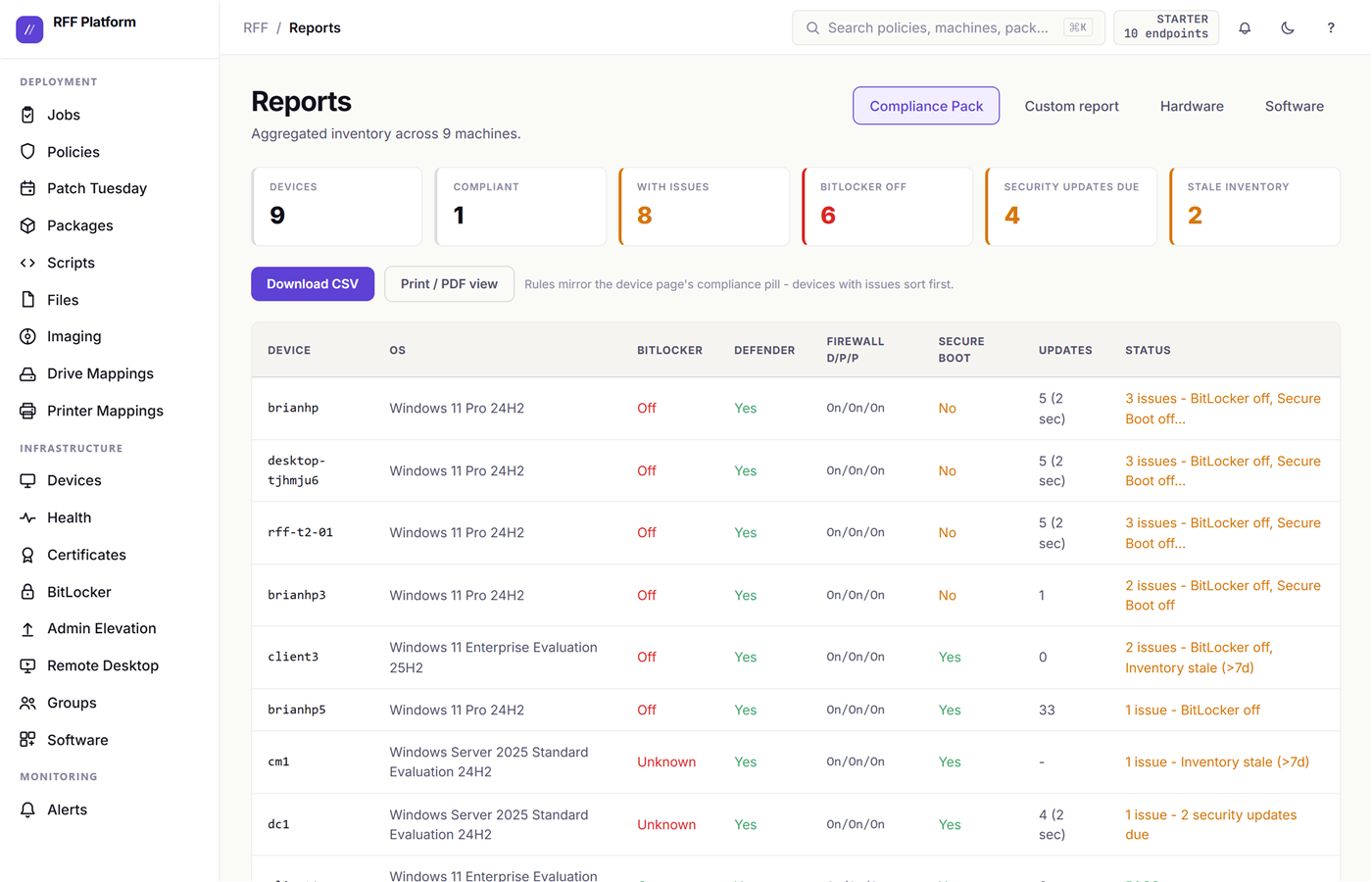
- Compliance Pack - the one to know about. A ready-made export of encryption, patch, and posture evidence, which is usually what someone means when they ask for “proof” at audit time.
- Software - every distinct title across the fleet with how many machines carry it. This is the licensing and standardisation view: which version of what, and where the stragglers are.
- Hardware - the fleet’s physical reality. Models, CPU, memory, disk and age, in one table you can sort and export. The answer to “what do we actually own” without a walk-around.
- Custom - pick a scope, pick your columns, export. Scope is all devices, a saved group, or an ad-hoc custom filter you build with the same rule builder that drives dynamic groups. This is the one for the report nobody anticipated.
- Recurring - a standing weekly, monthly, or quarterly report emailed to people who may not have RFF logins. Covered at the end of this section.
The first four tabs export to CSV, so the answer lands in the spreadsheet the person asking already wanted.
Hardware Fit
Hardware Fit compares each machine’s real measured usage against its specification, so refresh decisions come from data instead of complaint volume.
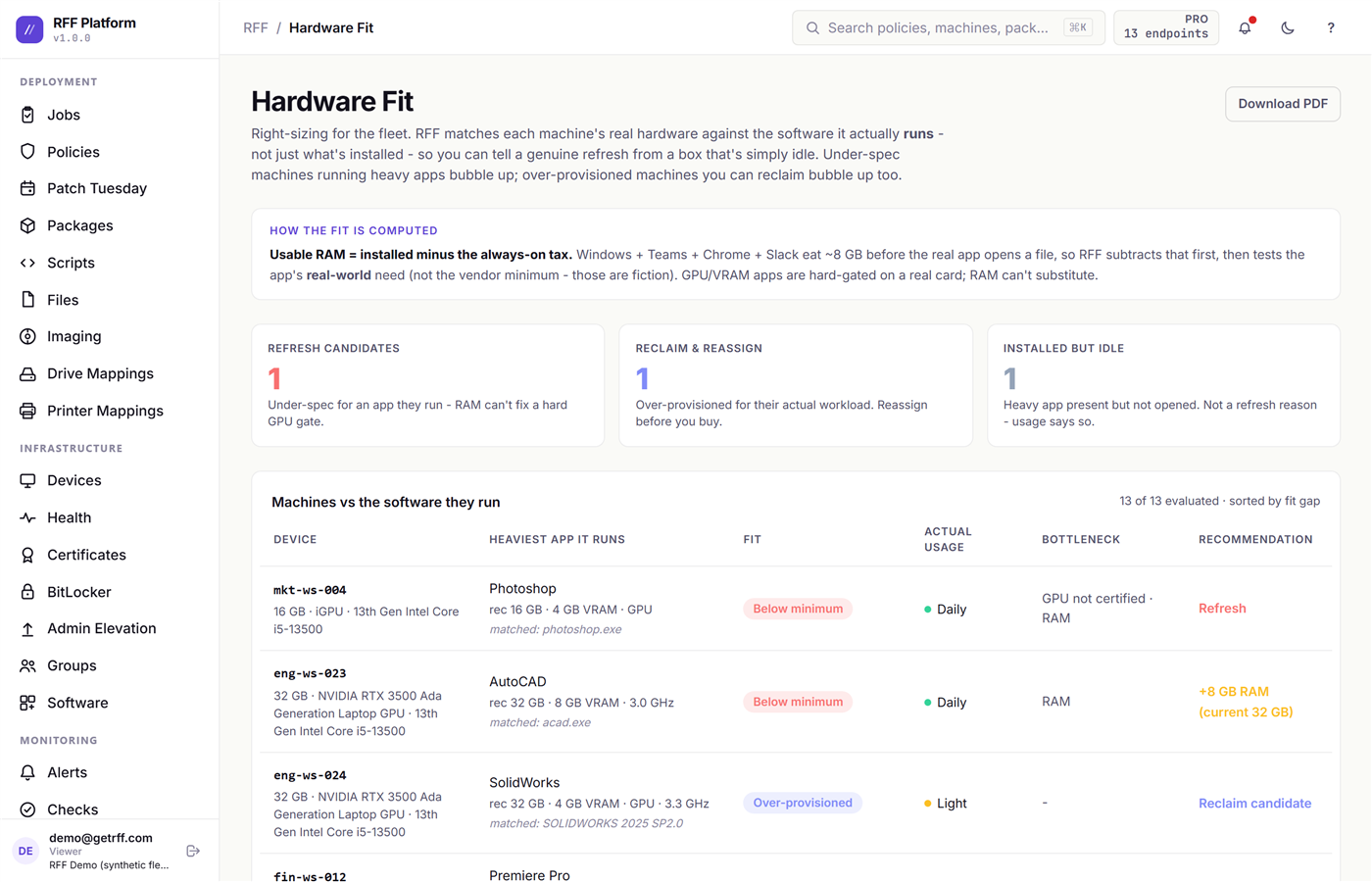
It answers both directions. Which machines are genuinely underspecced for what they run, and which “slow” machines are actually fine and have a software problem instead.
Changes
Changes is the fleet’s activity feed: software installed or removed, policy applied, configuration moved.
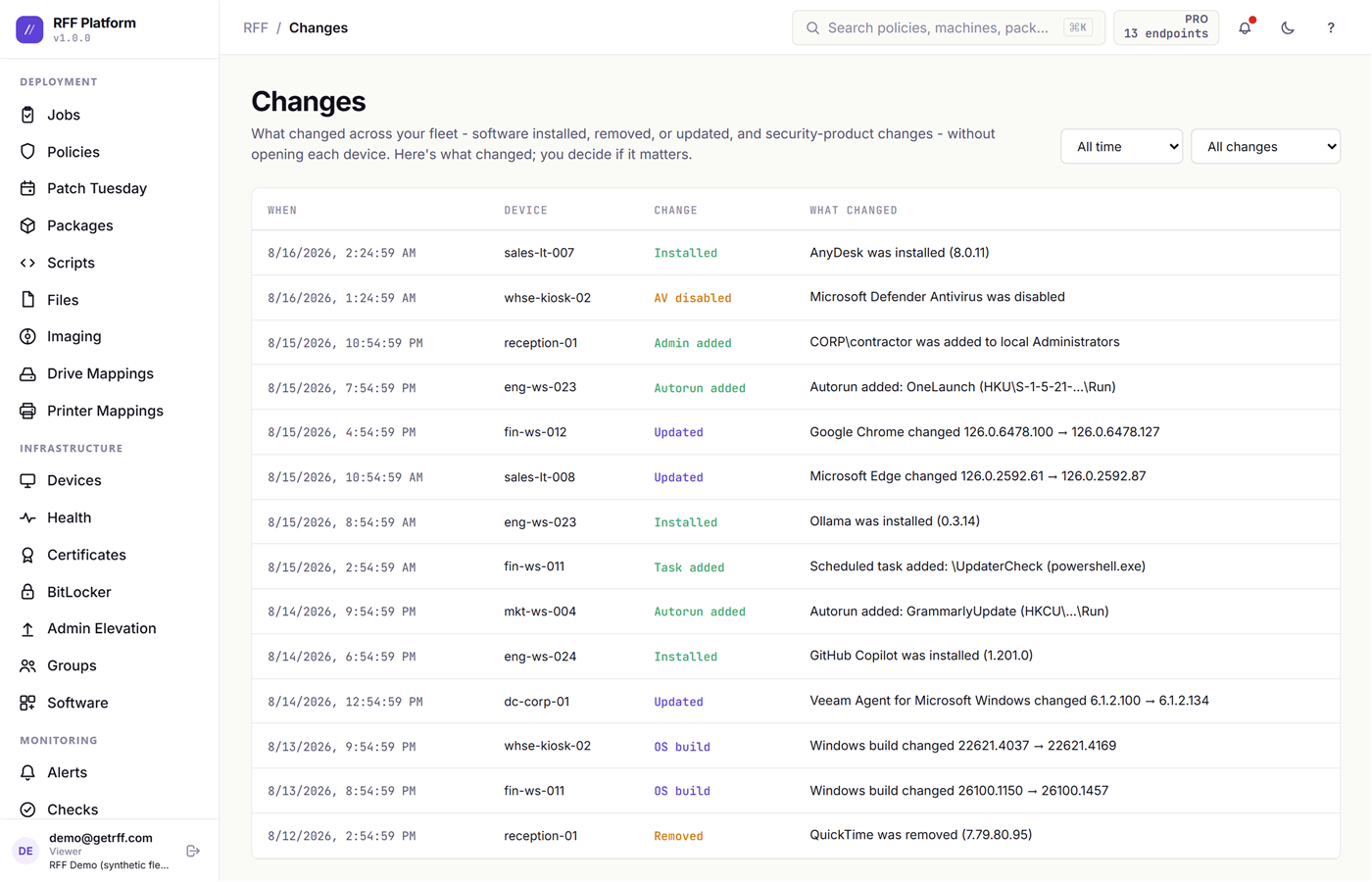
This is the page for “it worked on Tuesday” - you can see what moved between Tuesday and now without reconstructing it from memory.
Audit Log
Audit Log is the separate, security-shaped record: every privileged action, who did it, from where.
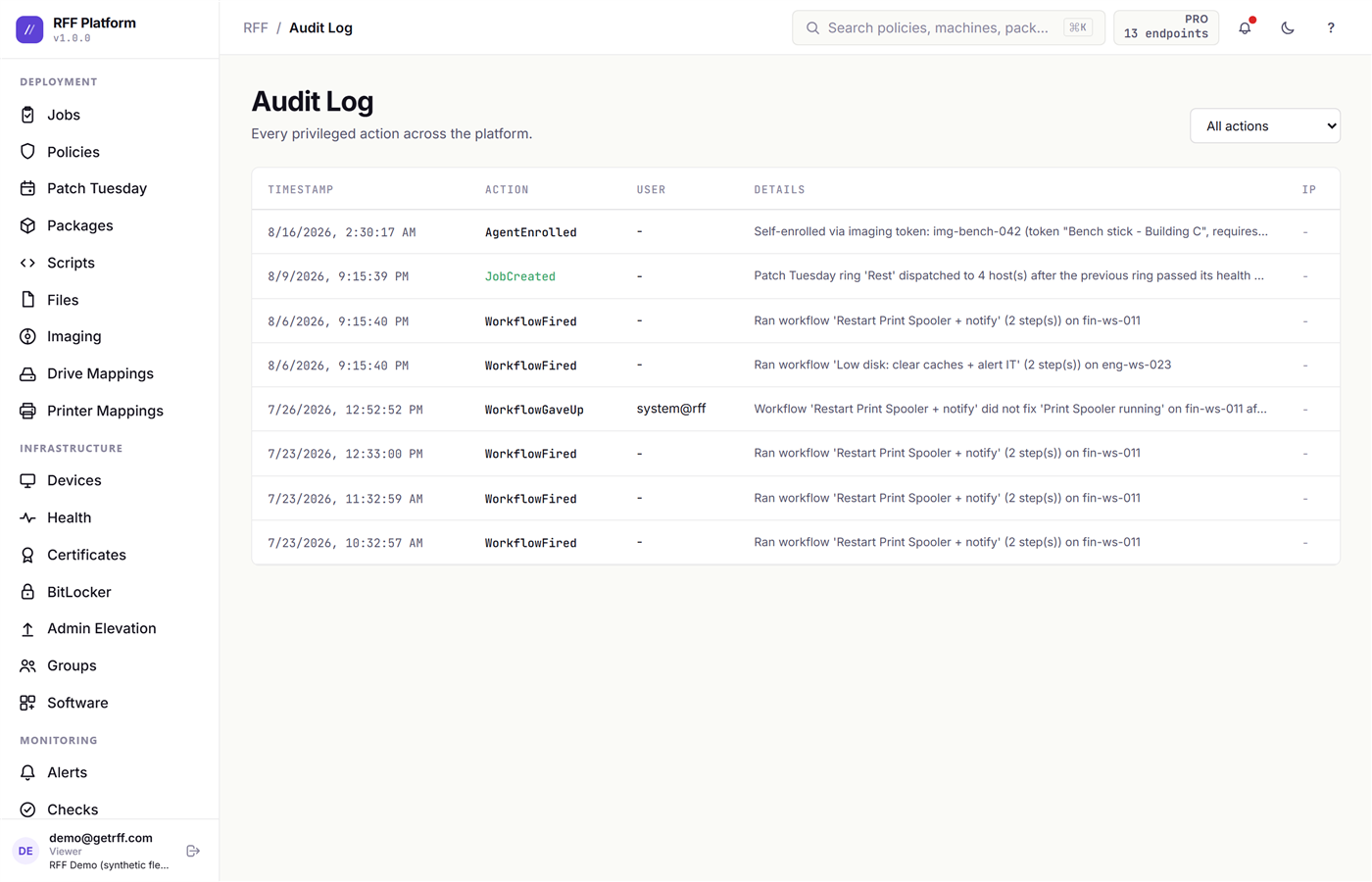
Actions taken by an API key are attributed to that key, not to a person, so an integration can never be mistaken for a human operator. Impersonated and partner-delegated actions get the same treatment.
A report that arrives on its own
Reports -> Recurring. Pick weekly, monthly, or quarterly, add up to five recipients, and RFF emails the fleet’s state on that cadence.
The useful part is not the numbers, it is the deltas. Every figure is shown against the previous period, so the mail says what moved: encryption coverage up, four machines newly out of patch compliance, vulnerability count down by eleven. A snapshot tells you where you are. A delta tells you whether the last month of work did anything, which is the question a quarterly business review actually asks.
The same figures arrive twice, on purpose: as HTML in the body, because an attachment-only report mostly does not get opened, and as a PDF attachment, because “forward this email” is not something you can put in a board pack.
Recipients do not need RFF accounts. This is the report you forward to someone who is never going to log in.
Next: Identity and access - inviting your team, roles shaped like your helpdesk, and directory-driven provisioning.
Identity and access
Who can get into RFF, and what they can do once they are in. Start with the three built-in roles, move to custom ones when those stop fitting, and hand the whole question to your directory when you would rather not be the person adding and removing people.
Your team
Settings -> Users invites people with three built-in roles:
- Admin - everything, including credentials and user management.
- Operator - run jobs, manage devices, use remote tools.
- Viewer - read-only.
Sign-in supports Microsoft and Google SSO alongside passwords, and two-factor for password accounts. The console dispatches code as SYSTEM across your fleet, so treat an admin account there like a domain admin account.
Three roles carry a small team a long way. The two sections below are what you reach for when they stop being enough.
Roles that fit your helpdesk
Settings -> Users, then the Roles section. A custom role starts from one of the three built-in roles and takes capability away. You are not assembling a role from scratch; you are answering “an Operator, except what?”
That is the whole design, and it is worth a sentence on why. A role builder that adds permissions one at a time fails in the dangerous direction: miss a checkbox and someone quietly has more access than you meant. Subtracting can only ever fail toward less access. When we add a new capability to RFF later, an existing custom role does not silently inherit it as a grant.
Twelve capabilities can be withheld:
| Capability | What withholding it stops |
|---|---|
| Run jobs | Deploying software, running scripts, starting any action on a device |
| Cancel jobs | Stopping a job that is already running |
| Manage devices | Retiring, deleting, pinning, and renaming devices |
| Manage packages | Editing the software library and self-service catalog |
| Manage monitoring | Creating or editing checks, workflows, and alert routing |
| Manage credentials | Editing the stored credentials that jobs run as |
| Remote desktop | Taking control of a user’s screen |
| Remote console | Opening a SYSTEM shell on a device |
| Reveal stored secrets | Showing BitLocker recovery keys and break-glass local admin passwords |
| Manage users | Inviting, editing, and removing people |
| Manage settings | Changing tenant settings, branding, and integrations |
| Manage billing | Changing the plan and payment details |
The one most people reach for first is Reveal stored secrets. A tier-1 helpdesk role that can do everything an Operator can do, except read a BitLocker recovery key or a break-glass password, is a two-minute change and closes the gap that actually keeps people up at night.
Reading is the floor and is not a capability you can withhold. A Viewer already sees the fleet; everything in that table is a write or a secret.
Two things worth knowing before you rely on it:
- Enforcement is server-side. All twelve capabilities are enforced by the API, not just hidden in the console. A role without Reveal stored secrets is refused a BitLocker recovery key or a break-glass password by the server; a role without Run jobs is refused at job creation. The base role - Admin, Operator, Viewer - still applies underneath, so a Viewer-based role cannot write no matter which capabilities you tick. One thing to expect: the console still shows controls a role cannot use, so people find the boundary by clicking and getting a plain “your role does not include …” refusal rather than by the button being absent.
- Changes take effect within about 20 seconds, not at next sign-in. Privileges are resolved per-request from the database rather than baked into the token, so revoking access to someone who just walked out does not wait for their session to expire.
Directory provisioning with SCIM
Settings -> Users, then the Directory provisioning (SCIM) section. If your identity provider is Entra ID (Azure AD) or Okta, it can create, update, and deactivate RFF users on its own. New hire lands in the right group, appears in RFF. Someone leaves, their access is gone without anybody filing a ticket about it.
SCIM 2.0 is the standard both providers speak, so this is the same integration shape you already use for Slack or Zoom.
1. Create a token in RFF. On that section, create a token. Copy both values it gives you:
- the SCIM base URL for your environment, shown on the page so you never have to guess it
- the token itself, which is displayed exactly once. RFF stores only a hash. If you lose it, revoke it and make another one.
2. Point your provider at it.
Entra ID: Enterprise applications -> your RFF application -> Provisioning -> Mode Automatic. Paste the base URL into Tenant URL and the token into Secret Token, then Test Connection. It should come back green before you save.
Okta: your RFF application -> Provisioning -> Configure API Integration -> enable API integration, and paste the same two values as the SCIM base URL and API token.
3. Send someone through. In Entra, Provision on demand with a single user is the fastest way to prove the wiring before you turn on the full sync. That user appears in RFF’s Users page with a SCIM badge, so nobody later wonders why an account they deleted by hand came back on the next sync.
Provisioned users arrive as Viewer. That is deliberate least privilege: the directory decides who, an admin still decides what they can do. Promote them in RFF, or assign a custom role, and the sync will not stomp it.
Deactivation keeps the record. When your directory marks someone inactive, RFF disables the account and badges it Deactivated rather than deleting the row, so six-month-old audit entries still resolve to a name instead of a bare id.
SCIM and single sign-on are separate things, and the difference catches people out. SCIM creates the account ahead of time. SSO is how that person signs in. Wire both and the first sign-in links to the account SCIM already made, rather than creating a second one.
Next: The API - wiring RFF into your own systems.
The API
Every plan, free included, gets a documented REST API. Two places to look:
- The API reference - every endpoint with its request and response schema, and a live Try it out console. Click Authorize at the top right and paste a key first, or the try-it calls come back
401. - The API overview - what people build with it, and the key-handling rules, in prose.
1. Mint a key. Settings → API keys → New key. Choose read-only or read-write and an expiry. The key is shown once - RFF stores only a hash, so it genuinely cannot show it to you again.
2. Send it as a header. No OAuth dance, no token refresh, no SDK:
curl https://api.getrff.com/api/targets \
  -H "X-Api-Key: rff_live_xxxxxxxxxxxxxxxx"
3. Ask for something useful. Every device with its inventory:
curl https://api.getrff.com/api/targets \
  -H "X-Api-Key: $RFF_KEY" | jq '.[] | {hostname, os, lastSeen}'
Or create a job from your own automation (this needs a read-write key, and it runs code as SYSTEM on the machines it targets - treat that key accordingly):
curl -X POST https://api.getrff.com/api/jobs \
  -H "X-Api-Key: $RFF_KEY" -H "Content-Type: application/json" \
  -d '{"action":"RunScript","targets":["fin-ws-011"],"parameters":{"script":"Get-Service Spooler"}}'
The guardrails, because a fleet-management API key is a serious credential:
- Read-only by default. Write access is a separate, deliberate opt-in with a plain warning at creation. Most integrations only ever need to read.
- Expiry is enforced server-side. Set 90 days and the server refuses it on day 91.
- Revocation is instant, and revoked keys are kept, so an audit entry from six months ago still resolves to the integration that caused it.
- Rate limits scale with plan (60 / 120 / 600 requests per key per minute for Free / Starter / MSP). Every response carries
X-RateLimit-Remaining; exceeding it returns a clear429withRetry-After, never a silent drop.
Anything a key does is attributed to that key in the Audit Log, never to a person, so an integration can never be mistaken for a human operator.
Common uses: CMDB sync into ITGlue or Hudu, feeding a Grafana dashboard, scheduled compliance exports for an auditor, enriching tickets with a machine’s inventory.
Next: Tickets in HaloPSA →
Tickets in HaloPSA
RFF emails your Halo intake mailbox when an alert opens, and again when it resolves. A Halo email rule turns the first into a ticket on the right asset and closes it on the second. No connector, no API keys, nothing to install.
What RFF sends
The subject carries a token that is identical on the open and the close:
[RFF#1a2b3c4d] RFF alert: Disk space low on WS-042
[RFF#1a2b3c4d] RESOLVED: Disk space low on WS-042
The body opens with a link straight to the device in RFF (remote desktop is one click from there), then a link to the alert, then one field per line for rules to parse:
Device: WS-042
Serial: PF3ABC12
Client: Acme Dental
Alert: RFF#1a2b3c4d
Status: OPEN
Status reads RESOLVED on the close. Serial is there when the device has reported one, and Client is the RFF Site name. These labels are stable: RFF only ever adds lines, so a rule written against them keeps working.
A resolve is only sent for an alert whose open was sent, so Halo never gets a close for a ticket it never opened.
1. In RFF (once)
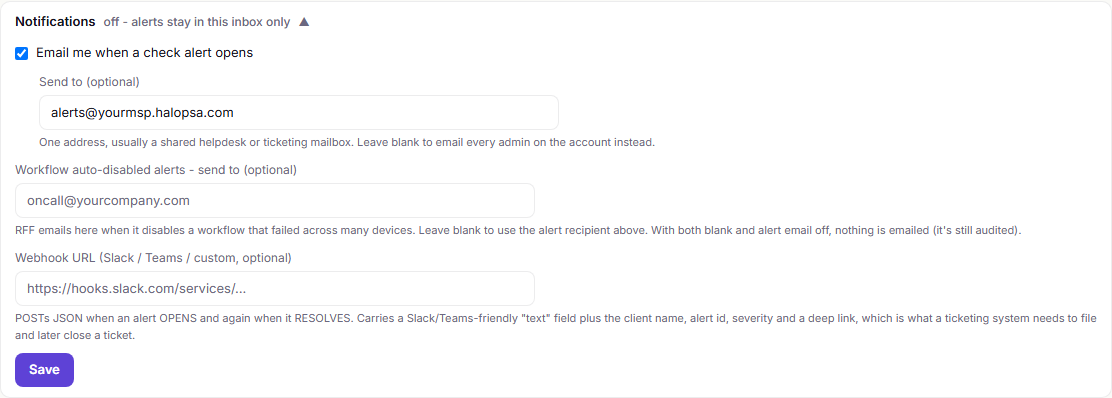
Sites → Default alert routing → Send alert email to = your Halo intake mailbox → Save. Every client Site that hasn’t set up its own alert routing uses it, including Sites you add later. The resolve email goes to the same address.
A Site can still have its own: inside it, Alerts → Notifications → tick Email me when a check alert opens → Send to → Save. A Site’s own routing always wins over the default, so a client on a separate contract can go to a different mailbox. Not running Sites? The same Alerts → Notifications settings work in a single tenant.
2. In Halo
Configuration → Email → Email Rules, add an Alert via Email rule:
| Setting | Value |
|---|---|
| Match | Subject contains [RFF# |
| Ticket type | Your alert or incident type |
| Asset start tag | Serial: (with the trailing space) |
| Asset end tag | End of line (CR) |
| Asset field | The asset’s serial number field |
| Closure string | Status: RESOLVED |
Match on serial rather than hostname: hostnames repeat across clients, serials don’t. If your Halo assets don’t carry serials, use start tag Device: against the asset name instead.
3. Test it end to end
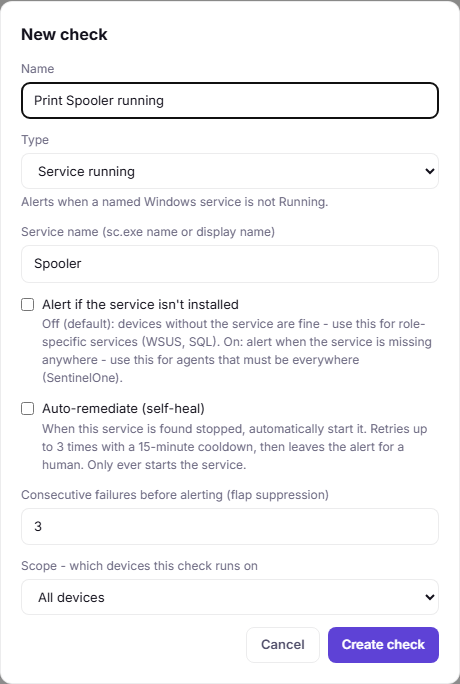
On a test machine, add a Service running check for a service that is stopped. Within a few minutes RFF opens an alert and Halo should open a ticket on that machine’s asset. Start the service: the check passes, the alert resolves, and the RESOLVED email should close the ticket.
Confirm that last step in your Halo. The Halo settings above come from Halo’s documentation and haven’t been run against a live Halo instance yet. If the RESOLVED email doesn’t close the ticket the open created, tell us what Halo did with it.
Prefer the API?
RFF’s webhook sends the same open and resolve events as JSON, including deviceUrl (the device link), serialNumber and alertId. Set it under Alerts → Notifications → Webhook URL, then Send a test event: the result shows exactly what was sent. For everything else, see the API.
That is the tour. The fastest way to see any of it on real data is the live demo - no signup - or start free for 100 endpoints.