The stubborn-installer field manual
I’m convinced some software vendors don’t know how their own installers work. I’ve had support engineers tell me, in writing, that their product “cannot be installed silently” - for an installer whose silent switch took me ten minutes to find. If you deploy Windows software for a living you hit this monthly, and the whole job breaks into four skills: finding the switches nobody documented, reading exit codes correctly, catching the installer when it lies about success, and writing detection that doesn’t flap. This is all four, in the order you need them.
Part 1: find the silent switches
The trick that changes everything: stop asking “what’s the switch for this app” and start asking “what engine built this installer.” Vendors don’t write installers - they wrap their payload in an installer engine, and the engine defines the switches. The vendor usually couldn’t change them if they wanted to.
Fast fingerprinting, in order: the file’s Details tab (Inno, NSIS, InstallShield, Advanced Installer tend to leave their name in the version resources) · the uninstaller filename on an installed copy (unins000.exe = Inno, uninst.exe = usually NSIS, a {GUID} UninstallString = MSI) · strings inside the EXE (“Inno Setup”, “Nullsoft”, “InstallShield”) · and the trench-coat check: many setup.exe files just extract an MSI to %TEMP% - run it, pause at the first dialog, look in temp, deploy the MSI directly.
| Engine | Silent install | Notes |
|---|---|---|
| MSI | msiexec /i app.msi /qn /norestart | Properties go on the end: PROP=value. Add /l*v C:\Temp\app.log while testing - when it fails, you read the log instead of guessing. |
| Inno Setup | /VERYSILENT /SUPPRESSMSGBOXES /NORESTART | /SILENT still shows a progress window. /LOG="path" works here too. |
| NSIS | /S | Capital S. Lowercase does nothing, silently. |
| InstallShield | setup.exe /s /v"/qn" | /v passes args to the embedded MSI. Older non-MSI: record setup.iss with /r, replay with /s /f1"setup.iss". |
| WiX Burn | setup.exe /install /quiet /norestart | Full verb set: /install /repair /uninstall /layout (layout pre-downloads the whole bundle for offline installs) + /log "path". |
| Squirrel | --silent | Electron-era; installs per-user whether you like it or not. |
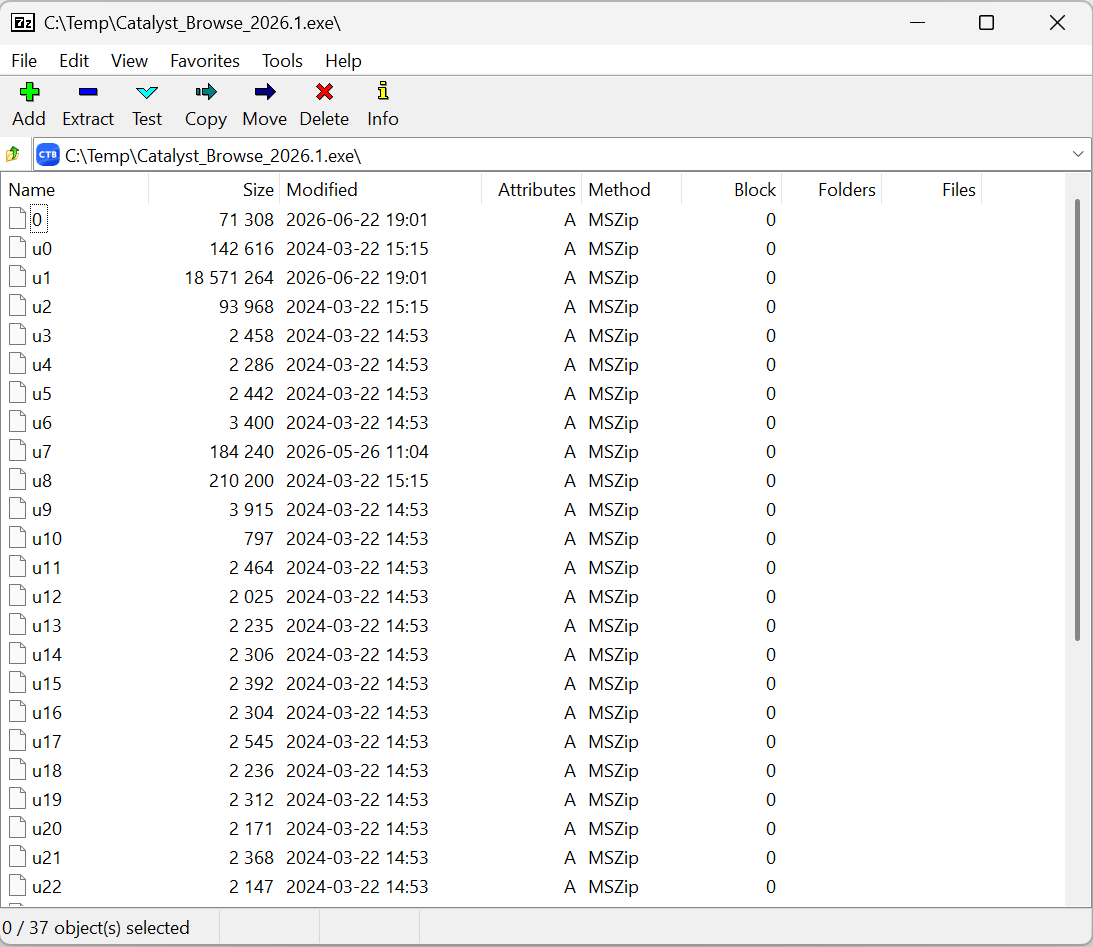
Uninstall is the same logic: pull UninstallString from the registry (HKLM\...\Uninstall plus the WOW6432Node twin, plus HKCU for per-user apps), prefer QuietUninstallString when it exists, and otherwise ADD the engine’s silent flag to the existing arguments. One NSIS landmine: uninst.exe /S copies itself to temp and returns immediately unless you add _?=C:\path\to\app to force in-place execution you can actually wait on.
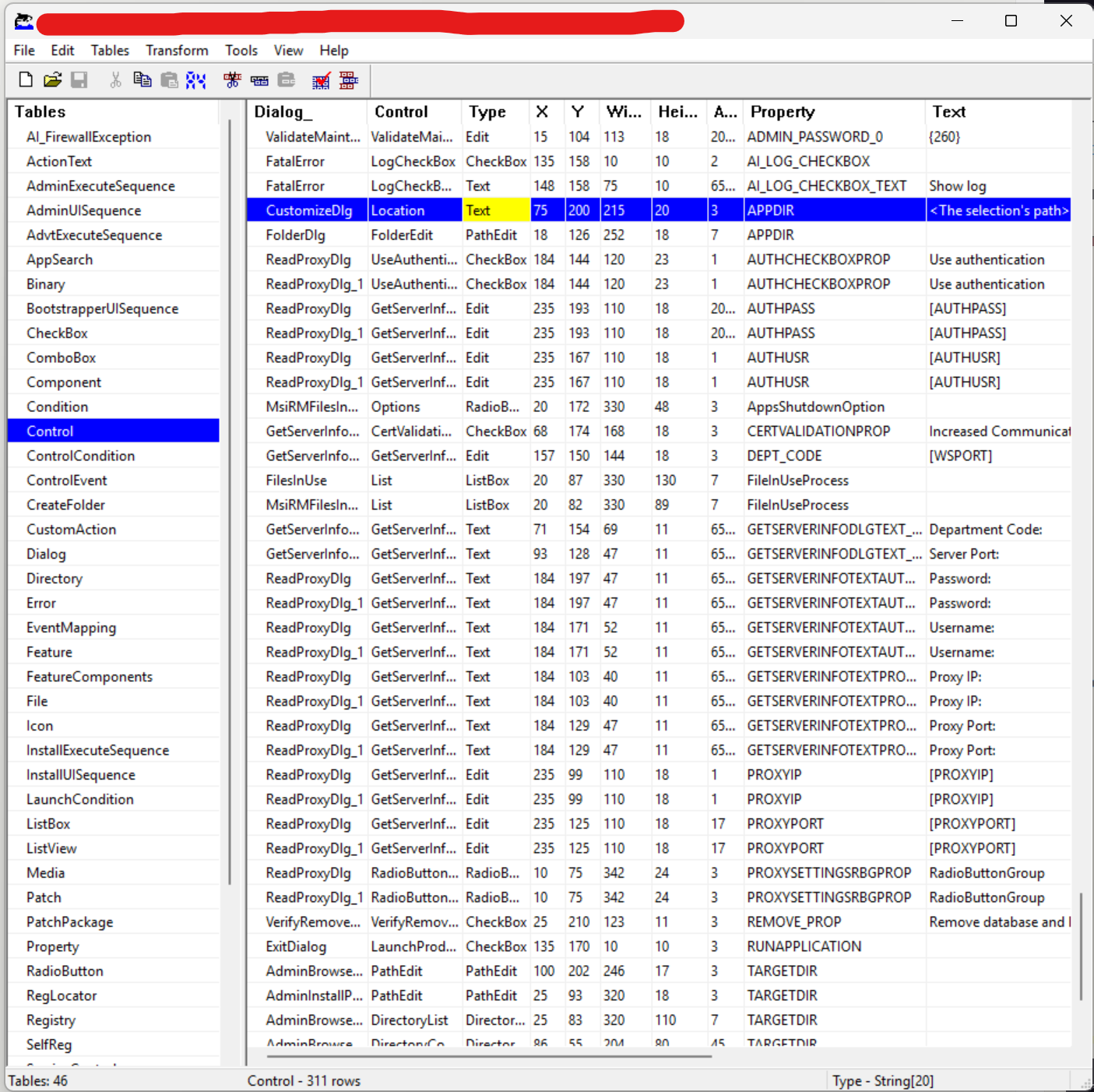
When switches aren’t enough, Orca is where the real answers live. Switches control how an MSI runs; properties control what it does, and that’s where vendor documentation goes to die. Read the Property table (defaults like ALLUSERS, license keys, telemetry opt-outs), the Directory table (the install-dir property is not always INSTALLDIR), and the CustomAction table (the things that bite you as SYSTEM). Then pass what you found: msiexec /i app.msi /qn REBOOT=ReallySuppress DISABLEUPDATES=1. Ten minutes in Orca has fixed more “impossible” deployments for me than every vendor ticket I’ve ever filed, combined.
Part 2: read the exit codes right
Most admins configure 0 as success and move on. Then a third of the fleet reports “failed” on a patch that installed fine. The short list:
Success family. 0 - success (asterisk in Part 3). 3010 - success, reboot required: the most important non-zero code; if your tool doesn’t count it as success, Patch Tuesday looks like a massacre every month. Track the pending reboot, chain a reboot step or reboot-when-idle policy. 1641 - success, and the installer already kicked the reboot itself.
Try-again family. 1618 - another installation in progress. Windows Installer is a global mutex and your deploy lands mid-Windows-Update constantly; don’t blind-retry on a timer, wait for the msiexec mutex to clear with a bounded timeout. 1619/1620 - package couldn’t be opened / isn’t a valid MSI: almost always your delivery (truncated download, share unreachable from SYSTEM, an EXE renamed to .msi), not the package.
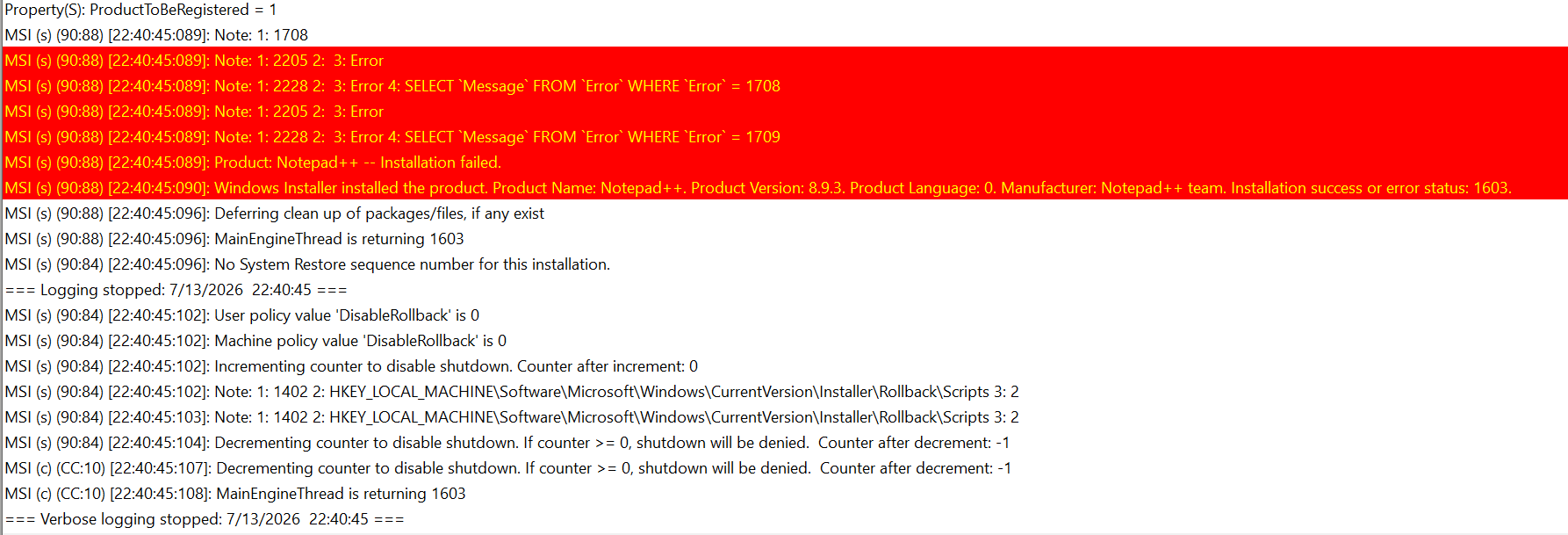
Go-look family. 1603 - “fatal error,” the most famous and least informative code in Windows; it’s a pointer, not a diagnosis (Part 3 shows how to read it). 1605 - product not installed, on an uninstall: arguably success, since the end state you wanted is true - decide explicitly and write the decision down. 1638 - another version installed and the upgrade table doesn’t cover it; loves to appear when a vendor changes their UpgradeCode between “versions.” 1633 - unsupported platform, usually x86-on-ARM64.
Practical defaults: success = 0, 3010 (decide 1605 for uninstalls), wait for the mutex instead of retrying 1618, verify end state on anything you care about - which brings us to the lying.
Part 3: when “success” is a lie
There’s a special ticket only endpoint people get: dashboard green, exit 0, log says Installation completed successfully - and the user is on the phone saying the app isn’t there. They’re both right. Five ways that happens:
The bootstrapper’s exit code. Many vendor setup.exe files extract the real installer, launch it as a child, and exit without waiting. Your tool captures the wrapper’s 0 while the real install is still running - or already dead. Tell-tale: the “install” finishes suspiciously fast.
Success into a profile no human will see. Run a per-user installer as SYSTEM and it can complete perfectly - into the SYSTEM profile (C:\Windows\System32\config\systemprofile\AppData\...). Exit 0, no shortcut any user will ever find. Winget makes this easy to trigger with user-scope-only packages. Detection that works: snapshot what’s visible to actual users (machine-wide ARP in both registry views plus every loaded real-user hive under HKEY_USERS) before, re-check after - a “fresh install success” that added nothing user-visible is a phantom success, which is to say a failure.
The uninstaller that removes nothing. Nobody QAs uninstall. We’ve watched a household-name uninstaller exit 0 having deleted not a single file - product fully functional afterward. Every deployment tool on earth marks that green. Re-read the uninstall registry keys after the uninstaller exits; still registered = failed, whatever the code said.
1603 in reverse. Sometimes the product installed fine and a vendor’s post-install vanity step (cloud registration, shortcut refresh) is what died. Rerun with /l*v install.log, search for the first Return value 3, read the action name above it before you roll anything back. More than one “broken” package is fixed by a property like DISABLETELEMETRY=1.
The log that isn’t there. SYSTEM’s %TEMP% is C:\Windows\Temp (and some services get C:\Windows\SystemTemp, which users can’t even read). Stop hunting default locations - pass an explicit /l*v C:\ProgramData\YourTool\logs\app.log (SwitchHunt’s command builder has a “log to file” checkbox that wires this for you). Caution: /l*v dumps the property table, so a license key or password on your command line lands in the log in plaintext.
Part 4: detection that doesn’t flap
The app installs fine, detection says it isn’t there, the tool reinstalls it mid-meeting forever. Nearly every case is one mistake in different hats: the evidence was checked in a different context than it was written - different user, different registry view, different bitness, different moment. The Intune Win32 versions of it:
- Detection runs as SYSTEM. HKCU in a detection rule is SYSTEM’s own hive - a rule pointed at
HKCU\Software\Vendorwill never see a per-user install. Walk the loaded real-user hives underHKEY_USERS(skip service SIDs and_Classes) from a script instead. Same for%APPDATA%and mapped drives: they resolve to SYSTEM’s world. - The 32-bit sensor. The Intune Management Extension is 32-bit, so Windows redirects it:
HKLM\SOFTWARE→WOW6432Node,System32→SysWOW64. Your rule can be reading a parallel universe where the 64-bit app doesn’t exist. Set the “32-bit app on 64-bit clients” option deliberately, open the 64-bit registry view explicitly in scripts, reach the real System32 viaC:\Windows\Sysnative\.... When an installed app won’t detect, check redirection before anything else. - Version comparisons that aren’t.
DisplayVersion“10.4” vs “10.10” compared as a string says 10.4 is newer, and some vendors ship values like “2024 R2”. Prefer the main EXE’s file version, or compare in a script with[version]casts and fallbacks for the garbage. - ProductCode vs. upgrades. MSI major upgrades change the ProductCode - then Intune decides the app is gone and reinstalls the old version over the new one. For anything that self-updates (browsers, agents), detect on version-aware evidence: uninstall-key
DisplayVersionor file version greater than or equal to your floor, never equal-to. - Script detection’s two-part contract. “Installed” = exit 0 and something on STDOUT. Exit 0 with no output is not-detected; a stray debug
Write-Outputon the failure path detects everything forever. The whole template:
$exe = "C:\Program Files\App\app.exe"
$found = (Test-Path $exe) -and ([version](Get-Item $exe).VersionInfo.FileVersion -ge [version]"8.9.0")
if ($found) { Write-Output "detected"; exit 0 } else { exit 1 }
Nothing else prints, ever.
- The timing tail. Detection runs right after the install command returns; installers whose evidence lands late (bootstrapper children, deferred ARP writes) fail the immediate check and pass on retry, which reads as flapping. Detect on the earliest evidence written synchronously.
The rule under all of it
Exit codes and logs are claims made by the party being evaluated. The registry, the file system, and the process list are witnesses. Verify the end state - as SYSTEM, on one machine, both directions (install lands where humans can see it, uninstall actually removes) - before anything goes to a thousand. Stop grading installers on their own homework.
Two tools, since this is the manual version of both: SwitchHunt is my collection of badly-behaved installers turned into a free tool - drop an EXE or MSI on the page, it fingerprints the engine, returns install/uninstall strings and MSI properties, and can emit a .intunewin or PSADT v4 wrapper; runs entirely in your browser, open source. And RFF, the paid deployment tool this site is about, ships the whole philosophy as defaults: 0/3010 out of the box, MSI-mutex wait, verify-after on installs and uninstalls with phantom-success reported as the failure it is. Full disclosure either way: I built both, SwitchHunt is free and stays that way, and if it fingerprints an installer wrong, send it to me - those are the ones that make it better.